Shopping Cart Page
Use the Shopping Cart page (PV_MOB_855_SR_CART) to view and modify items in your cart. Select the Checkout button to check out items and save or submit requisitions.
Navigation:
This example illustrates the fields and controls on the Shopping Cart page. You can find definitions for the fields and controls later on this page.
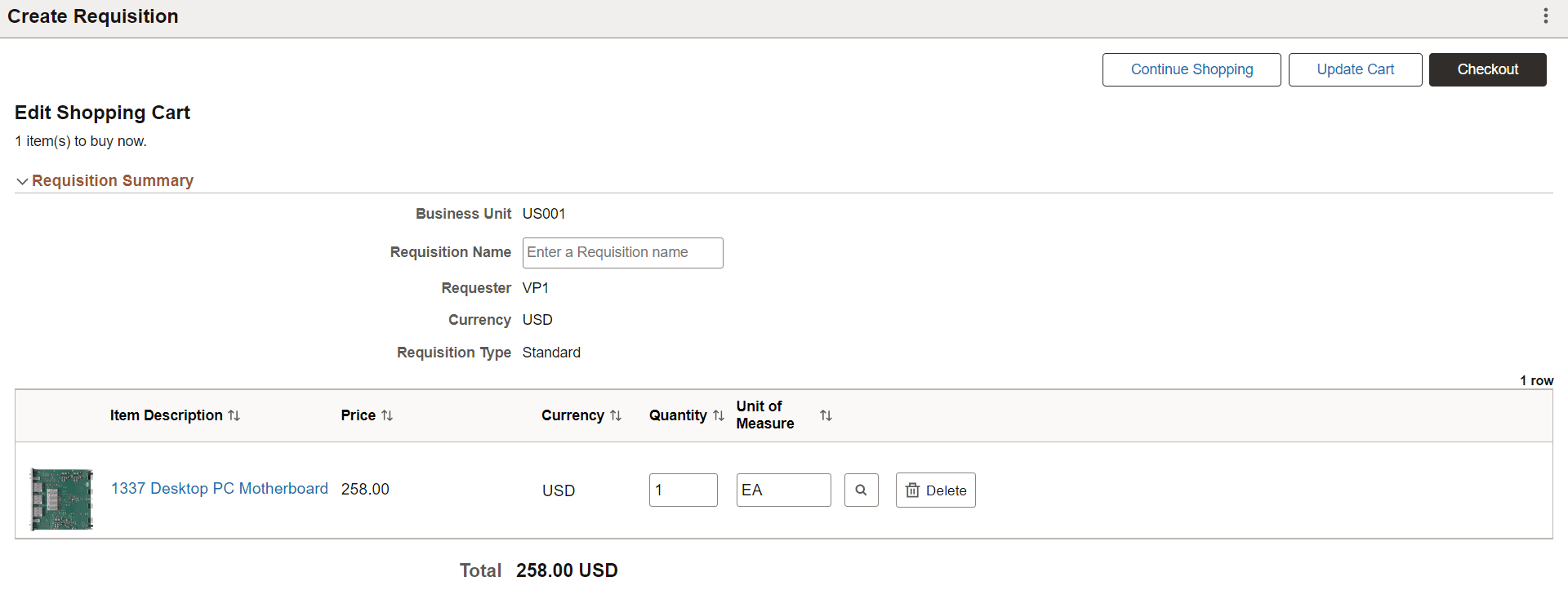
Use this page to make changes to the requisition and submit it again. You can perform the following operations:
Users can access the Edit Requisition page, make changes to the requisition, and submit it again. These operations can be performed when editing a requisition:
-
You can modify the Quantity if the requisition line is not multi-scheduled.
-
You can add or remove requisition line items, and split quantities into multiple schedules and distribution lines.
-
You can perform budget checking and pre-checking process.
-
You can either cancel the edit operation or save changes and submit the requisition.
-
After the requisition is saved or submitted, you can view the My Requisition and Create New Requisition buttons from the Confirmation page.
| Field or Control | Description |
|---|---|
|
My Requisitions |
Select this button to return to the My Requisitions page without saving changes. This button appears on the Confirmation page. |
|
Continue Shopping |
Select to return to the Create Requisition: Browse Catalogs Page. This button appears on the Checkout Page. |
|
Update Cart |
Select this button to save any changes and update the requisition. |
|
Checkout |
Select to access the Checkout Page. |
|
Business Unit |
Displays the name of the business unit. |
|
Requisition Name |
Enter a description of the request to help you identify this requisition as it flows through the system. If this field is left blank, the system uses the requisition ID as the name. |
|
Requester |
Displays the ID of the requester. |
|
Currency |
Displays the currency that is selected for the business unit |
|
Requisition Type |
Standard, Bill Only, and Bill and Replace Requisition Types will be display only if there are items in the cart. |
|
Item Description |
Click on this link to view the item details and images. |
|
Quantity and Unit of Measure |
Modify the quantity, unit of measure (UOM), or both. Note: The UOM can be edited only if the Allow Editing of UOM check box is selected on the Setting Up Installation Options for Fluid eProcurement. |
|
Delete |
Select to remove the item from the cart or requisition. |