Checkout Page
Use the Checkout page (PV_MOB_NEW_CHEKOUT) page to verify and perform various actions to the requisition and requisition lines.
Navigation:
This example illustrates the fields and controls on the Checkout page (1 of 2). You can find definitions for the fields and controls later on this page.
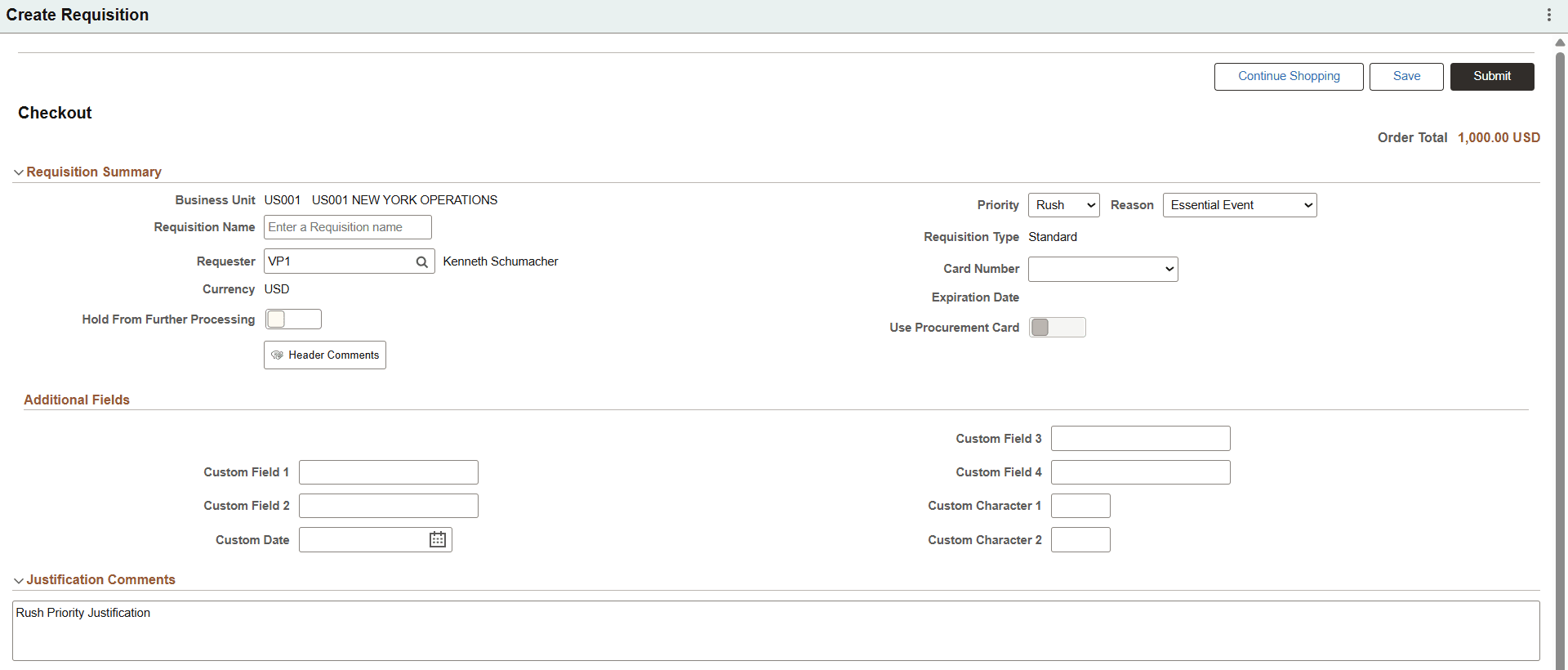
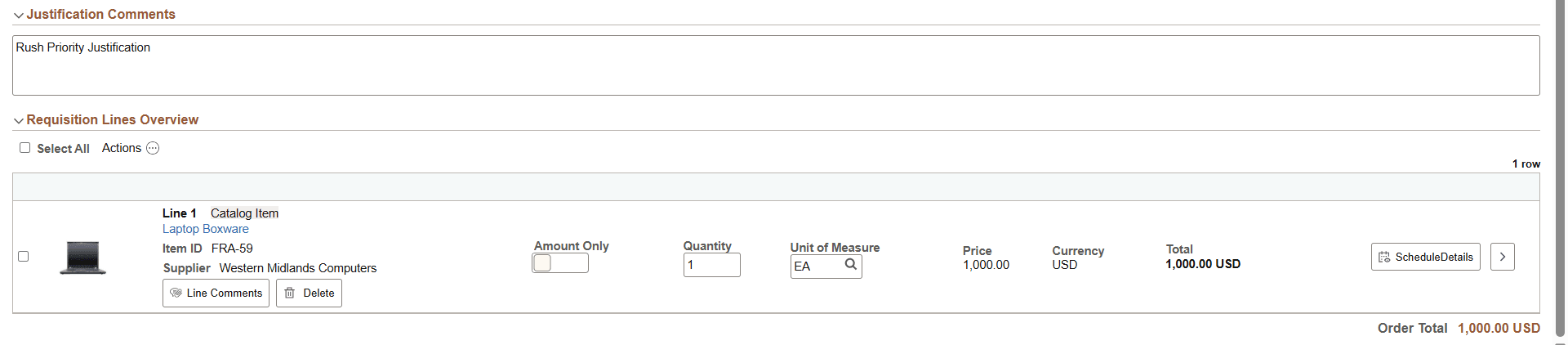
This example illustrates the fields and controls on the Checkout page (2 of 2). You can find definitions for the fields and controls later on this page.
| Field or Control | Description |
|---|---|
|
Save |
Select to save the requisition and submit it later. The Save Confirmation Page appears. |
|
Submit |
Select to submit the requisition for approval. Select the Submit button on Checkout page to view the Save Confirmation page (PV_MOB_855_CONF). The Save Confirmation page displays the finalized requisition details that was submitted for approval. |
|
Continue Shopping |
Select to return to the Create Requisition: Browse Catalogs Page. |
Requisition Summary
| Field or Control | Description |
|---|---|
|
Requisition Name |
Select to enter a description of the request to help you identify this requisition as it flows through the system. If this field is left blank, the system uses the requisition ID as the name. |
|
Requester |
If the CHANGEREQBU role action is enabled on the Assign Role Actions To Roles Page, you can change the requester on this page.
Note: Changing the requester is not allowed while editing an existing requisition—this option is only available when creating or copying a requisition. |
|
Priority |
Select a requisition priority from the drop-down. The choices are Rush, High, Medium, or Low. Rush priority is available only if the ALLOW_RUSH_REQ role action is assigned to the user on the Assign Role Actions To Roles page. Note: When Rush is chosen from the drop-down the following message appears: "Selecting Rush priority for requisitions may incur additional costs." When you select Rush as the priority, the Reason Code field becomes visible and enabled, allowing you to choose an appropriate reason for marking the requisition as Rush. You cannot save the requisition until a Reason Code is provided. You may also need to add an additional justification in the Justification Comments field to explain the reason for the rush requisition. After entering a Reason Code for Rush, the information remains visible and saved, even if you leave and return to the session. For more details about Reason Codes page, refer PeopleSoft Strategic Sourcing: Setting Up Reason Codes. |
|
Header Comments |
Select to accesses the Requisition Header Comments and Attachments page where you can add comments and upload one or more supporting documents. The system displays an error message if you try to load more than the number of attachments specified on the Application Fundamentals: Installation Options - Multiple Attachments Page for Purchasing product. Use this page to enter comment text and indicate whether to send the comment to the supplier, show the comment at receipt, and show the comment at voucher. Select the comments and attachments to view the collated header comments and attachments for the requisition. You can also add multiple comments and attachments for the requisition. MULTI_COMMENTS role action controls whether the user can add multiple comments and attachments for the requisition or not. |
|
Card Number |
Select to enter a credit card number |
|
Use Procurement Card |
Select to indicate that a Procurement card is to be used. |
|
Hold From Further Processing |
Select to place the requisition on hold and prevent it from moving forward in the workflow. Note: When you select this button, you cannot submit the requisition for approval until you remove the hold. Requisitions cannot be closed, sourced to a PO, or sent to an RFQ while on hold, because the requisition status remains Open when you save the requisition. You can save the requisition for later and leave the held requisition in the persistent cart with the hold setting. |
Additional Fields
Additional Fields provides the drop zone custom fields configured on the Requisition Type Template Page.
Justification Comments
Enter comments to justify the need for the requisition. These comments appear on the Requisition Approvals page.
Requisition Lines Overview
Use this section to apply the selected action to one or many lines. Click on an item name link to access the Item Description window.
| Field or Control | Description |
|---|---|
|
Select All |
Select this check box to select all line items. |
|
Actions |
Select the check box against the required requisitions to collectively perform the following actions:
For more information, see Submitting Requisitions. Select to access the Mass Change page (PV_MOB_855_MAS_SCF) where you can change the following:
|
|
Amount Only |
Select Yes to indicate that the line is an amount only line. Note: The Amount Only toggle button is displayed for the requisition lines if the AMT_ONLY_LINES role action is assigned and enabled for the requester. The ePro administrator can provide this access. |
|
Quantity |
Modify the quantity if required. Note: If the Amount Only toggle is set to Yes for any requisition line, the Quantity value is set to 1 and becomes display only for that line. You can modify the quantity if Amount Only toggle is either disabled or set to No. |
|
UOM |
Modify the UOM if required. |
|
Schedule Details |
Select to access the Schedule Detail page, where you can review and modify schedule details for an item. Use the Distributions section to modify ChartFields, and access Budget and Asset information. Note: Based on the setting of role actions SCHEDULE_DISPLAY, ACCOUNTING_DISPLAY and ENFORCE_RGN_SECURITY the Schedule Detail section can be visible and can be edited. |
|
Line Comments |
Select to accesses the Requisition Line Comments and Attachments page where you can add comments and upload one or more supporting documents. The system displays an error message if you try to load more than the number of attachments specified on the Application Fundamentals: Installation Options - Multiple Attachments Page for Purchasing product. Use this page to enter comment text, view the collated comments, and indicate whether to send the comment to the supplier, show the comment at receipt, and show the comment at voucher. You can also add and view attachments at the line level. |
|
Delete |
Click to delete the selected line item. |
 View Details icon |
Select to access the Line Details Page. |
| Field or Control | Description |
|---|---|
|
Check Budget and Pre-Check Budget |
Select the Check Budget link to initiate the Budget Processor and commit funds to pre-encumberance amount for this requisition. Select the Pre-Check Budget link to initiate the Budget Processor and check the budget without reserving funds for this requisition. Note: You can run the Check Budget and Pre-Check budget processes after saving the requisition. For information, see Submitting Requisitions. |
|
Budget Checking Status |
The Budget Checking Status is updated as Valid or Provisionally Valid after you run the Check Budget or Pre-Check Budget processes. The status is reset to Not Checked if you make any changes to the requisition and it needs to be budget checked again. |
|
Add Request Document |
Select to access the PeopleSoft Supplier Contract Management: Add a Document Page, where you can create and associate an authored document with the requisition. PeopleSoft Supplier Contract Management must be installed. |