Schedule Details Page
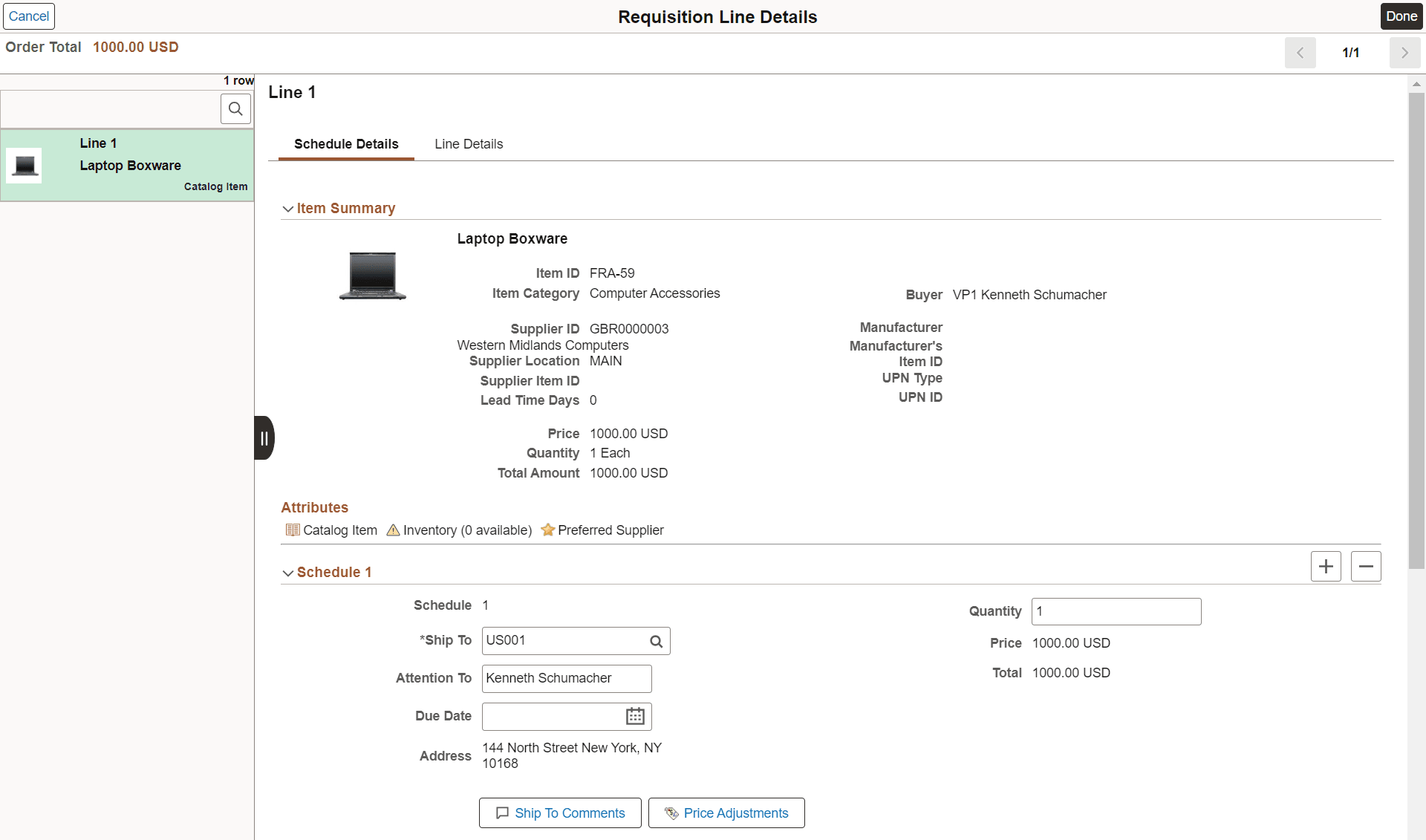
Use the Schedule Details page (PV_SCH_DIST_SCF) to review and modify schedule details for an item.
Navigation:
. Select the Schedule Details icon for a line. You can also access the Checkout page from the Browse Catalogs and Cart Overview pages.
This example illustrates the fields and controls on the Schedule Detail page. You can find definitions for the fields and controls later on this page.
| Field or Control | Description |
|---|---|
|
Cancel |
Select to return to the Checkout Page. |
|
Done |
Select to save any changes and return to the Checkout Page. |
You can access the schedule details for each time by clicking the item row on the left panel. Alternatively, you can use the Next or Previous icon on the top right to review each line item. You can modify the Ship To, Quantity, Due Date, and Attention To fields. You cannot edit Ship To field if ENFORCE_RGN_SECURITY role action is enabled.
Total is updated whenever there is quantity or price change.
| Field or Control | Description |
|---|---|
|
|
Click to add or remove schedules. |
|
Schedule VAT |
Click the Schedule VAT button to access the VAT Information for Schedule page, where you can review value added tax (VAT) information for the schedule line. This button only appears when the Calculate VAT on Req check box for the Purchasing business unit level is selected, the purchasing business unit is a VAT environment, or the VAT_DETAILS eProcurement role action is used and the user eProcurement role is added to the user ID profile. |
 |
Select to accesses the Requisition Ship To Comments and Attachments page where you can add comments and upload one or more supporting documents. The system displays an error message if you try to upload more than the number of attachments specified on the Application Fundamentals: Installation Options - Multiple Attachments Page for Purchasing product. |
 |
Click Price Adjustments button to view the price adjustments for the schedule. |
 |
The user definable fields are available in the Custom Fields section for Line, Schedule, and Distribution. The custom fields are informational only. Based on the drop zone subpages configuration, the custom fields are visible on this page. For more details, see Configuring Drop Zone Subpages. |
 |
Click Maintenance WO button to integrate a work order to a requisition schedule. A requester with the CANLINK_WO role action enabled can view this option. Note: For fluid requisitions, you can peg only non-inventory items to work orders. For more information about work order integration, see Integrating Requisitions with Work Orders. |
|
Distributions group box |
You can view and override the accounting information. |
 and
and 
Use the Distributions section to access Accounting Tag information, modify ChartFields, and access Budget and Asset information.
This example illustrates the fields and controls on the Schedule Detail - Distributions page

Note:
ChartField Display Templates are used to extend ChartField configuration to control the display of individual ChartFields on PeopleSoft Fluid components. It displays ChartFields in a consistent manner on PeopleSoft Fluid transaction pages across PeopleSoft products. For eProcurement mobile requisition the default ChartField display template ALLCFS is used for all users, a permission list, or user ID. Use the Application Fundamentals: Assign CF Display Templates Pageto assign template to the mobile requisition component.
| Field or Control | Description |
|---|---|
|
Accounting Tag |
Select to access the Accounting Tag Page. Note: This link appears only if Accounting Tag check box is selected for eProcurement on the Accounting Tag Registration page. See Application Fundamentals: Setting Up Accounting Tags |
|
|
Click the Distribution VAT icon to access the VAT Information for Distribution page, where you can review value added tax (VAT) information for the distribution line. This button only appears when the Calculate VAT on Req check box for Purchasing business unit is selected, the purchasing business unit is using a VAT environment, or the VAT_DETAILS eProcurement role action is used. |
