Favorites Page
Use the Favorites page (PV_MOB_855_SRCHFAV) to add items to your Favorites list and group them using collections.
You can manage frequently ordered items and groups of items in a single location by creating favorites. You have the ability to compile a list of frequently ordered items and arrange them into favorite collections. You can use the list to add items to a requisition without searching the item catalog.
Favorite Items are private, accessible only to you, and are stored under the Requester ID. The list can be built from items in PeopleSoft eProcurement or PeopleSoft Services Procurement.
Navigation:
On the ePro Homepage, select Favorites from the left menu.
This example illustrates the fields and controls on the Favorites page. You can find definitions for the fields and controls later on this page.
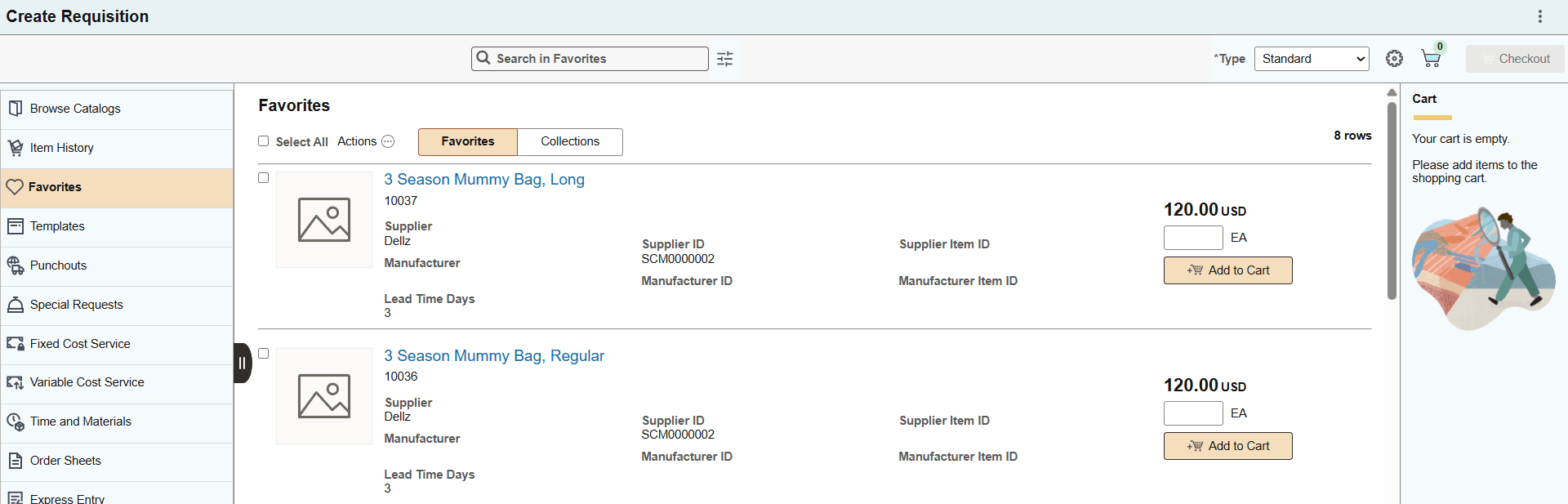
Click the item name to view the Item Details Page.
Select items using the checkbox on the left for specific items on the grid or the select all checkbox on the top left of the grid, and click Actions to add items to the cart, collections, or templates. Actions can also be used to remove items from the favorites list.
Note:
The Add to Cart button is not available for inactive items.
Collections
Select the items from the Favorites list, click Actions, and then Add to Collections. The Add to Collections page appears to allow you to create a new collection or add items to an existing one. To create a new collection, you need to enter the collection name and the collection description.
This example illustrates the fields and controls on the Favorites - Collections page. You can find definitions for the fields and controls later on this page.

Click the collections name to view the list of item and add to the cart.
| Field or Control | Description |
|---|---|
 (Delete) |
Select all or one or more collections, and click the delete button at the top to remove them from the list. You can also remove individual collections by clicking the corresponding delete button. |
 (Copy) |
Click to copy the collection and create a new one from it. |
For more information on Favorites, see Create Requisition — Favorites Page.