Templates Page
Use the Templates page (PV_MOB_TEMPLAT_FL) to add purchasing kits, company, and personal templates to your cart.
Navigation:
On the ePro Homepage, select Templates from the left menu.
This example illustrates the fields and controls on the Templates page.
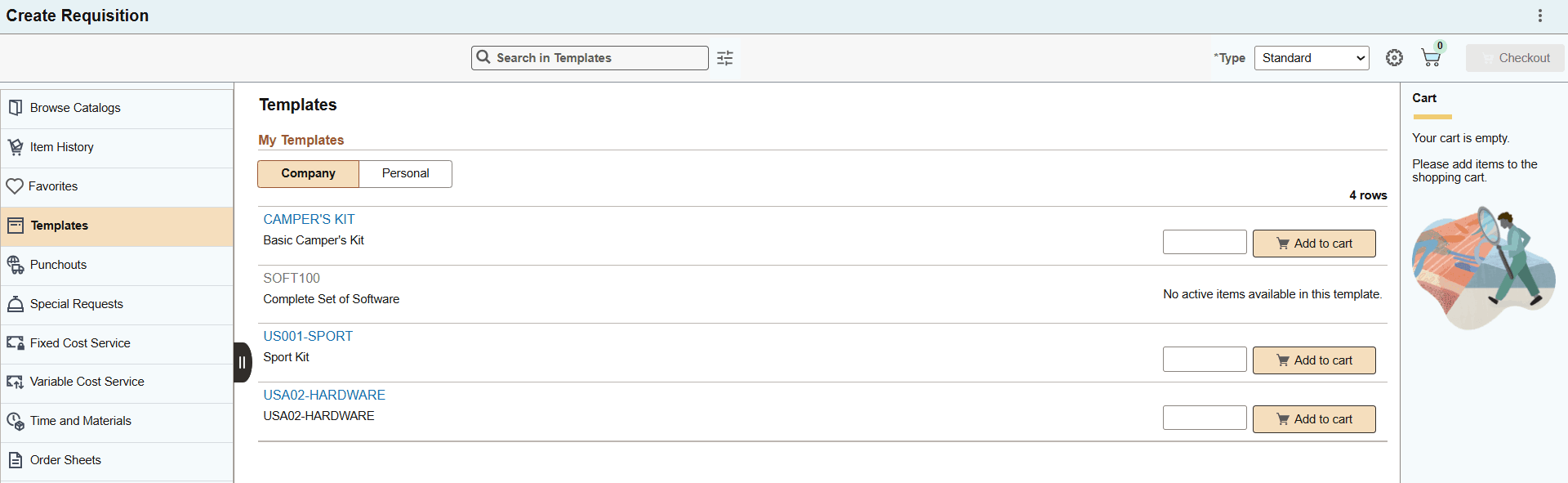
Click on any template description from the list to view the template details.
Personal Templates
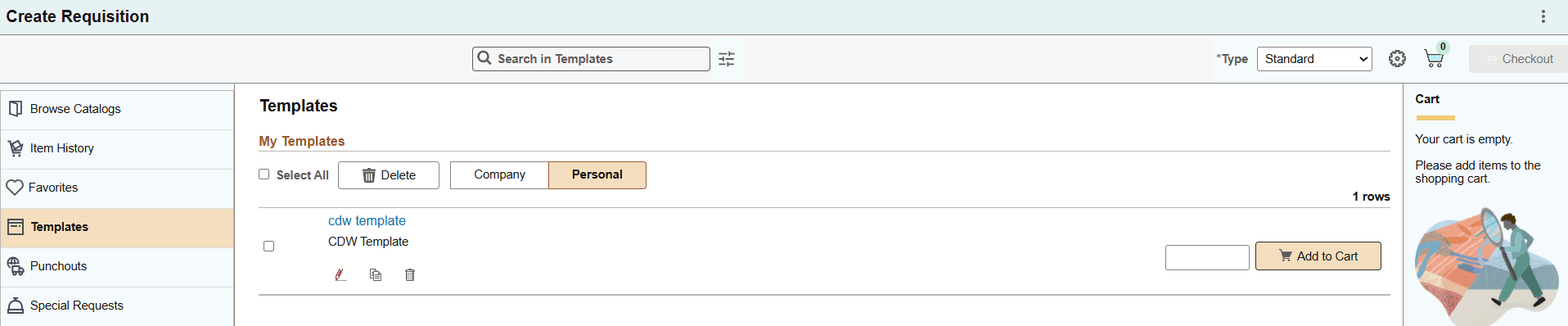
While adding items to the template, you can create a personal template or add the items to an existing one. To view a personal template or remove existing templates, click the Personal Templates button.
This example illustrates the fields and controls on the Personal Templates page.
| Field or Control | Description |
|---|---|
|
Add to Cart |
Click the Add to Cart button To add the template items to the cart. Items are added as per the predefined quantities in the template. |
 (Edit) |
Click the edit button to remove items from the selected personal templates or update the item quantity. |
 (delete) |
Select all, or select one or more personal templates, and click the delete button at the top to remove the templates from the list. You can also remove individual templates by clicking the corresponding delete button. |
 (copy) |
Click to copy the template and create a new one from it. |
Template Details
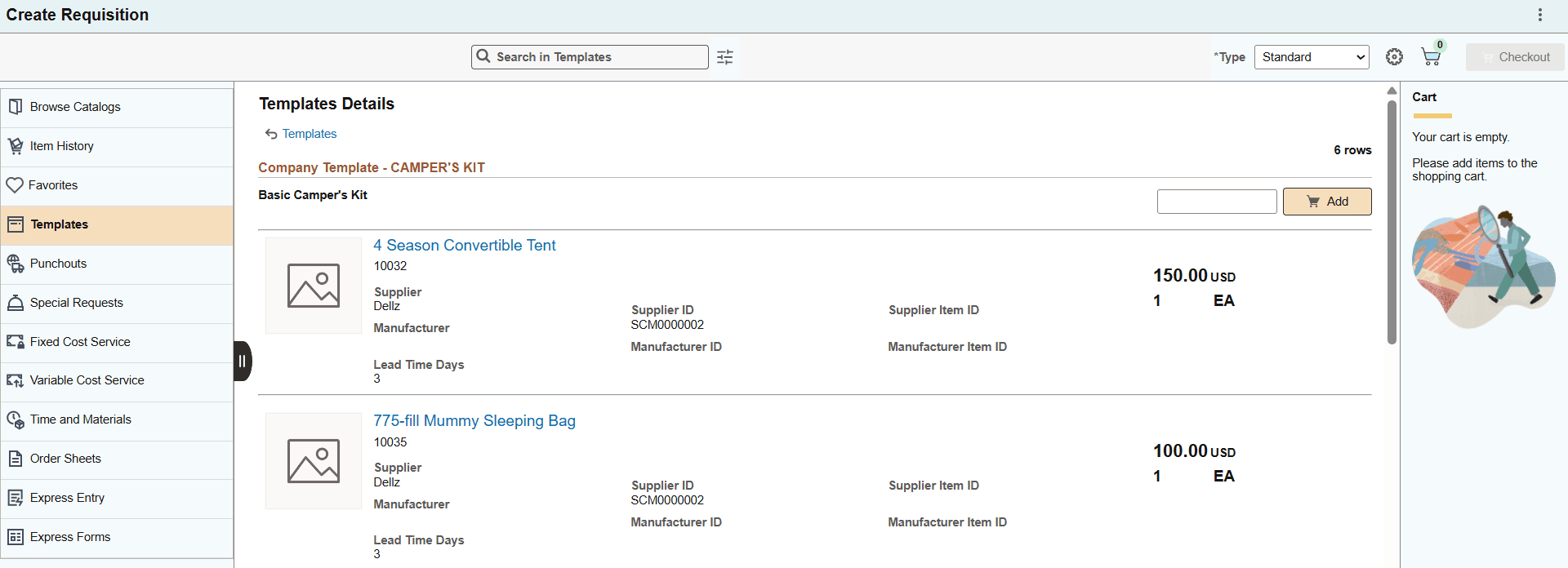
This example illustrates the fields and controls on the Template Detail page.
Note:
If any item status is inactive in the template and you add the template items to the cart, a confirmation message appears indicating whether you want to add other items to the cart excluding the inactive one.
For more information on Templates, see Create Requisition — Templates Page.