Requisition Defaults Page
Use the Requisition Defaults page (PV_MOB_855_SET_SCF) to enter default field values for new requisition lines and define requisition settings such as purchasing business unit and requester.
Note:
If you enable the LAND_ON_REQ_SETTINGS_PG role action on the Assign Role Action To Roles page, the Requisition Defaults page displays as the landing page.
Navigation:
This example illustrates the fields and controls on the Requisition Defaults Page. You can find definitions for the fields and controls later on this page.
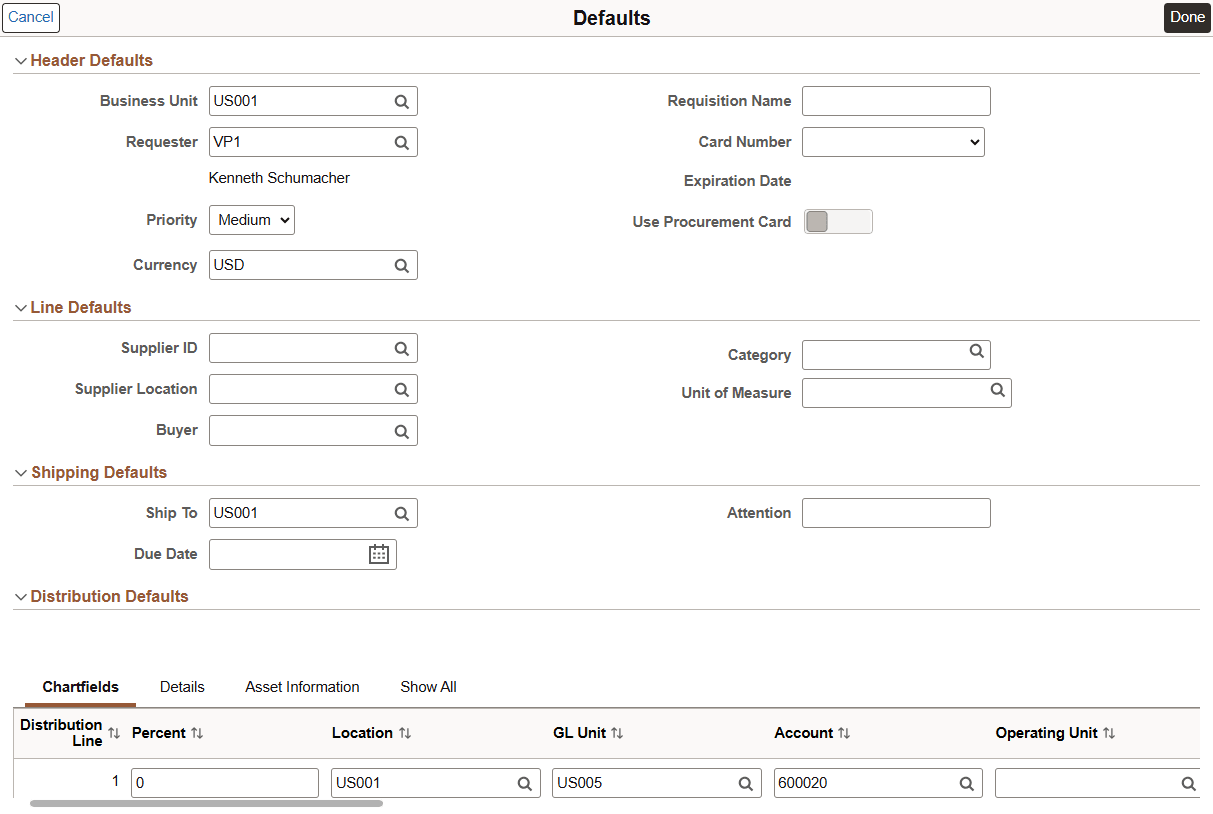
Before using this page, determine the features that your users can access by linking user roles to the following eProcurement role actions:
-
The CHANGEREQBU role action is required to access the Business Unit and Requester fields on this page. For more details about roles and assigning roles, see eProcurement Role Actions Page and Assign Role Actions To Roles Page.
Note:
Fluid has a persistent cart. This means that if any items remain in the cart from the previous session, then you cannot change the BU fields, even if you have the CHANGEREQBU role, until the cart is empty.
If the CHANGEREQBU role action is enabled on the Assign Role Actions To Roles Page, you can change the requester on this page.
-
You can select only those requesters who are authorized to act on behalf of the current requester. You can configure the requisition authorization on the Application Fundamentals: User Preferences – Requisition Authorizations Page.
-
You can change the requester only while creating a new requisition, before you submit the requisition or exit the component. After saving the requisition, the requester remains editable as long as you stay within the component. If you leave the component and return, the requester can no longer be edited.
-
When there are items in the cart:
-
You cannot select a requester whose default currency is different from the current requester. If you attempt to make this change, an error message appears: “Cannot change the Requester. Currency associated with the Requester is different.”
-
If the new requester is not authorized for one or more items already in the cart, the system prevents you from making the change. An error message appears, and the requester field reverts to the previous value.
-
When you change the requester, the system prompts you to choose whether to update the default values associated with the new requester—such as Ship To, GL Business Unit, Department, Account, and so on.
-
Yes: Updates the defaults and applies them to all existing requisition lines.
-
No: Updates only the requester field without changing existing line details. However, the values on the Defaults page are updated.
-
Cancel: Cancels the change and reverts to the previous requester.
-
-
Note:
Changing the requester is not allowed while editing an existing requisition—this option is only available when creating or copying a requisition.
-
-
When the new business unit is selected, the existing shopping cart items will be removed. You can add the new requisitions under new business unit.
Note:
Some fields on this page may not be changeable if there are already items in the cart.
-
If the ALLOW_RUSH_REQ role action is enabled for the requester, the Rush option becomes available in the Priority drop-down. If the priority is selected as Rush, the default priority for fluid requisition will be set as Rush.
If the ALLOW_RUSH_REQ role action is not enabled, then Rush is not available in the priority drop-down list. The default priority for a requisition is Medium, and you can change it to High or Low as per the requirement.
To know more about the ALLOW_RUSH_REQ role, refer eProcurement Role Actions Page.
To know more about assigning roles, refer Assign Role Actions To Roles Page.
| Field or Control | Description |
|---|---|
|
Line Defaults, Shipping Defaults, and Distribution Defaults |
The values that you enter on this page can be applied to the entire requisition at the line, shipment, or distribution levels. Note: Because these values override default values on the requester, only one distribution line is allowed on this page. This is different behavior from classic and intentional. The approved method to add more than one default distribution is to use the mass change option on all lines after all are entered. |
|
Add One Time Address |
Select this button to enter the default one time shipping address. Enter the shipping details in the Shipping Address page and save the details. Note: To use this field, you must have NO_ONETIME_SHIPTO role action disabled. |