Sourcing Options Page
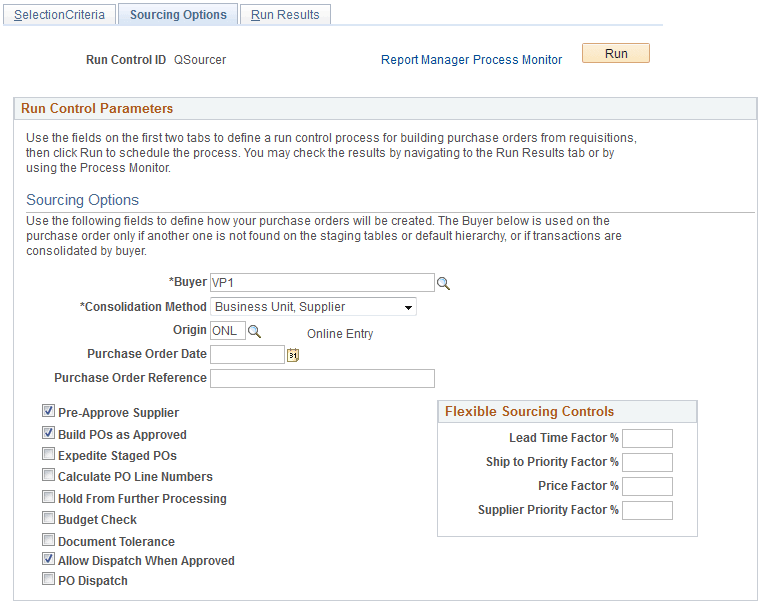
Use the Sourcing Options page (PV_RUN_REQSORC_2) to enter parameters for the PO Calculations process and the Create PO process.
Navigation:
Click the Sourcing Options tab.
This example illustrates the fields and controls on the Sourcing Options page. You can find definitions for the fields and controls later on this page.
| Field or Control | Description |
|---|---|
|
Buyer |
Select the buyer to use on the purchase order header in case the PO Calculations process cannot determine the buyer. The buyer name is carried at the line level on the requisition, so a requisition can have multiple buyers. When the PO Calculations process creates the purchase order header, it must assign a buyer name. If all the staged lines that belong on one purchase order have the same buyer name, the PO Calculations process uses that name on the header. However, if the staged lines that belong on the purchase order have different buyer names, and the process that created the staged entry did not specify a name, the name that you enter here is used on the purchase order header. |
|
Consolidation Method |
Determines whether purchase orders are consolidated by business unit, supplier, and buyer, or by business unit and supplier only. The consolidation method applies only to staged rows that are identified for consolidation. For example, suppose that you choose to consolidate by business unit and supplier only, then all the rows that belong to the same supplier in each business unit are grouped into one purchase order, even if they have different buyers. Alternately, if you add a buyer to the criteria, purchase orders are built in the same manner. However, they are split between buyers, so that each buyer has a separate purchase order with this configuration. |
|
Lead Time Factor %, Ship to Priority Factor %, Price Factor %, and Supplier Priority Factor % (percentage)supplier priority factor |
These fields are used for flexible sourcing. To override the category and item settings, enter the percentage weight that you want the PO Calculations process to give the factor when the application process evaluates suppliers for flexible sourcing. The sum of these factors must be 100 percent. |
|
Origin |
Enter an origin to be used on the purchase order. |
|
Purchase Order Date |
Enter a date for the purchase order, if a date has not been assigned. If you leave this field blank, the PO Calculations process uses the current system date. |
|
Purchase Order Reference |
Enter a purchase order reference for the purchase orders. This is a free-form field. |
|
Pre-Approve Supplier |
Select to approve the supplier automatically that the PO Calculations process selects. This option enables you to run the PO Calculations process and the Create Purchase Order process as a unit, without having to approve the suppliers. |
|
Build POs as Approved |
Select so that the purchase orders that are created when you run the Create Purchase Order process have an Approved status. If you select this option, the process examines auto-approval criteria set at the business unit level. |
|
Expedite Staged POs |
Select to source all requisitions that are located in the staging table. |
|
Calculate PO Line Numbers |
Select to ignore staged entry line numbers when the Create Purchase Order process creates new purchase orders and assigns sequential line numbers, beginning with 1. If you do not select this option, the performance is faster, but you might have purchase orders with nonsequential line numbers that do not begin with 1. |
|
Hold from Further Processing |
Select to place the resultant purchase orders on hold and prevent further processing. |
|
Budget Check |
Select to run the budget checking process on the resultant purchase orders. |
|
Document Tolerance |
Select to run the document tolerance checking process on the resultant purchase orders. Note: This option is available when you select the Enable Document Tolerance check box on the Installation Options - Overall page. |
|
Allow Dispatch When Appr (approved) |
Select to make the resultant purchase orders eligible for dispatch. |
|
PO Dispatch (purchase order dispatch) |
Select to run the purchase order dispatch process on the resultant purchase orders. This option is only available when the Allow Dispatch When Approved check box is selected. |
Note:
Users can view the results either by navigating to the Run Results page or by using the Process Monitor