Working with the Administer Procurement Component
To define eProcurement technical setup, use the Administer Procurement component (PV_ADM_PNL_GRP).
This section discusses how to access the technical setup pages for implementation, set up an eProcurement setup guide ID and description, work with the setup guide, and view results for key word searches.
Pages Used to Work with the Administer Procurement Component
| Page Name | Definition Name | Usage |
|---|---|---|
|
PV_ADM_MAIN2 |
Access the pages that are needed to implement and maintain PeopleSoft eProcurement. |
|
|
PV_ADM_PROJECT |
Establish setup guide IDs to use a separate checklist for implementation in each department in the PeopleSoft Procurement and Workflow setup guides. |
|
|
PV_ADM_SETUP_GUIDE |
Provide a procedural step-by-step listing of pages that you can review for the initial functional setup of business units, codes, accounting structure, procurement options, suppliers, items, and users. |
|
|
PV_ADM_SRCH_RESULT |
View the results of the search for key words in the title, menu name, or description of an implementation or maintenance page that is linked to the Administer Procurement Main page. |
Administer Procurement Page
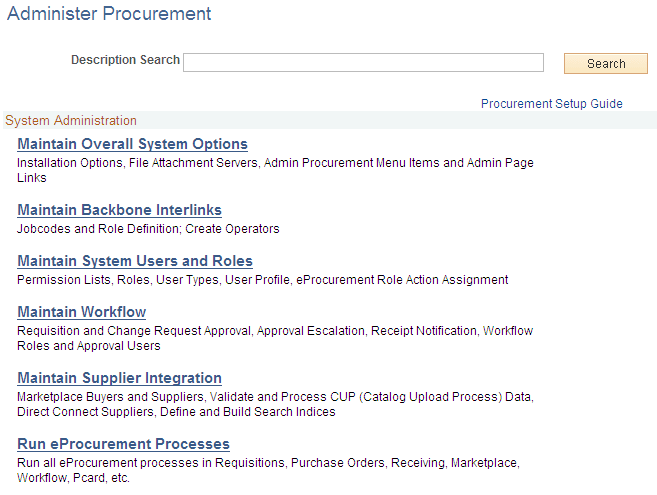
Use the Administer Procurement page (PV_ADM_MAIN) to provide links to all functional and technical setup pages that you need to complete the PeopleSoft eProcurement installation.
Navigation:
This example illustrates the fields and controls on the Administer Procurement page (1 of 2).
This example illustrates the fields and controls on the Administer Procurement page (2 of 2).
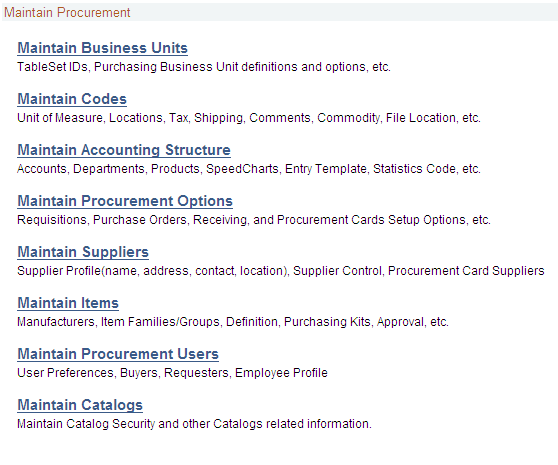
This is the main page for implementation and maintenance of PeopleSoft eProcurement. You can redesign this page to fit the organizational structure. To access the System Administration region of this page, the user profile must be linked to the role name, ePro Admin.
Maintain Procurement Setup Guide ID Page
Use the Maintain Procurement Setup Guide ID page (PV_ADM_PROJECT) to establish setup guide IDs to use a separate checklist for implementation in each department in the PeopleSoft Procurement and Workflow setup guides.
Navigation:
This example illustrates the fields and controls on the Maintain Procurement Setup Guide ID page.
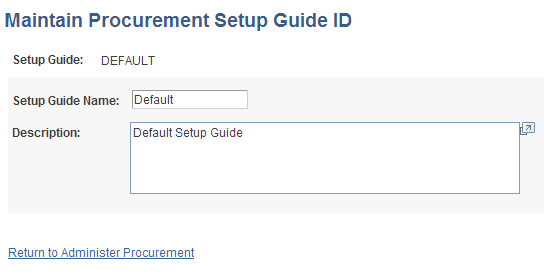
Use this page to establish setup guide IDs to use a separate checklist for implementation in each department in the PeopleSoft procurement and workflow setup guides. Enter the setup guide name and a description in the appropriate fields. Click Save when you are finished.
Procurement Setup Guide - Default Page
Use the Procurement Setup Guide - Default page (PV_ADM_SETUP_GUIDE) to deliver the setup guide to provide sequential steps to enable users to implement PeopleSoft eProcurement and link to the pages that define organizational structure in PeopleSoft applications.
Navigation:
Click the Procurement Setup Guide link.
Click the Default link.
This example illustrates the fields and controls on the Procurement Setup Guide page (partial page shot).
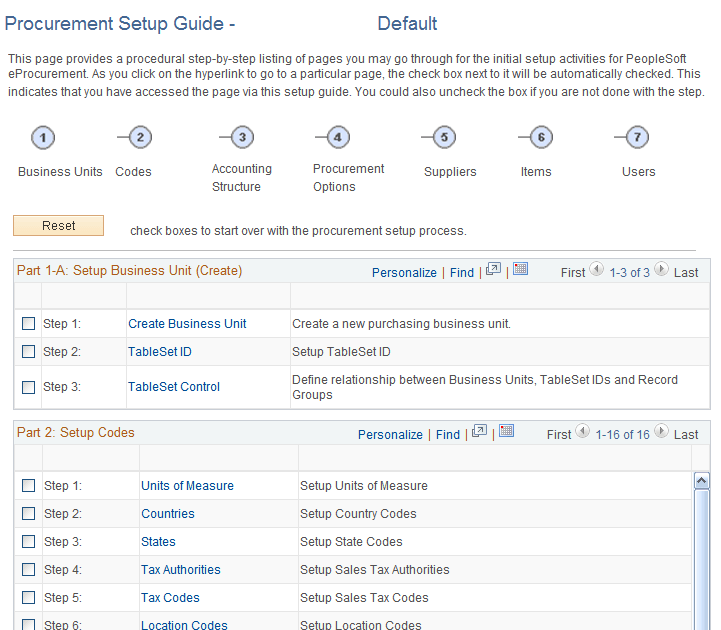
PeopleSoft eProcurement delivers a setup guide that provides sequential steps that enable users to implement PeopleSoft eProcurement and link to the pages that define organizational structure in PeopleSoft applications. Access the setup guide by entering a setup guide ID. Define separate IDs for different implementation teams, departments, or individuals based on their work tasks. The system is delivered with a default setup guide ID.
Related Topics
Administer Procurement - Search Result Page
Use the Administer Procurement - Search Result page (PV_ADM_SRCH_RESULT) to view the results of the search for key words in the title, menu name, or description of an implementation or maintenance page that is linked to the Administer Procurement Main page.
Navigation:
Click the Search button.
This example illustrates the fields and controls on the Administer Procurement - Search Result page (partial page shot).
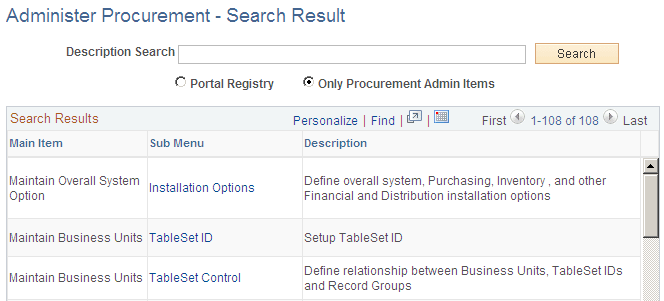
Select the Portal Registry option to expand the search for key words to the entire PeopleSoft implementation.