Configuring Summary Approval Options
To configure summary approval options, use the Summary Approval Options (EX_SUM_APPR_OPT.GBL) component.
This topic provides an overview of summary approval options and discusses how to set up summary approval options.
Page Used to Configure Summary Approval Options
| Page Name | Definition Name | Usage |
|---|---|---|
|
EX_SUM_APPR_OPT |
Set up summary approval options. |
Understanding Summary Approval Options
Summary approvals is a feature in PeopleSoft Expenses that enables approvers to select multiple transactions to approve with one action.
The summary approval pages consist of:
-
The Pending Approvals - Expense Report Page (List), which is an overview page and supports all transaction types.
This is often referred to as the Summary Approval page and is the initial page that an approver accesses to begin the approval process.
-
The Pending Approvals - Expense Report Page (Header), which displays transaction header information according to transaction type.
-
The Expense Report Page (Line Detail), which displays line details.
PeopleSoft Expenses supports options to enable or disable the ability to perform approvals at a summary level. You can set the summary approval option preferences according to your organization's policies.
Configure summary approval options to:
-
Enable approvers to approve some or all expense transactions in their queue with one action.
-
Force approvers to drill down to transaction details to view additional information and perform approval actions.
-
Enable approvers to approve all types of expense transactions on one page or by transaction type.
-
Control the approver actions used on the mass approval pages.
-
Disable summary approvals if it violates organizational policy for expense approvals.
-
Alert approvers if the expense transactions contain exceptions, such as out of policy expenses.
-
Disable transactions for approval on the summary approval pages if they contain exceptions.
-
Disable transactions for approval on the summary approval pages if they contain risk.
Summary Approval Options Page
Use the Summary Approval Options page (EX_SUM_APPR_OPT) to set up summary approval options.
Navigation:
This example illustrates the fields and controls on the Summary Approval Options page. You can find definitions for the fields and controls later on this page.
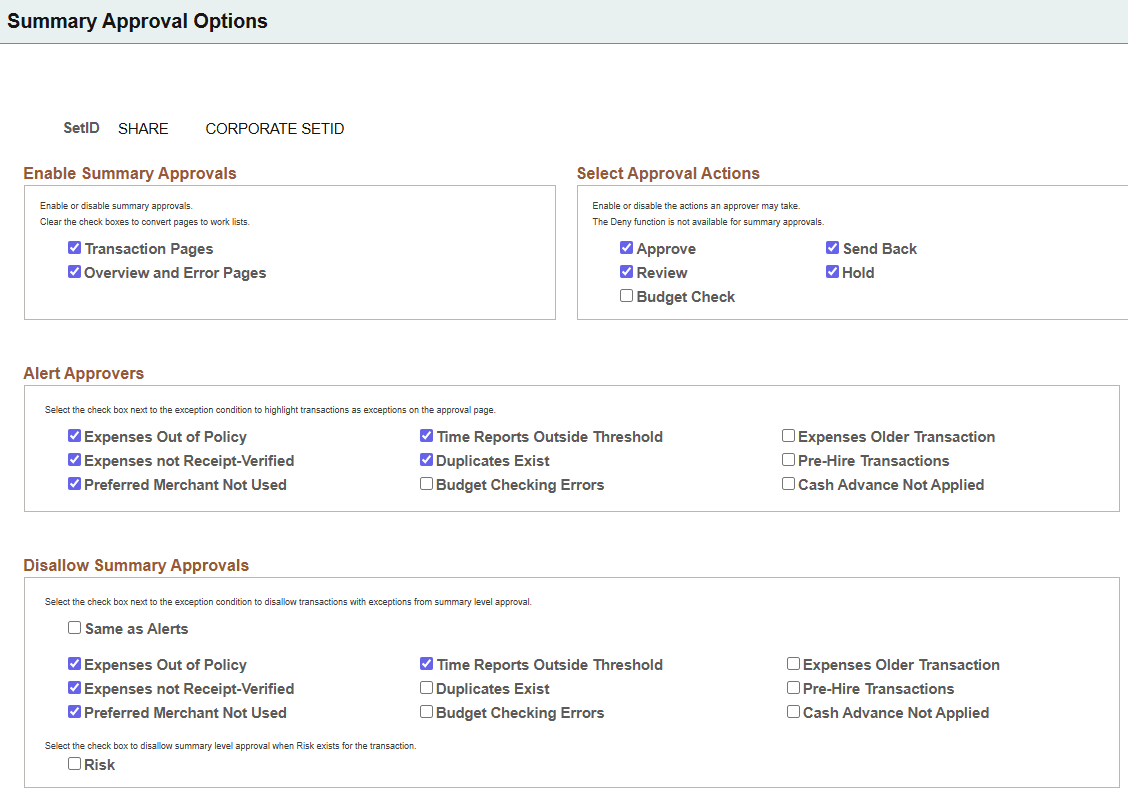
Enable Summary Approvals
These option determine what approvers can do on the Pending Approvals - Expense Report Page (List).
| Field or Control | Description |
|---|---|
|
Transaction Pages |
Select to enable approvers to perform approval actions on the individual transaction pages for expense reports, time reports, time adjustments, travel authorizations, and cash advances. If not selected, these pages become work lists and PeopleSoft Expenses does not display the approval action buttons or the Select, Select All, and Clear All check boxes, and approvers must drill down to the transaction detail pages to perform approval actions. |
|
Overview and Error Pages |
Select to enable approvers to perform approval actions on the Overview and Errors pages for all transaction types. If not selected, these pages become work lists and PeopleSoft Expenses does not display the approval action buttons or the Select, Select All, and Clear All check boxes, and approvers must drill down to the transaction detail pages to perform approval actions. |
Select Approval Actions
Select approval action buttons that you want PeopleSoft Expenses to display on the summary approval pages. If you do not select an approval action, PeopleSoft Expenses does not display that button on the summary approval pages and approvers must drill down to the transaction detail pages to take the appropriate action. If you select approval actions but deselected the Transaction Pages or Overview and Error Pages check boxes in the Enable Summary Approvals group box, PeopleSoft Expenses does not display the approval action buttons for those pages.
When you select approval action buttons, approvers can press the button on the summary approval pages; however, PeopleSoft Expenses checks the approver's configuration after they press the action button. If the approver is not authorized for the action, the transaction remains in the queue and the system flags it as an error. PeopleSoft Expenses displays an error message on the Errors page.
Note:
The Deny functionality is not available for summary approvals.
The Budget Check check box is available only if you enabled Commitment Control for PeopleSoft Expenses on the Installation Options - Products page.
Alert Approvers
Select the check box next to the exception condition to highlight transactions as exceptions on the approval pages. PeopleSoft Expenses displays an icon on the approval pages as a visual indicator for transactions with exceptions.
| Field or Control | Description |
|---|---|
|
Pre-Hire Transactions |
Select to indicate that when an employee enters an expense report that is dated prior to their hire date, then approver is alerted on the Pending Approvals - Expense Report Page (List). Note: this option is applicable when the Days Prior to Hire Date Allowed on Expenses field has a value that is greater than 0 (zero) on the Expenses Definition - Business Unit 2 Page. |
|
Cash Advance Not Applied |
Select to indicate that when an outstanding cash advance is not used on an expense report, and the employee enters a reason why the advance was not used, then approver is alerted on the Pending Approvals - Expense Report Page (List). Note: this option is only available when the Enforce Cash Advance is selected on the Application Fundamentals: Installation Options - Expenses Page. |
Disallow Summary Approvals
Select the check box next to the exception condition to not allow approval on the summary approval pages for transactions with this exception. PeopleSoft Expenses disables these check boxes on the summary approval pages. The approver must drill down to the detail level to approve the transaction. Select Same as Alerts to duplicate the selection from the Alert Approvers section. Select the Risk check box to disable summary approvals for transactions that have risk associated with them.
| Field or Control | Description |
|---|---|
|
Pre-Hire Transactions |
Select to indicate that when an employee enters an expense report that is dated prior to their hire date, the approver cannot approve the expense report using the Summary Approval page. Note: this option is applicable when the Days Prior to Hire Date Allowed on Expenses field has a value that is greater than 0 (zero) on the Expenses Definition - Business Unit 2 Page. |
|
Cash Advance Not Applied |
Select to indicate that when an outstanding cash advance is not used on an expense report, and the employee enters a reason why the advance was not used, the approver cannot approve the expense report using the Summary Approval page. Note: this option is only available when the Enforce Cash Advance is selected on the Application Fundamentals: Installation Options - Expenses Page. |