Printing Expense Reports, Receipts and Notes
Understanding the Expense Report Print Process
When printing an expense report from a client machine, the system uses BIPublisher technology. BIPublisher is also known as XMLP or XMLPublisher. PeopleSoft Expenses supports barcodes when printing expense reports. From the Create (or Modify) Expense Report page, users can click on the Print Expense Report link, which launches the BIPublisher report. This report is displayed on the user’s display terminal and they can print a hard copy of the report from there.
If receipts are added to an expense report, you can select the Print Receipts link which will take you to the BIPublisher report page. The expense report receipts can then be printed as a hard copy.
If notes are added to an expense report, you can select the Print Notes link which will take you to the BIPublisher report page. The expense report notes can then be printed as a hard copy.
Pages Used to Print Expense Reports, Receipts, and Notes
| Page Name | Definition Name | Usage |
|---|---|---|
|
Expense Report (print) Page (BIPublisher) |
EXC4500 |
Print expense reports. |
|
TE_NOTES_RPT |
View and print notes that have been added to expense reports. |
Expense Report (print) Page
Use the Expense Report (BIPublisher) page (EXC4500) to print expense reports.
Navigation:
-
Click the Summary and Submit link, then click the View Printable Version link, and then click the Print Expense Report link.
-
Click the Print Expense Report link.
-
. Click the Summary link and then click the Print Expense Report link.
-
. Click the Print Expense Report link.
This example illustrates the fields and controls on the Expense Report (print) page.
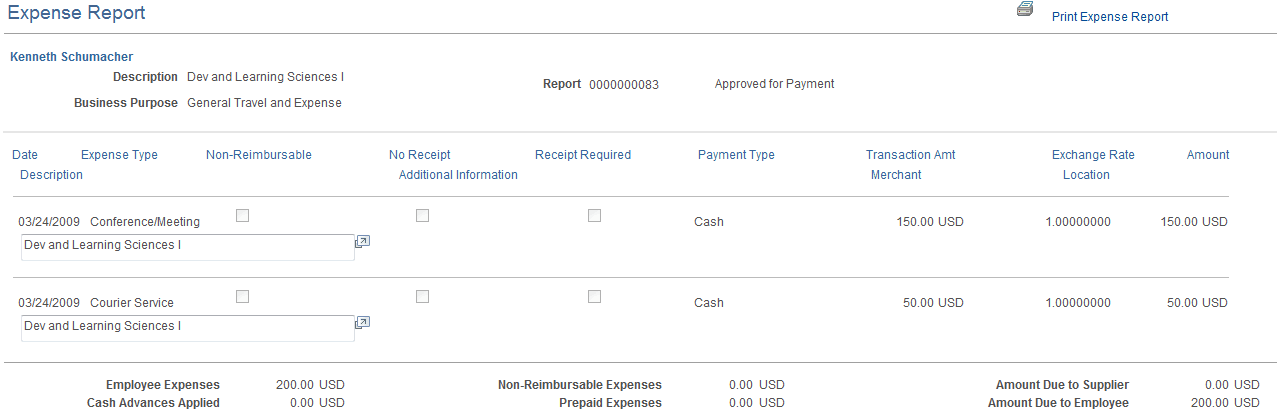
Use this page to print a hard copy of the report.
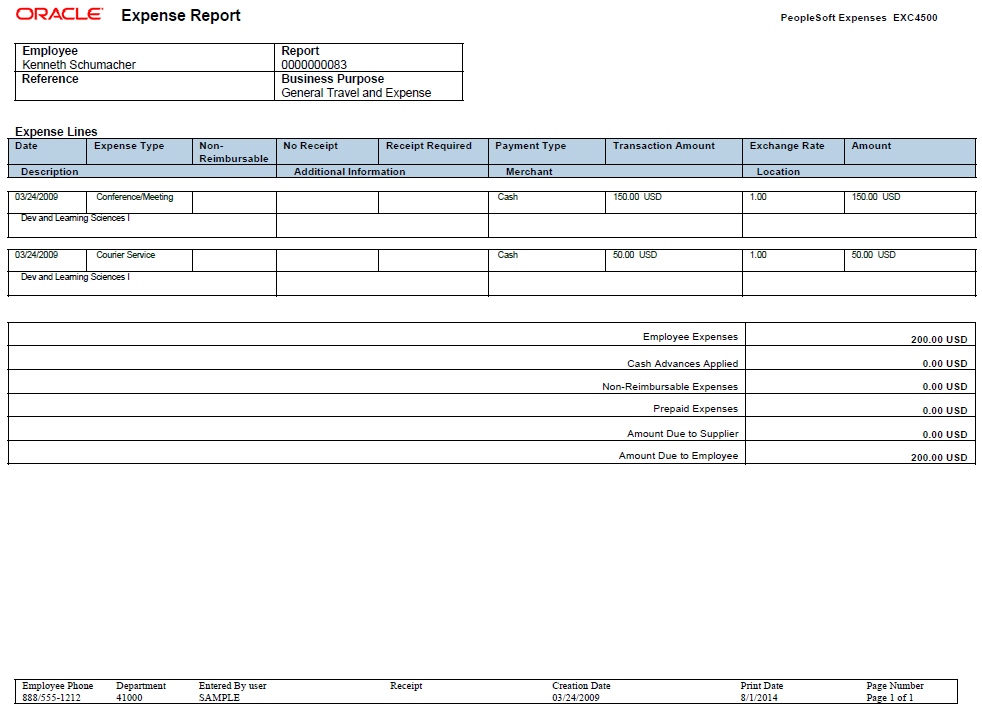
Example of Expense Report PDF
This example illustrates the Expense Report PDF.
Expense Report - Notes Page
Use the Expense Report - Notes page (TE_NOTES_RPT) to view and print notes that have been added to expense reports.
Navigation:
-
Click the Summary and Submit link, then click the View Printable Version link, and then click the Expense Notes link at the bottom of the page.
-
Click Expense Notes link at the bottom of the page.
-
. Click the Summary link and then click the View Printable Version link, and then click the Expense Notes link at the bottom of the page.
-
. Click the Expense Note link.
This example illustrates the fields and controls on the Expense Report - Notes page.

| Field or Control | Description |
|---|---|
|
Print Expense Notes |
Click to access the BIPublisher page where you can print a hard copy of the expense report notes. |