Reviewing Staged Payments
After staging payments, you can review any expense report, cash advance, or supplier payments that are ready for your payables system. Before you actually create payments, you have the opportunity to modify bank information or place payments on hold. PeopleSoft Expenses unstages rows that have not been selected by your accounts payable or payroll system for payment and reinserts the rows with the latest bank account (payment) information. If you hold payments, they are not selected for payment until the next Stage Payments Process is run.
Pages Used to Review Staged Payments
| Page Name | Definition Name | Usage |
|---|---|---|
|
EX_STG_EMP_ADVANCE |
Review cash advance payment totals staged for an individual employee, modify bank information, or place a cash advance payment on hold. |
|
|
EX_STG_EMP_REIMB |
Review expense report payments staged for an individual employee, modify bank information, or place an expense report payment to an employee on hold. |
|
|
Supplier Payments Page |
EX_STG_VND_PAYMENT |
Review payments staged for an individual supplier, modify bank information, or place a payment to a supplier on hold. This page is accessed from the Update Staged Payments component. |
Cash Advance Payments Page
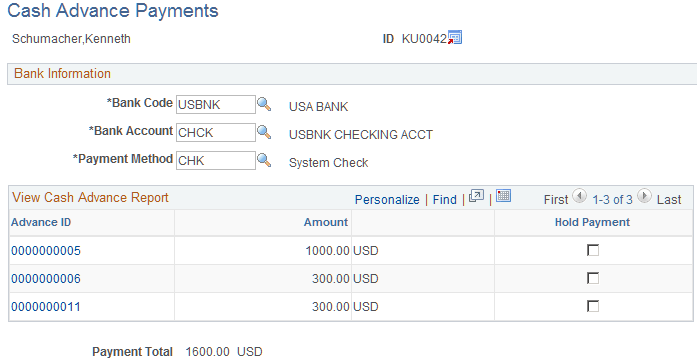
Use the Cash Advance Payments page (EX_STG_EMP_ADVANCE) to review cash advance payment totals staged for an individual employee, modify bank information, or place a cash advance payment on hold.
Navigation:
This example illustrates the fields and controls on the Cash Advance Payments page. You can find definitions for the fields and controls later on this page.
| Field or Control | Description |
|---|---|
|
Advance ID |
Click on the link to access the View Cash Advance Report page. |
Expense Report Payments Page
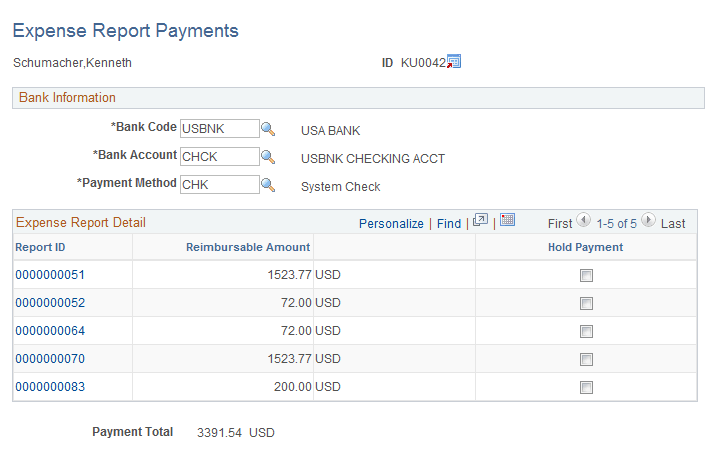
Use the Expense Report Payments page (EX_STG_EMP_REIMB) to review expense report payments staged for an individual employee, modify bank information, or place an expense report payment to an employee on hold.
Navigation:
This example illustrates the fields and controls on the Expense Report Payments page. You can find definitions for the fields and controls later on this page.
| Field or Control | Description |
|---|---|
|
Report ID |
Click on the link to view the View Expense Report Page. |