Activating Objects for the PeopleSoft Integration to Hyperion Tax Governance
Activate gateways and service operations that are specific to the Hyperion Tax Governance integration with PeopleSoft Financials (PeopleTools 8.51 and beyond):
See Using the Generic Process Initiation Service
Activate the service operation(s) that are listed for this integration. To activate the service operations, access PeopleTools, Integration Broker, Integration Setup, Service Operations:
To enable the SAML Token with Encryption in the PeopleSoft system:
-
Use the Java Keytool Utility command of "-genkeypair" to generate a public key based out of the default local node name, into interop.jks keystore delivered with PeopleTools.
-
Use the Java Keytool Utility command of "-exportcert" to export the certificate files of public keys rootca & <default local node name> out of interop.jks keystore.
-
Pass the above two certificate files to Tax Governance, and request the public certificate file from Tax Governance OWSM (normally, it is called orakey.cer).
-
Use the Java Keytool Utility command of "-importcert" to import the Tax Governance public certificate into interop.jks keystore.
-
Bounce the Web server for the changes to take effect.
-
Add the digital certificate for orakey (Alias), which is the public key of OWSM (Oracle Web Services Manager). Add it first with a Type of Root CA. (Access PeopleTools, Security, Security Objects, Digital Certificates)
Click the Add Root link. Open the orakey.cer file that is generated from OWSM default-keystore.jks via any text editor, copy the entire content and paste it in the text box.
Then add orakey with a Type value of Remote.
Click the Import link. Paste the entire content of orakey.cer in the text box.
-
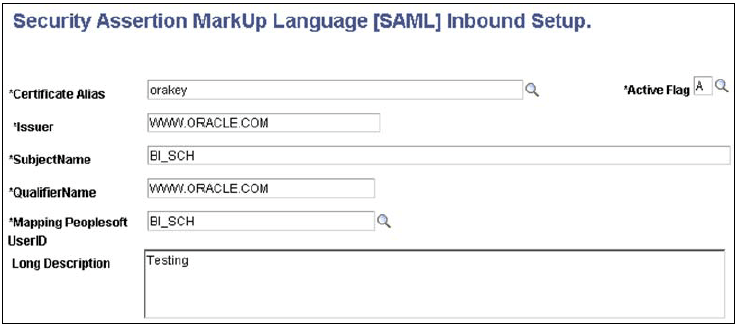
Add orakey to the SAML Inbound Setup page for each of the OWSM SubjectNames. (Access PeopleTools, Security, SAML Administration Setup, SAML Inbound Setup):
This example illustrates the fields and controls on the SAML Inbound Setup page. You can find definitions for the fields and controls later on this page.
-
Open the wssSAML.properties file that is located in %PS_HOME%\webserv\peoplesoft\applications\peoplesoft\PSIGW.war\WEB-INF\classes. Replace the two instances of ".peoplesoft.com" with "www.oracle.com" so that they read as follows:
-
org.apache.ws.security.saml.issuer=www.oracle.com
-
org.apache.ws.security.saml.subjectNameId.qualifier=www.oracle.com
-
-
Reboot the web server.
-
Enable the SAML with full encryption at the outbound of Routing PROCESS_SUBMIT. (Access PeopleTools, Integration Broker, Integration Setup, Routings, Parameters.) Click the WS Security link and enter the information as follows:
This example illustrates the fields and controls on the Routing Security page. You can find definitions for the fields and controls later on this page.
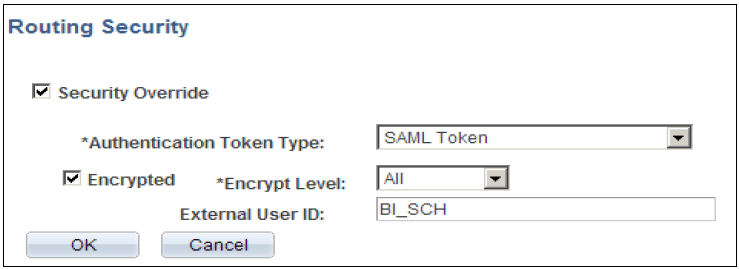
A valid OWSM user ID must be specified in the External User ID field.
-
Generate the WSDL for the web service, PROCESS_INITIATION. (Access PeopleTools, Integration Broker, Integration Setup, Services)
Click the Provide Web Service link:
-
Select the Service Operation, PROCESS_SUBMIT.V1. Note: If implementing SSL, select the "Use Secure Target Location" check box. This check box is available for selection only when the Secure Target Location on the IB Service Configuration page has been defined.
-
Click the Next button on Step 2 of 4.
-
Click the Next button on Step 3 of 4.
-
Click the Finish button on Step 4 of 4.
-
Make sure you can open the WSDL URL from any web browser.
-
Note:
If you need to regenerate the WSDL, delete the old one first using the IB Service Administration Utility. (Access PeopleTools, Integration Broker, Service Utilities, Service Administration, WSDL.) Select the service and click the Delete button. Then repeat Step 13 above to regenerate the WSDL.
See also PeopleTools Documentation: Integration Broker Service Operations Monitor.
See also PeopleTools Documentation: Integration Broker," Providing Services."