Activating Objects for the PeopleSoft Integration for Third-Party Applications
The objects related to this service are delivered as inactive and must be activated in order to use this integration. Activate gateways and service operations that are specific to the integration with PeopleSoft Financials (PeopleTools 8.51).
Prerequisites
Before activating objects for the generic process initiation service between PeopleSoft Financials and third-party applications, the following technical and functional prerequisites must be met:
-
PeopleTools 8.51 or beyond:
-
Encrypted Security Assertion Markup Language (SAML) Token for Asynchronous Request/Response Web Service with wss10 policy. (However, you have the choice to not enable the SAML Token)
-
Process Status Notification
-
-
Web service management product; for example, Oracle Web Services Manager (OWSM) 11g PS3 on the third-party application
-
(Optional) Enable Single Sign-on (SSO) between third-party application and PeopleSoft using the Oracle Access Manager (OAM).
See PeopleTools documentation: Security Administration, Implementing Single Signon, Implementing Oracle Access Manager as the PeopleSoft Single Signon Solution.
-
To call the web service, you must predefine the run controls in the PeopleSoft system for each process that you would like to run from a third-party application.
Activating Integrations
Follow these steps to activate integrations on your PeopleSoft database:
| Setup Task | Navigation |
|---|---|
|
Set up and configure Integration Broker Gateway. (Multiple steps are required to set up the gateway. Please see the PeopleTools documentation for details.) |
PeopleTools, Integration Broker, Configuration, Gateways |
|
Activate node definitions. |
PeopleTools, Integration Broker, Integration Setup, Nodes. |
|
Activate Service Operation:
|
PeopleTools, Integration Broker, Integration Setup, Service Operations |
See PeopleTools Documentation, Integration Broker Service Operations Monitor.
See PeopleTools Documentation: Integration Broker Administration, "Managing Integration Gateways."
Activating the Objects Specific to the Process Initiation Web Service
Activate gateways and service operations that are specific to the integration with PeopleSoft Financials (PeopleTools 8.51):
| Service / Description | Service Operation / Messages | Operation Type / Queue | Routing | External Alias |
|---|---|---|---|---|
|
PROCESS_ INITIATION Process Initiation Service |
PROCESS_SUBMIT.V1 PROCESS_SUBMIT_ REQ.V1 (request) PROCESS_SUBMIT_ RES.V1 (response) |
Inbound asynchronous (request/response) PROCESS_INITIATION (request/unordered) PROCESS_INITIATION (response/unordered) |
PROCESS_SUBMIT |
Inbound Request - External Alias = ProcessSubmit.V1 Outbound Response - External Alias = ProcessSubmit_CALLBACK.V1 |
|
PRCS_STATUS_ NOTIFY Process Status Notification |
PRCS_STATUS_OPER. V1 PRCS_STATUS_ MSG.V1 (request) |
Asynchronous (one way) PSRF_REPORTING_ FOLDERS (unordered) |
(No routings delivered. Must generate a Local-to- Local Routing manually) |
N/A |
-
Set up and configure the Integration Broker (IB) Gateway:
-
Ping the local gateway to ensure it is running and connectors are loaded – status should be Active. (Access: PeopleTools, Integration Broker, Configuration, Gateways).
-
Click the Gateway Setup Properties link on the Gateways page and ensure that the default local node, usually the database name, has an entry on the PeopleSoft Node Configuration page.
-
Ensure that the default local node, usually the database name, is appended to the Target Location URL at the service configuration. Access: PeopleTools, Integration Broker, Configuration, Service Configuration.
Note:
The machine and port can be derived from the Gateway URL on the IB Quick Configuration page.
-
If the PeopleSoft Internet Architecture (PIA) is configured to employ the Secure Sockets Layer (SSL) protocol (for example, https) for data encryption, enter the Secure Target Location as well (also need to append the default local node at the end).
-
Verify that the Domain and its IB dispatchers are running. (Access: PeopleTools, Integration Broker, Service Operations Monitor, Administration, Domain Status).
-
-
Activate the service operations that are listed for this integration (PROCESS_SUBMIT.V1 and .PRCS_STATUS_OPER. V1. (Access PeopleTools, Integration Broker, Integration Setup, Service Operations):
-
Select the Active check box.
-
Review service operation security. Click the Service Operation Security link and grant full access.
-
Activate the Queues. Click the View Queue link from the Service Operations - General page. The queue status should be "Run."
-
Activate the Handlers (Service Operations – Handlers page). Select the Active status.
-
-
Activate and generate the routings for the service operations (as specified in the service operation table presented above). (Access: PeopleTools, Integration Broker, Integration Setup, Service Operations):
-
Activate the Any-to-Local Routing, PROCESS_SUBMIT, for Service Operation PROCESS_SUBMIT. From the Routings tab, select the Selected check box and click the Activate Selected Routings button.
-
Generate a Local-to-Local Routing for Service Operation PRCS_STATUS_OPER. From the General tab, select the Generate Local-to-Local check box under Routing Actions Upon Save, and save the page. From the Routings tab, make sure a system generated, named ~GENERATED~NNNNNNNN (NNNNNNNN is a system assigned number) Local-to-Local routing is there with an Active status.
Note:
You can rename the system-generated Local-to-Local routing to a meaningful name using the IB Service Administration Utility. (Access PeopleTools, Integration Broker, Service Utilities, Service Administration, Routings.) Open the Rename group box, enter the Routing Name and New Name, and click the Rename button.
-
-
Fill in the Portal URI Text value for the delivered Node Name, ERP, for returning Process Monitor URL for PSJob processes. (PeopleTools, Integration Broker, Integration Setup, Nodes, Portal).
To support the OAM single sign-on on the returned Process Monitor URL, you need to append the WebGate Port Number to the Server Name; for example, http://rtdc78132qaemt.us.oracle.com:7777/psp/e900a23nt/. If implementing SSL, you need to append the SSL WebGate Port Number to the Server Name; for example, https://rtdc78132qaemt.us.oracle.com:4443/psp/e900a23nt/.
-
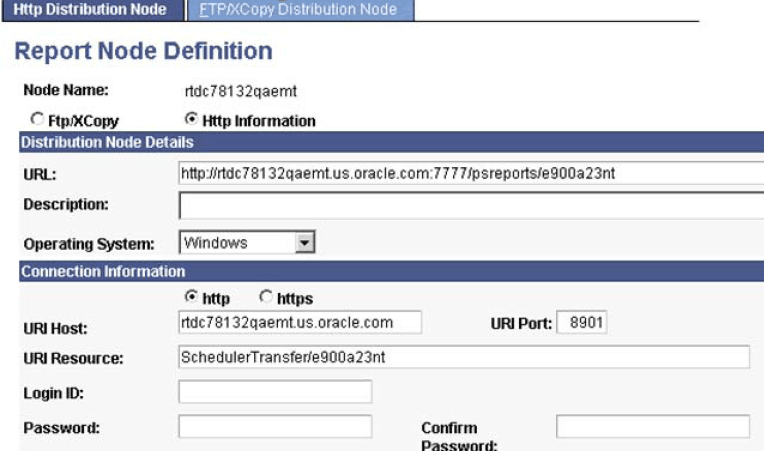
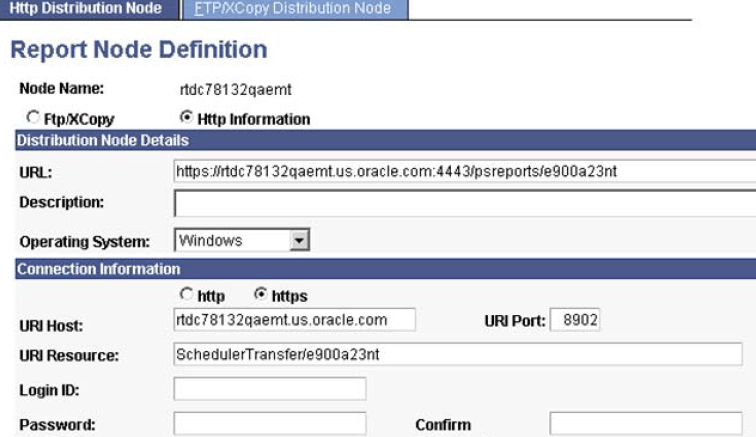
Similarly, to support the OAM single sign-on on the returned Report/Trace/Log URLs for non-PSJob processes, specify either the non-SSL or SSL WebGate Port Number on the URL under the Distribution Node Details group box on the Report Node Definition page, and specify either the non- SSL or SSL Web Server Port Number on the URI Port under the Connection Information group box.
To set the Report Node Definition for a non-SSL implementation, access the Report Node Definition page (PeopleTools, Process Scheduler, Report Nodes):
This example illustrates the fields and controls on the Example of Report Node Definition page setup for a non-SSL implementation. You can find definitions for the fields and controls later on this page.
To set the Report Node Definition for an SSL implementation, access the Report Node Definition page (PeopleTools, Process Scheduler, Report Nodes):
This example illustrates the fields and controls on the Example of Report Node Definition page setup for an SSL implementation. You can find definitions for the fields and controls later on this page.
Note:
After the change, be sure to reboot the Process Scheduler servers.
-
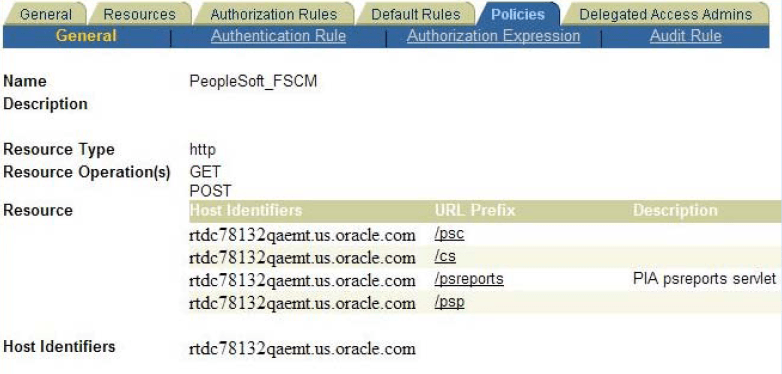
To make the SSO work, the "psreports" servlet needs to be added to the OAM server, just like the other servlets, "psp", "psc", and so on.
This example illustrates the fields and controls on the Policies: Example of psreports servlet added to the OAM server. You can find definitions for the fields and controls later on this page.
-
In order to post the report/trace/log files to the report repository, ensure the process types are set to use Web as the Default Output on the System Settings – Process Output Type page. (Access PeopleTools, Process Scheduler, System Settings, Process Output Type).
-
Ensure that the file types are set to Display on the System Settings – Distribution File Options page. (Access PeopleTools, Process Scheduler, System Settings, Distribution File Options)
Note:
After the change, reboot the Process Scheduler servers as well as the Application server.
-
You can enable the Encrypted SAML Token for the generic process initiation service, if needed. To enable the SAML Token with Encryption in the PeopleSoft system:
See PeopleSoft General Ledger 9.0 and 9.1 Documentation Update: PeopleSoft Financials Generic Process Initiation Service for Third-Party Integration posted to MyOracleSupport website: Note ID: 1234623.1
See PeopleTools: Integration Broker Administration, Setting Up Secure Integration Environments.
-
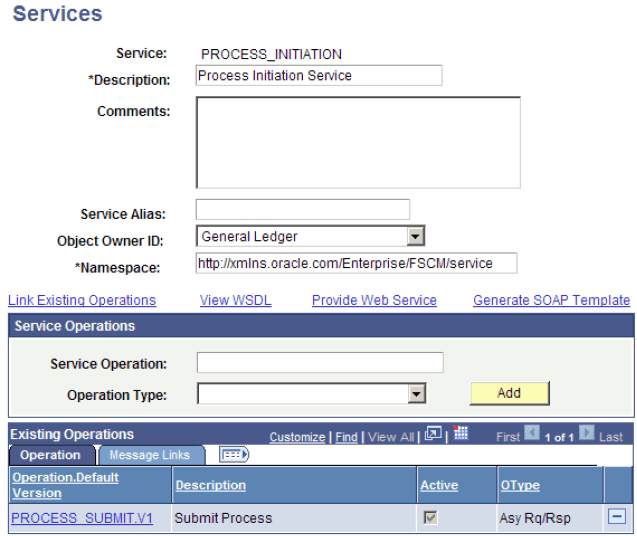
Generate the WSDL for the web service, PROCESS_INITIATION. (Access PeopleTools, Integration Broker, Integration Setup, Services):
This example illustrates the fields and controls on the Services page: PROCESS_INITIATION service. You can find definitions for the fields and controls later on this page.
-
Click the Provide Web Service link.
-
Select the Service Operation, PROCESS_SUBMIT.V1.
-
If implementing SSL, select the Use Secure Target Location check box. This check box is available for selection only when the Secure Target Location on the IB Service Configuration page has been defined.
-
Click the Next button on Step 2 of 4.
-
Click the Next button on Step 3 of 4.
-
Click the Finish button on Step 4 of 4.
-
Make sure you can open the WSDL URL from any web browser.
Note:
If you need to regenerate the WSDL, delete the old one first using the IB Service Administration Utility. (Access PeopleTools, Integration Broker, Service Utilities, Service Administration, WSDL.) Select the service and click the Delete button. Then repeat step 10 to regenerate the WSDL.
-
See PeopleTools Documentation, Integration Broker Service Operations Monitor.
See PeopleTools Documentation, Integration Broker, Providing Services.