Export ChartFields to Fusion Accounting Hub Page
Use the Export ChartFields to Fusion Accounting Hub page (CF_EXP_REQ) to schedule multiple requests periodically to export the ChartField values (initial) and subsequent incremental changes for each SetID and ChartField combination to Fusion Accounting Hub.
Navigation:
This example illustrates the fields and controls on the Export ChartFields to Fusion Accounting Hub page. You can find definitions for the fields and controls later on this page.
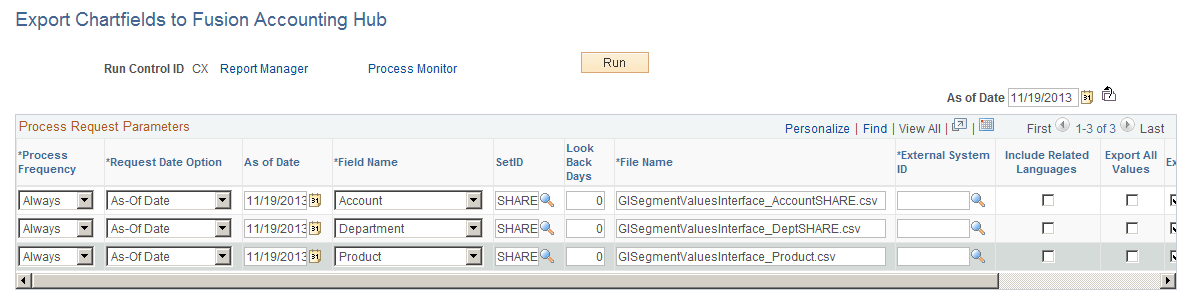
Specify the ChartFields for which to export the values to Fusion Accounting Hub. Once the ChartField Export .csv files are generated, they are transferred to the Universal Content Management (UCM) server via the delivered web service.
Note:
Before running this process, you must properly activate the delivered service operation to handle the file transfer. For detailed configuration steps, see Configuring Integration Broker for ChartField Value Integration to Fusion Accounting Hub.
| Field or Control | Description |
|---|---|
|
Process Frequency |
Select one of the following values when processing the Export ChartFields to Fusion Accounting Hub batch process request:
|
|
Request Date Option |
Select one of the following:
|
|
As of Date |
Specify the As of Date (if you selected this for the Request Date Option) to be used in selecting the effective-dated ChartField values to export. |
|
Field Name |
Select the ChartField that you would like to export. A separate row should be completed for each unique combination of ChartField and SetID to be exported to Fusion Accounting Hub. |
|
External |
Select the user-defined External System ID (External System Setup page) that includes the PeopleSoft Journal |
|
System ID |
Template name and information related to processing options and Drillback URL for access to view the entries in Fusion Accounting Hub. Note: The External System ID is required for the UCM Integration parameters. |
|
SetID |
Select the name of the SetID that you would like to export. |
|
Look Back Days |
Specify the number of days to look back for prior active effective-dated rows, beginning from the process request effective date. The process request effective date can be the As-Of Date or the process date. The purpose of the Look Back Days field is to eliminate inactive gaps. For example, Department ADM01 is inactive for one month as follows:
Result: If the Look Back Days = 0, the ChartField Export process exports the current effective-dated row of the request date. If the request date is August 18, 2013, the current row in Fusion would only be active from August 1, 2013. If, however, the Look Back Days = 90, the ChartField Export process looks for prior active effective-dated rows that exist as of the process date minus the Look Back Days. In this case, Department ADM01 is active from January 1, 2000 to the present date (no end date). |
|
File Name |
Specify the name that you would like to use for the file. The suffix should be “.csv” for comma separated values. |
|
Include Related Languages |
If you would like the descriptions of the ChartField values in alternate languages to be exported, select “Yes.” Only installed languages where there are descriptions in the alternate languages are exported.
These languages must also be installed for Fusion Accounting Hub for the descriptions in the alternate languages to be available. |
|
Export All Values |
Select to export all ChartField values for the ChartField/SetID combination, even if the values were previously exported and there are no effective-dated changes. After the initial export, when this option is deselected, the process only exports new ChartField values and values with effective-dated changes. |
|
Export File |
Select this option to export the file to the UCM server. If this option is not selected, the export process extracts the ChartField data but does not export the file to the UCM server. Processing with this option deselected enables you to test the ChartField export process without exporting the file to the UCM server. |
Note:
For more information, see the “Fusion Accounting Hub Integration with PeopleSoft General Ledger” white paper: Import PeopleSoft ChartField Files.