General Ledger WorkCenter - My Work Page (Fluid)
Use the General Ledger WorkCenter - My Work page to view and take action on frequently-used components and be alerted to the transactions that require your attention.
Navigation:
Select the General Ledger WorkCenter tile and expand My Work section.
This example illustrates the fields and controls on the General Ledger WorkCenter - My Work Pagelet (Fluid).
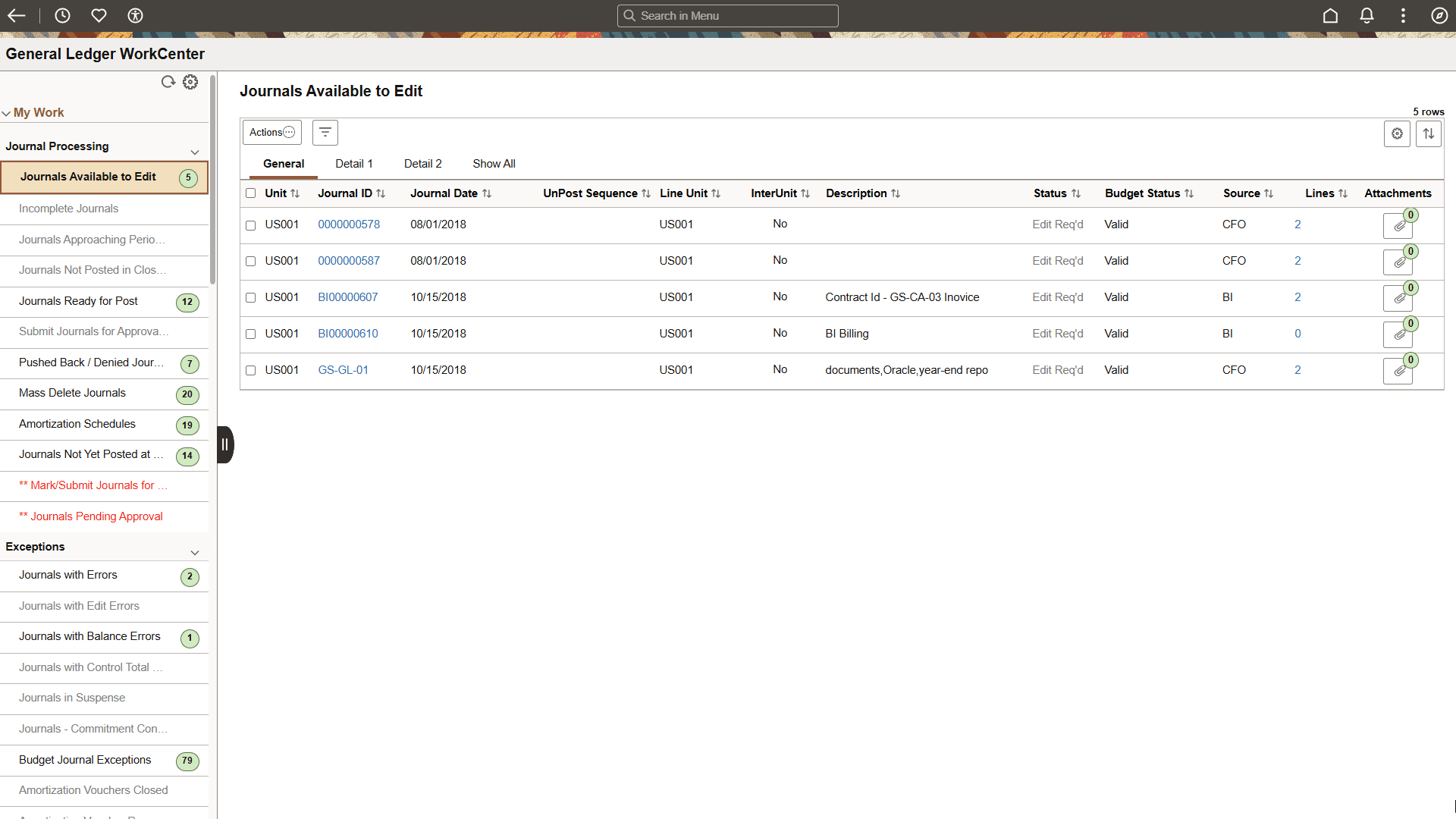
The My Work section includes links to pages that you need to access most often. The My Work pagelet can also include exceptions and alerts for items that require your attention and potentially some type of action. Some links that are set up for the My Work section can be subject to filter criteria that limit the amount of data that is available to a user. If enabled by the system administrator, you can personalize your My Work section by clicking the Pagelet Settings icon.
My Work Links
General Ledger WorkCenter - My Work includes the following delivered links to access the corresponding pages that are used within the WorkCenter:
| My Work Link / Page Name | Definition Name | Usage |
|---|---|---|
|
Journals Available to Edit |
GL_WC_JRNLS |
Manage journals that are available to edit and budget check. |
|
Incomplete Journals |
GL_WC_JRNLS |
Manage journals that are saved with an Incomplete status. |
|
Journals Approaching Period End |
GL_WC_JRNLS |
Manage journals that are not posted and are within a user-specified number of days from the current date to the period end date. The period end date is determined by the journal accounting period (filter definition GLJRNLPEND). |
|
Journals Not Posted in Closed Period |
GL_WC_JRNLS |
Manage journals that are not posted and are in a closed accounting period where the journal date is less than the calendar Open From date. |
|
Journals Ready for Post |
GL_WC_JRNLS |
Manage journals that ready to post. |
|
Submit Journals for Approval in Mass |
GL_WC_JRNLS |
Submit one or more journals for approval in mass. |
|
Pushed Back /Denied Journals for Rework |
GL_WC_JRNLS |
View and edit journals pushed back or denied by approvers and require action. |
|
Mass Delete Journals |
GL_WC_JRNLD |
Delete multiple journals at the same time. |
|
Amortization Schedules |
AMR_SCHED_ACT |
Validate the values passed from the amortization voucher, create stage journals, review and approve the schedule. |
|
Journals Not Yet Posted at Period End |
GL_WC_JRNLS_FL |
View journals that are not yet posted and whose Journal Date is after the current open period. |
|
Journals Pending Approval |
GL_WC_JRNLS_FL |
View journals that are pending approval. |
|
Mark/Submit Journals for Unposting |
GL_WC_UNPOST_FL |
View journals that are marked for unposting. Select journals for unposting or submit for approval. |
Insights in My Work
As of Update Image 55, the Journals Ready for Post link label can optionally display an Insights dashboard, which can have one or more visualizations. The visualization is interactive, meaning that you can select a specific section, which alters the chart below.
This example illustrates the fields and controls on the General Ledger WorkCenter - My Work Pagelet (Fluid) showing the Interactive Insights for Journals Ready for Post.
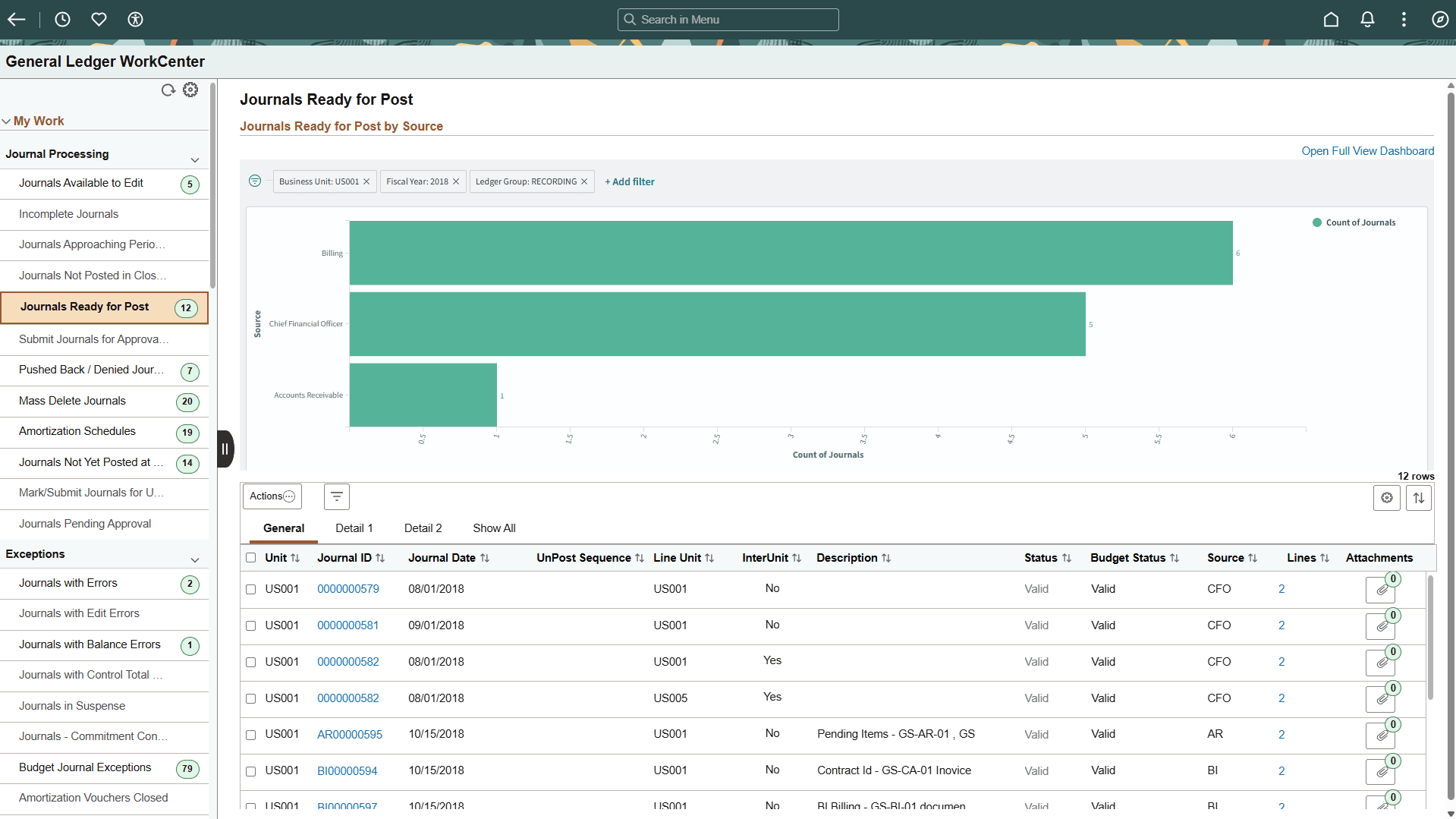
The Journals Ready for Post visualization allows you to see if additional journals came from sub-modules during month end that may have missed the batch posting process. Typically, you want to make sure your sub-module journals are all posted before making any adjustments or corrections. This feature allows you to drill to the sub-module journals, post from the Insight, and then continue with online correction journals.
To display an Insight dashboard, or visualization, for a My Work transaction, follow the steps outlined in Enterprise Components: Configuring Pagelets.
In addition, you must select the Show Insights check box for the link label, on the WorkCenter - Application Fundamentals: Personalize Page (Fluid), My Work tab.