Setting Up InterUnit Journal Approvals
Determine whether you want anchor BU approvers and non-anchor BU approvers to approve InterUnit journals:
-
If you want one set of notifications and only anchor BU approvers to approve interunit journals, then select the Automatically Approve Non-Anchor BU Journals check box on the Application Fundamentals: Installation Options - General Ledger Page.
-
If you want one set of notifications, and anchor and non-anchor BU approvers to approve interunit journals, then complete the steps listed in the following subtopic.
Recommended Setup Steps for Anchor and Non-anchor BU Approvers
If you want one set of notifications and anchor and non-anchor BU approvers to approve InterUnit Journals:
-
Select the Automatically Approve Non-Anchor BU Journals check box on the Application Fundamentals: Installation Options - General Ledger Page.
-
Define multiple roles to segregate approvers by business unit.
Note:
The roles should include all business units. Approvers with multiple roles receive only one notification for each interunit journal using this method.
-
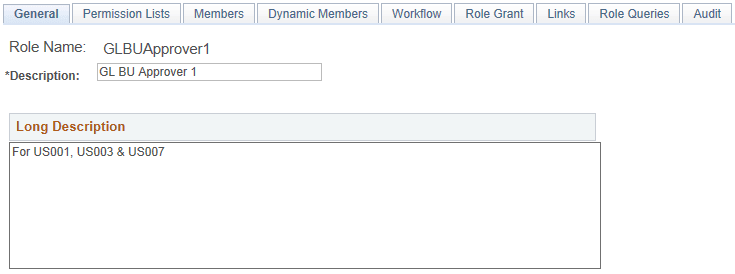
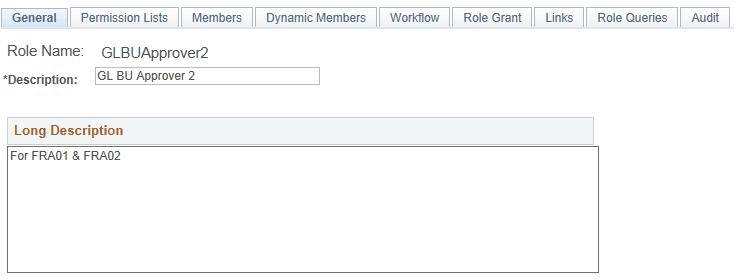
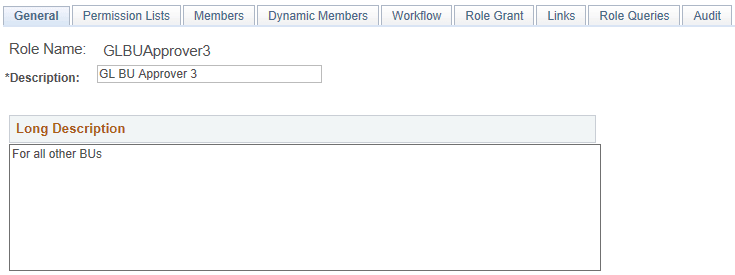
On the Roles - General page (PeopleTools, Security, Permissions & Roles, Roles), create multiple roles, such as; GLBUApprover1, GLBUApprover2, and GLBUApprover3.
This example illustrates the fields and controls on the Roles - General page (GLBUApprover1).
This example illustrates the fields and controls on the Roles - General page (GLBUApprover2).
This example illustrates the fields and controls on the Roles - General page (GLBUApprover3).
-
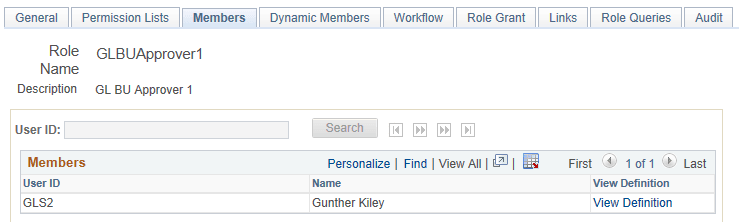
On the Roles - Members page, indicate the members for the role.
This example illustrates the fields and controls on the Roles - Members (GLBUApprover1).
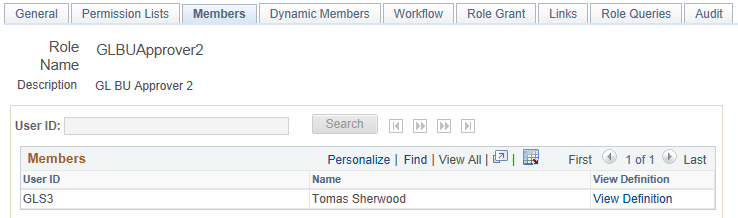
This example illustrates the fields and controls on the Roles - Members (GLBUApprover2).
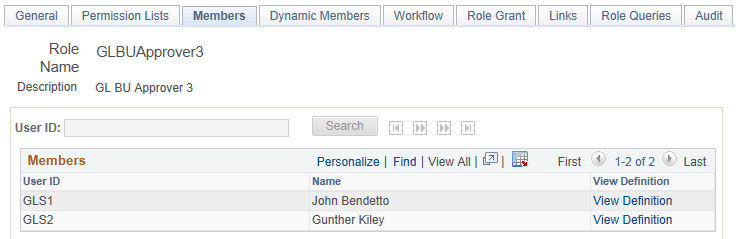
This example illustrates the fields and controls on the Roles - Members (GLBUApprover3).
-
-
Assign the role to each member using the User Profiles – Roles page (PeopleTools, Security, User Profiles, User Profiles).
-
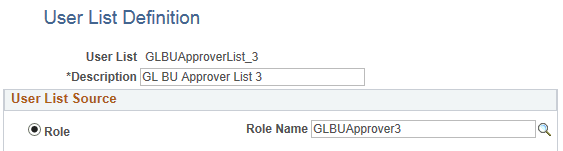
Define an equal number of AWE user lists using the User List Definition Page.
Each links to one of the roles created in step 2:
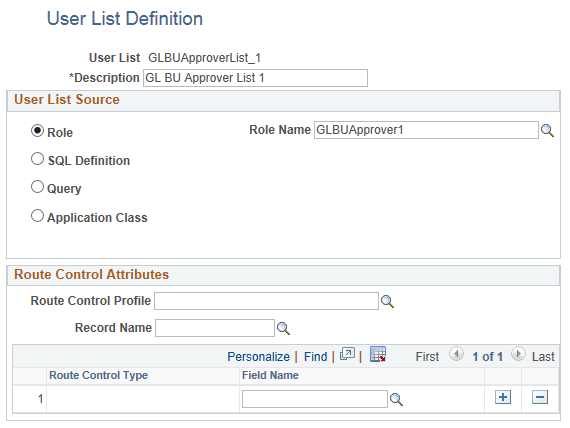
This example illustrates the fields and controls on the User List Definition (GLBUApprover1).
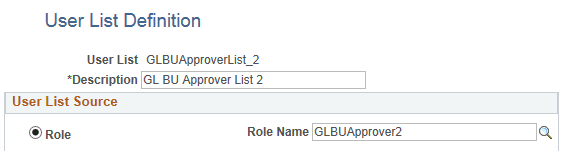
This example illustrates the fields and controls on the User List Definition (GLBUApprover2).
This example illustrates the fields and controls on the User List Definition (GLBUApprover3).
-
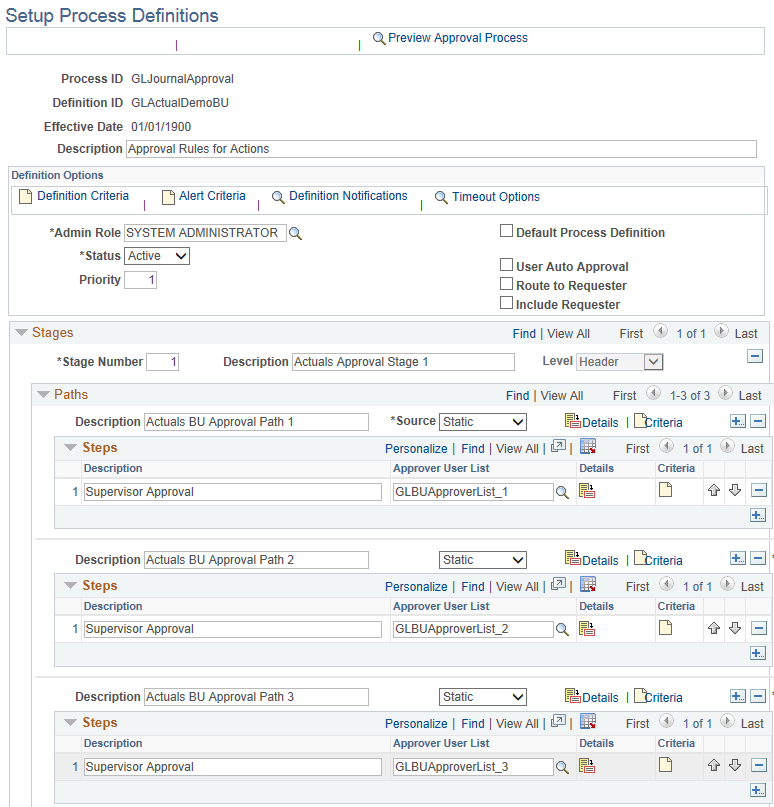
Define an AWE rule with multiple paths using the Application Fundamentals: Setup Process Definitions Page.
Each path routes to the corresponding business unit approver list.
This example illustrates the fields and controls on the Setup Process Definitions Page.
-
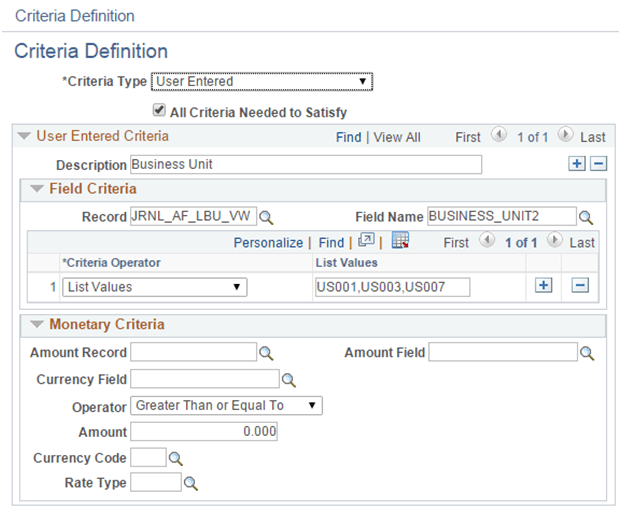
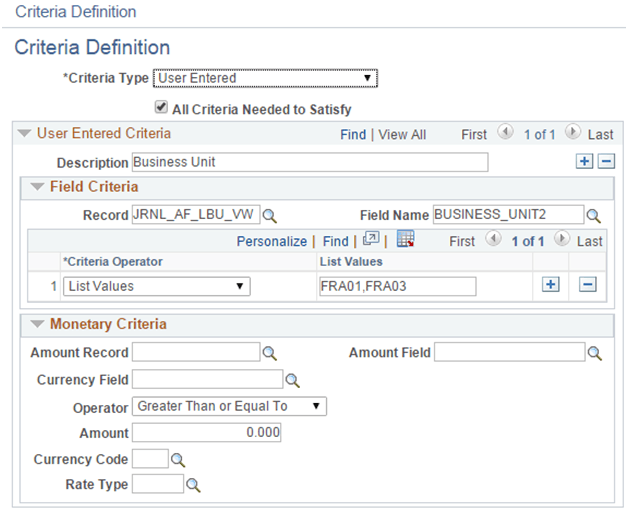
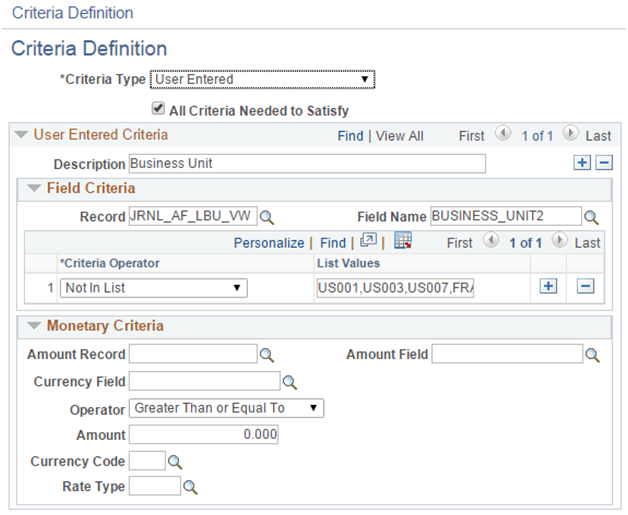
From the Setup Process Definitions page, select the Criteria button for each path to define a User Entered criteria type and route this path to the corresponding business unit approvers. For example:
This example illustrates the fields and controls on the Actuals business unit approval path 1.
This example illustrates the fields and controls on the Actuals business unit approval path 2.
This example illustrates the fields and controls on the Actuals business unit approval path 3.
Note:
Each role defined in step 2 should have an approval path defined.
The Record field value must be JRNL_AF_LBU_VW and the Field Name value must be BUSINESS_UNIT2, to get the line business unit values. You can define as many Criteria Definitions as needed if you can’t put all business units into one criteria, using these values.
For more information about the Approval Workflow Engine and the Approval Framework, see Approval Framework, Defining the Setup Process Definitions Component.