Grants WorkCenter
This example illustrates how the Grants WorkCenter can be set up:
This example illustrates the fields and controls on the Grants WorkCenter . You can find definitions for the fields and controls later on this page.
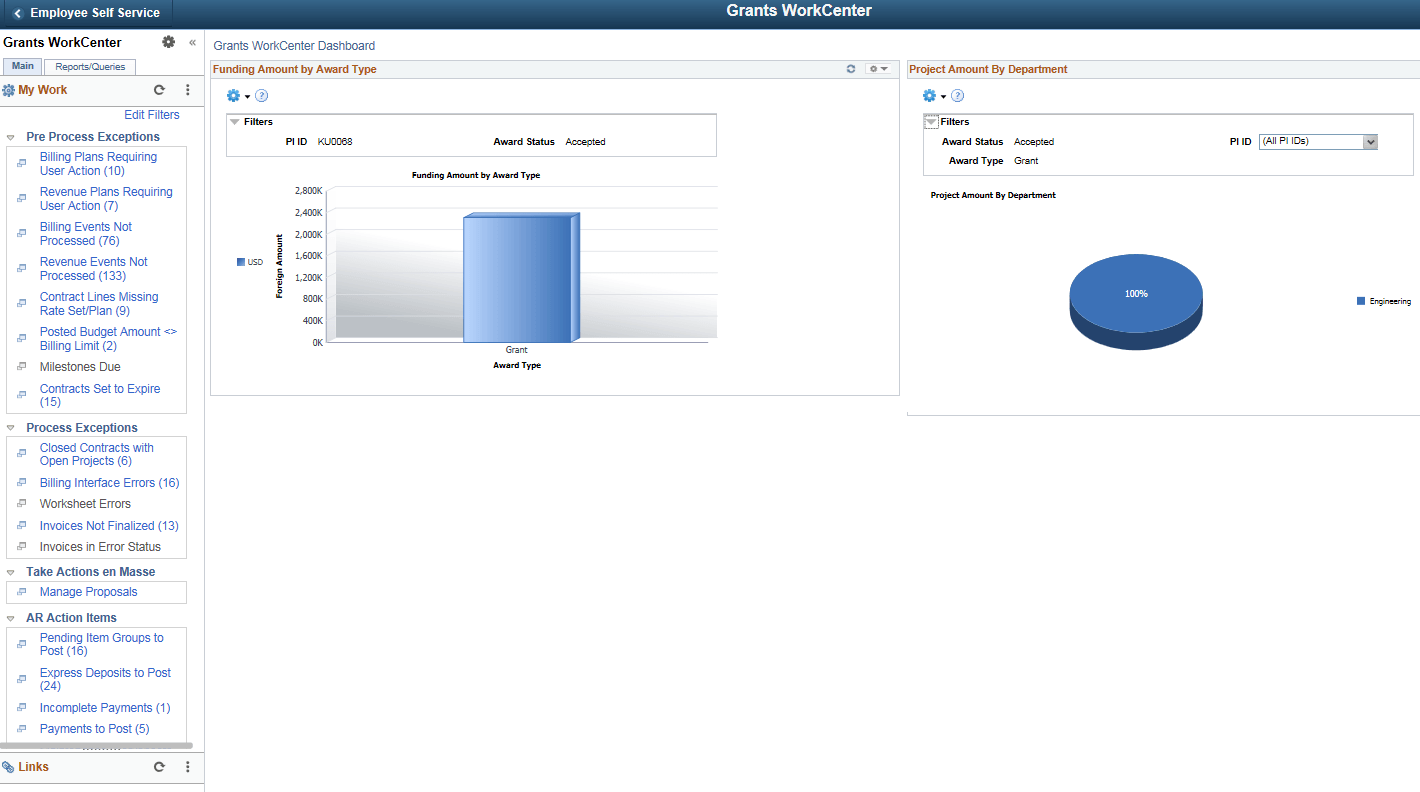
The left side of the page provides two tabs at the top and multiple links to access user-specific information.
The right side of the page has been configured as a Dashboard and displays specific pagelets that provide the user with specific information as soon as they access the WorkCenter.
For more information about the links that appear on the Main tab, My Work section, see Understanding the Grants WorkCenter – My Work Pagelet
For more information about the links that appear on the Main tab, Links section, see Understanding Grants WorkCenter - Links Pagelet
For more information about the links that appear on the Reports/Queries tab, Queries section, see Understanding the Grants WorkCenter - Queries Pagelet
For more information about the links that appear on the Reports/Queries tab, Reports/Processes section, see Understanding the Grants WorkCenter - Reports and Processes Pagelet