Understanding the Grants WorkCenter – My Work Pagelet
This page shot provides an example of how the Grants WorkCenter – My Work section can be set up:
This example illustrates the fields and controls on the Grants WorkCenter – My Work. You can find definitions for the fields and controls later on this page.
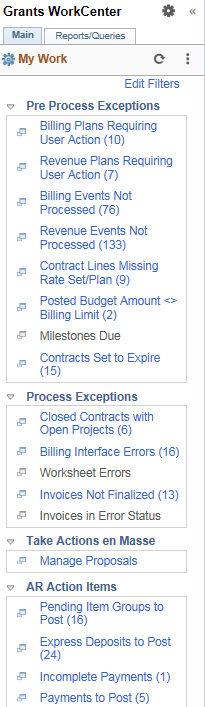
In this example, the My Work section is divided into these groupings:
-
Pre Process Exceptions
-
Process Exceptions
-
Take Actions en Masse
-
AR Action Items
-
AR Exceptions
For detailed information on these exceptions, see: PeopleSoft Contracts: Using the Contracts WorkCenter, PeopleSoft Billing: Using the PeopleSoft Classic Billing WorkCenter - Dashboard, PeopleSoft Receivables: Understanding the PeopleSoft Classic Receivables WorkCenter and PeopleSoft Receivables: Understanding the PeopleSoft Fluid Receivables WorkCenter
Pre Process Exceptions
Pre-process exceptions display data about all active contracts. You can select required rows and perform necessary actions on the rows. This following section discusses each exception in detail.
The Pre Process Exceptions group contains these links:
-
Billing Plans Requiring User Action
-
Revenue Plans Requiring User Action
-
Billing Events Not Processed
-
Revenue Events Not Processed
-
Contract Lines Missing Rate Set/Plan
-
Posted Budged Amount <> Billing Limit
-
Milestones Due
-
Contracts Set to Expire
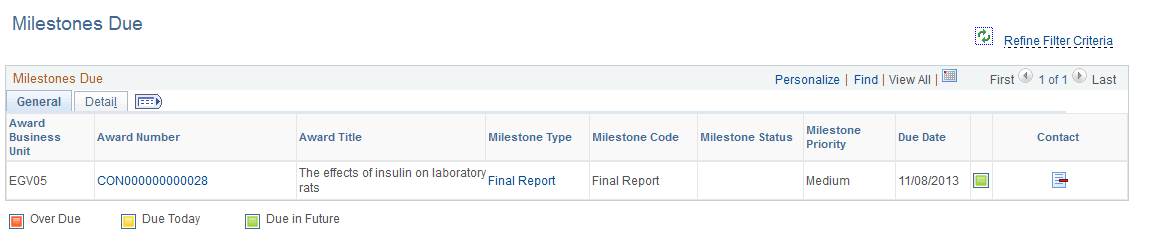
The Milestones Due link displays all overdue Award milestones as well as active milestones with approaching deadlines. You can configure the number of days before a deadline you want to display.
Milestones Due page
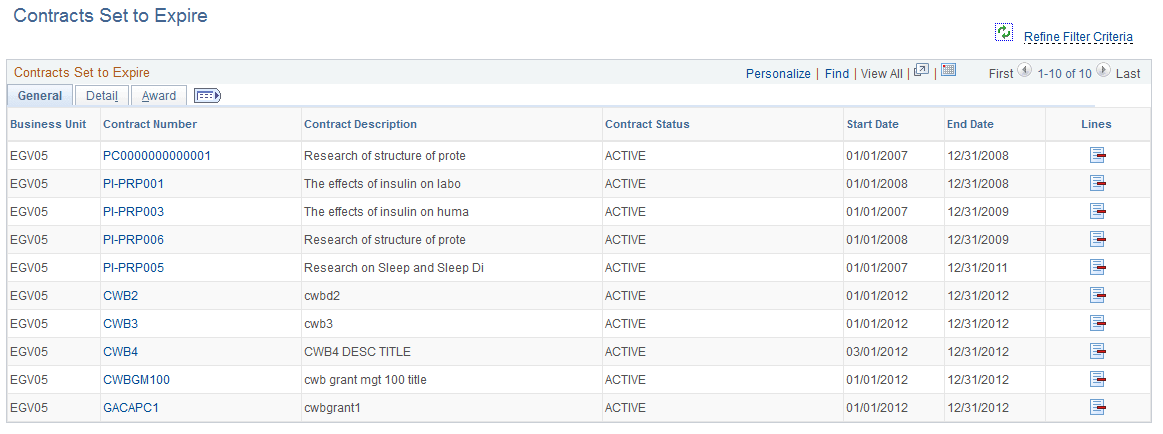
The Contracts Set to Expire link displays all expired contracts as well as active contracts approaching expiration. You can configure the number of days before expiration you want to display.
Contracts Set to Expire page
Process Exceptions
The Process Exceptions group displays closed contracts that have open projects associated with them, invoices not finalized and with errors, and billing interface and worksheet errors.
The Process Exceptions group contains these links:
-
Closed Contracts with Open Projects
-
Billing Interface Errors
-
Worksheet Errors
-
Invoices Not Finalized
-
Invoices in Error Status
Take Actions en Masse
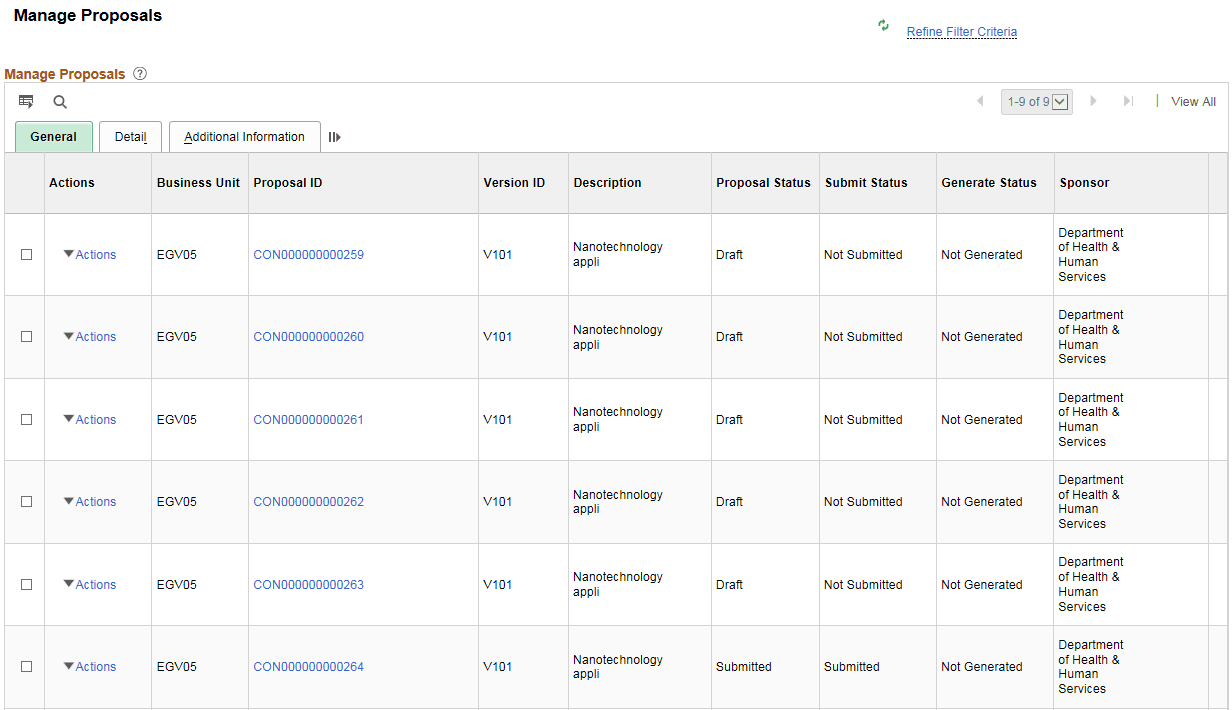
The Take Actions en Masse group allows users to process changes in the Grants Application en masse, as a single action. Manage Proposals link is part of this group.
| Term | Definition |
|---|---|
|
Manage Proposals |
Enables users to process changes for multiple proposals as a single action. This includes submitting a proposal, generating a pre-award project and generating an award. In addition, users can easily create new proposals by copying existing proposals. User can also create new versions of a proposal and update budget details. Users can generate up to five awards or pre-award projects in a single action. |
This example illustrates the fields and controls on the Manage Proposals page.
AR Action Items
The AR Action Items group contains these links:
-
Pending Item Groups to Post
-
Express Deposits to Post
-
Incomplete Payments
-
Payments to Post
-
Maintenance Worksheets to Post
AR Exceptions
The AR Exceptions group contains these links:
-
Deposit Balancing Errors
-
Direct Journal Accounting Entry Errors
-
Direct Journal Budget Exceptions
-
Posting Errors