Allocated Items by Location Page
Use the Allocated Items by Location page (ALLOC_INQ_INV) to displays the allocated quantity for an item within a specific material storage location.
In addition, this page displays the pegged quantity and item attribute details.
Navigation:
Click the Qty Reserved link on the Item Balance by Location page or the Inventory Inquiry by Location Details page.
This example illustrates the fields and controls on the Allocated Items by Location page. You can find definitions for the fields and controls later on this page.
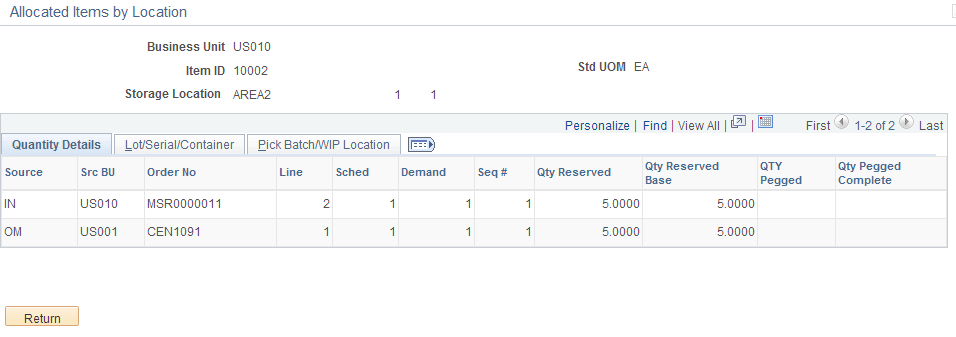
This page displays the item quantities allocated to a demand line at the materials storage location level.
Quantity Details tab
| Field or Control | Description |
|---|---|
|
Source, Src BU, Order No, Line, Sched, Demand, and Seq # |
Identifies information about the orders that has been hard-allocated to this material storage location. These columns display the source application, source business unit, order number, line number, schedule line number, demand line number, and sequence line number. These fields uniquely identify the demand that is allocated to this materials storage location. |
|
Qty Reserved |
Displays the allocated item quantity for this order within this material storage location. This quantity is expressed in the stocking unit of measure. |
|
Qty Reserved Base |
Displays the allocated item quantity for this order expressed in the standard unit of measure. |
|
Qty Pegged |
Displays the total pegged quantity of this demand line. Completed pegs are included in this quantity. Click the quantity link to access the Pegging Inquiry component where you can review the peg in more detail. See PeopleSoft Supply Chain Management Common Information: Monitoring Peg Chains. |
|
Qty Complete |
Displays the pegged quantity that has already been received and putaway into a PeopleSoft Inventory business unit. |
Pegged Quantities
This page displays two field for pegging; Qty Pegged and Qty Complete. It is important to understand that the quantities displayed in these fields are by demand line and not by the combination of demand line/material storage location. The pegged quantities shown can be greater than the reserved or on-hand stock for the displayed material storage location. For example, demand line 1 of an order has 100 units of item ID 10002. All 100 units have been pegged to an incoming purchase order. When the purchase order is received and the stock is putaway into the inventory business unit, 100 units of item ID 10002 are allocated to fulfill the pegged demand line. To fulfill this demand line, the system allocated stock from multiple material storage locations; 50 units were allocated in Area2/1/1, 30 units were allocated in Area4/2/8, and 20 units were allocated in Area1/6/4. However, when you look at the Allocated Items by Location page for item ID 10002 and material storage location Area2/1/1, you see a Qty Reserved of 50 units, and a Qty Complete of 100 units (the entire demand line's completed peg). The Qty Pegged field would also display 100 units. For more information on pegging, see the PeopleSoft Supply Chain Management Common Information .
See .PeopleSoft Supply Chain Management Common Information: Understanding Pegging
Lot/Serial/Container tab
Displays the staged dates and IDs for lot, serial, and storage container for this allocation.
Pick Batch/WIP Location tab
This section displays all orders that have been allocated to this material storage location. The allocation type of standard, pre-allocations, or lot-allocations is shown in the Allocation column. For allocated orders that are in the picking stage of demand fulfillment, this tab displays the pick batch ID and pick line. For production IDs from PeopleSoft Manufacturing, the work in progress (WIP) location is displayed, if applicable.