Approving Stock Requests Manually
Before you can reserve inventory to fulfill an order from any source, you must approve it. If you do not want to use the approval process, make sure that you have selected the Auto Stock Approval check box on the Setup Fulfillment page. If you receive stock requests from a third-party application, ensure that all demand rows are marked as Approved.
You can approve stock requests manually using the Approve Stock Request page or the Shortage Workbench.
Page Used to Approve Stock Requests Manually
| Page Name | Definition Name | Usage |
|---|---|---|
|
DEMAND_APPV_INV |
Approve stock requests manually. |
|
|
IN_SW_SELECTION |
Approve stock requests manually. |
Approve Stock Request Page
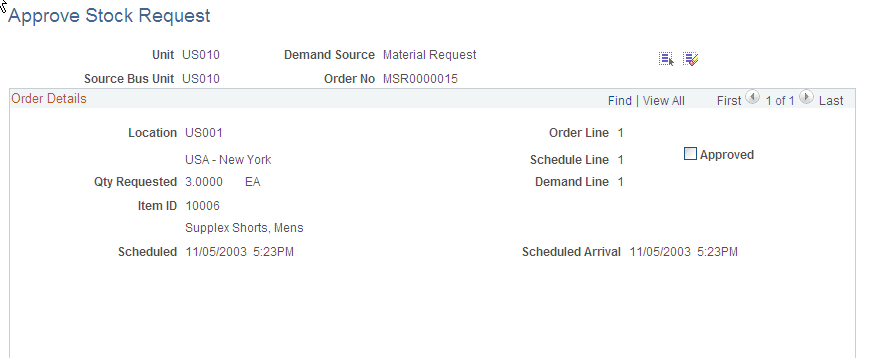
Use the Approve Stock Request page (DEMAND_APPV_INV) to approve stock requests manually.
Navigation:
This example illustrates the fields and controls on the Approve Stock Request page. You can find definitions for the fields and controls later on this page.
| Field or Control | Description |
|---|---|
|
Approved |
Select to approve an individual stock request demand line. |
|
Select All and Deselect All |
Click to approve all demand lines or to withdraw approval for all lines. Note: The Select All option appears only when there are multiple demand lines. |