Excluding Lines From a Group
Use the Fulfillment Workbench to process a group while excluding part of that group. For example, let us assume that you want to ship all the orders within a particular load ID except one demand line. The group level is defined as a particular load ID (in this case, the load ID 0000000002), the detail level can be used to exclude a specific order or line in that load (in this case, order MSR0000029, line 2). Any demand lines being excluded at the detail level must exist within the selection criteria entered at the group level.
Creating the Group
First, create the group. An authorized user can navigate to the Fulfillment Workbench page (Inventory, Fulfill Stock Orders, Fulfillment Workbench) and enter the following:
-
In the Action field, select the option Ship.
-
In the Search By field, select the option Group.
-
Enter the search criteria in the Selection Criteria group box to identify the group. For this group, enter load ID 0000000001 that contains 4 demand lines. All the demand lines are in the Released state, so you can select the Select Released check box.
-
Click the Add to Queue button.
This example illustrates the fields and controls on the Fulfillment Workbench page. You can find definitions for the fields and controls later on this page.
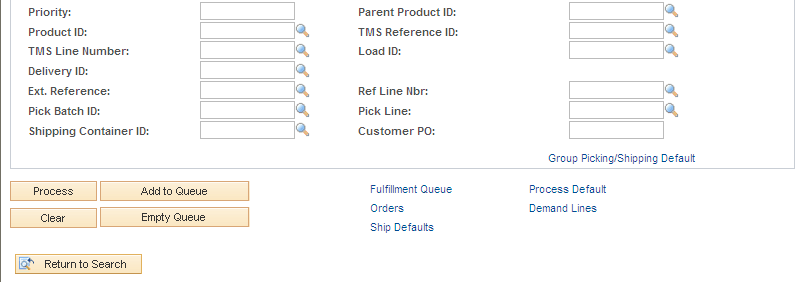
Click the Orders link or the Demand Lines link to view the data within the queue.
Excluding Part of the Group
Exclude one demand line in this Load ID from the shipment. Once the group is created, select the Demand Lines link to access the Demand Lines page of the workbench. To exclude line 3 of the MSR0000011:
-
Select the Exclude check box on the demand line row. This action also selects the Select check box.
-
Click the Add to Queue button to add the exception to the fulfillment queue.
-
Click the Fulfillment Queue link to access the Fulfillment Queue page.
This example illustrates the fields and controls on the Demand Lines page of the Fulfillment Workbench. You can find definitions for the fields and controls later on this page.
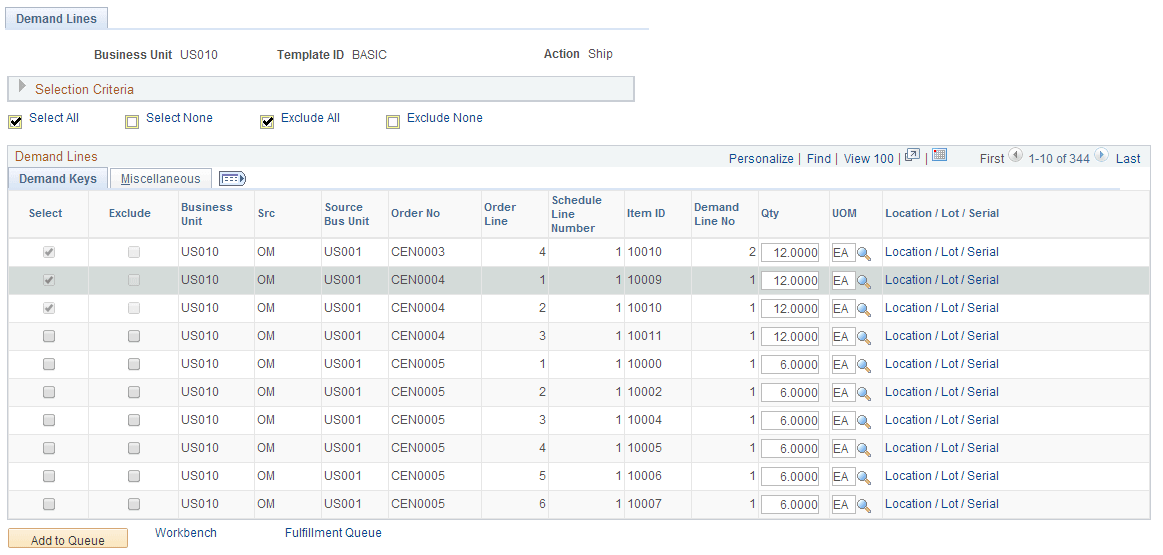
You can also exclude an entire order using the Orders page of the workbench. If the order is very large, you will want to avoid loading the order into the Fulfillment Queue by using the Fulfillment Workbench page to create an exclusion using the Detail option of the Search By field.
Viewing the Fulfillment Queue
Click the Fulfillment Queue link to access the Fulfillment Queue page where you can view the group and detail levels. On the Fulfillment Queue page:
-
Notice that the Group ID 1 selection criteria are listing in the Fulfillment Queue Group section.
-
Notice that the Fulfillment Queue Detail section displays the excluded order line.
-
Click to Process button to write the transaction request to the staging tables to be processed by the Fulfillment Requests process.