Fulfilling Backorders
The Fulfillment Workbench is a good vehicle to quickly process backordered demand lines when available stock arrives in the warehouse location. For example, let us assume there is one order with 10 lines. You originally used scenario 2 to process the order (see the above section: Scenario 2: Using Direct Processing in Demand Fulfillment). The Reserve Materials process was run; 2 lines were backordered and 8 lines were moved to the Releasable state. You then used the Front-End Shipping process to move the 8 demand lines to the Shipped state. Right before you ship the 8 lines, you receive a shipment from our vendor that enables us to fulfill the 2 backordered lines. You want to ship the entire order together. Currently, 2 lines are backordered in the Unfulfilled state and 8 lines are on the shipping dock in the Shipped state.
An authorized user can go into the Fulfillment Workbench and create a transaction to take the 2 backordered demand lines, fulfill them with the stock from the inventory business unit and place the demand lines in the Shipped state. In the process, you can assign the same shipping ID as used on the 8 demand lines on the shipping dock.
Keep in mind that you need to reproduce any shipping documents that you might have printed for this shipment before you decided to add the 2 demand lines .
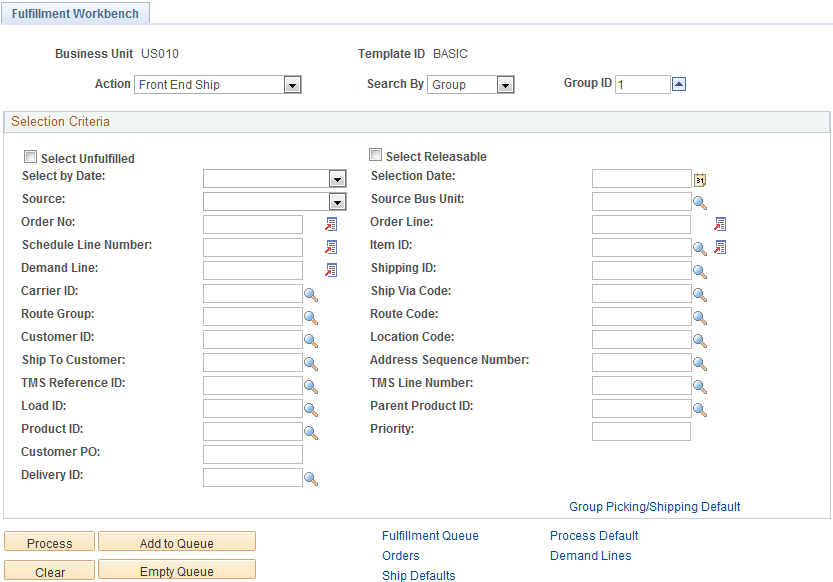
Once the new supplier shipment is received and putaway into the inventory business unit, you can use the Fulfillment Workbench to bring the 2 backordered lines to the Shipped state. First, an authorized user navigates to the Fulfillment Workbench page (Inventory, Fulfill Stock Orders, Fulfillment Workbench) and enters the following:
-
In the Action field, select the option Front End Ship.
-
Enter the search criteria in the Selection Criteria group box. For this order, select the Select Unfulfilled check box, and enter the correct values in the Source, Source Bus Unit, and Order No fields. Note that the Front End Ship launched by the Fulfillment Workbench can pick up Unfulfilled demand lines whereas the Front-End Shipping Requests process page can only pick up Releasable demand lines. This is possible because of the settings for the workbench are different from the process page.
-
Select the Demand Lines link to access the Demand Lines page of the workbench.
This example illustrates the fields and controls on the Fulfillment Workbench page. You can find definitions for the fields and controls later on this page.
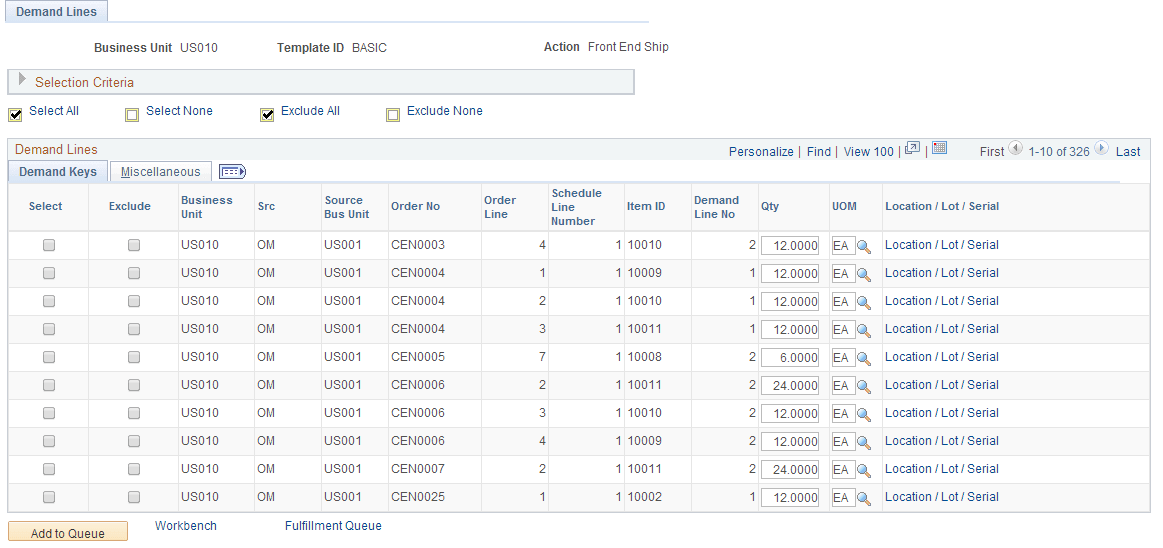
On the Demand Lines page of the Fulfillment Workbench, view all the lines of the order that meet our search criteria. On this page:
-
Select the demand lines using the Select check box on each demand line row.
-
Click the Add to Queue button.
-
Click the Fulfillment Queue link to access the Fulfillment Queue page of the workbench.
This example illustrates the fields and controls on the Demand Lines page of the Fulfillment Workbench. You can find definitions for the fields and controls later on this page.
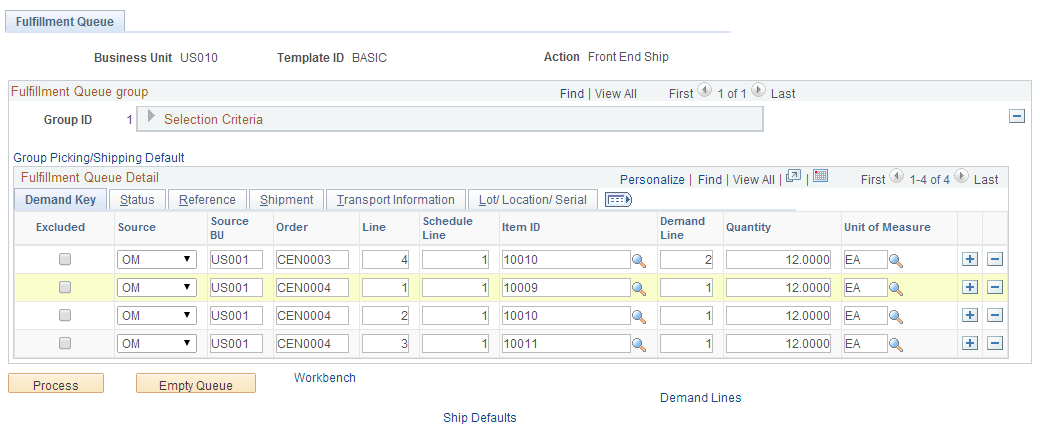
On the Fulfillment Queue page, see both our demand lines that are currently backordered. Click the Ship Defaults link to access the Picking/Shipping Overrides page.
This example illustrates the fields and controls on the Fulfillment Queue. You can find definitions for the fields and controls later on this page.
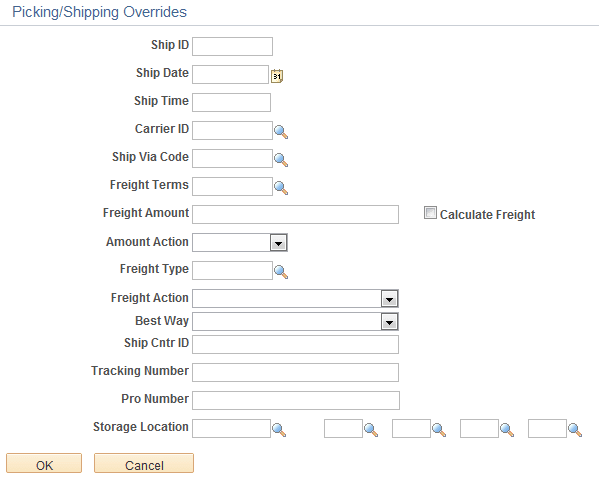
On this Picking/Shipping Overrides page, enter the Ship ID that was used for the other 8 demand lines of this order. Using this page, the Shipping ID override is applied to the entire transaction request. Click the OK button to return to the Fulfillment Queue page.
This example illustrates the fields and controls on the Picking/Shipping Overrides page. You can find definitions for the fields and controls later on this page.
On the Fulfillment Queue page, click the Process button. The entered request is written to the staging tables to be processed by the fulfillment engine using the Fulfillment Requests process. If you have selected automatic schedule processing on the Processing Defaults page of this workbench or the Setup Fulfillment - Fulfillment Engine page, then the Fulfillment Requests process is launched when you click this button.