Fulfillment Queue Page
Use the Fulfillment Queue page (IN_FW_CART) to view the demand lines in the processing queue.
Navigation:
Select the Fulfillment Queue link on the Fulfill Workbench page, the Orders page, or the Demand Lines page.
This example illustrates the fields and controls on the Fulfillment Queue page. You can find definitions for the fields and controls later on this page.
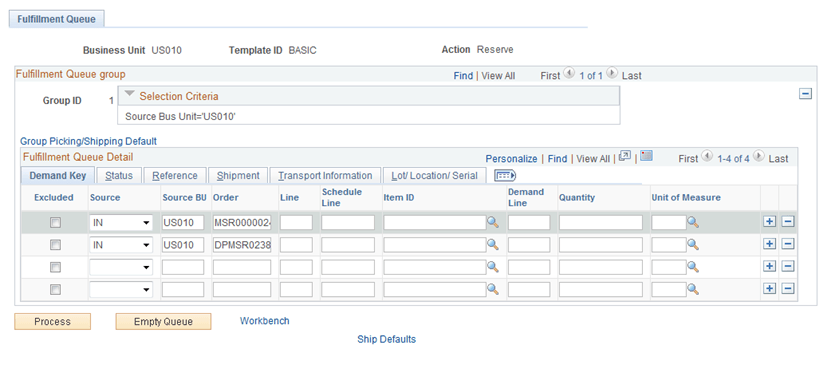
These are the orders that will be processed by the Fulfillment Workbench request. You can review the orders and demand lines that make up this request. You can also add, modify, or delete from the detail level and LLS level of this request.
Fulfillment Queue Group
The Fulfillment Queue group section displays the group ID number and contains a link to the Picking/Shipping Overrides page for the group-level overrides.
| Field or Control | Description |
|---|---|
|
Group Picking/Shipping Default |
Select this link to go to the Picking/Shipping Overrides page, where you can override the picking storage location and shipping parameters. The overrides entered through this link are applied at the group level. |
Fulfillment Queue Detail
The Fulfillment Queue Detail group box is used to review and edit detail level entries that have been created on a fulfillment transaction request.
| Field or Control | Description |
|---|---|
|
Exclude |
Under the Demand Key tab, select and enter information to identify demand that should be excluded from the request. |
|
Quantity |
Under the Demand Key tab, enter an override quantity for this demand. If you are using an action of Reserve on the Fulfillment Workbench page, then this value overrides the releasable quantity on the demand line. If you are using an action of Pick Confirm on the Fulfillment Workbench page, then this value overrides the released quantity on the demand line. If you are using an action of Front End Ship or Ship on the Fulfillment Workbench page, then this value overrides the shipped quantity on the demand line. |
|
Unit of Measure |
Under the Demand Key tab, enter the UOM for the quantity field. The standard UOM is used as the default, but you can override it with any valid UOM for the item. |
|
Kit ID |
Under the Reference tab, you can view or edit the product kit. If you entered a product kit ID (Parent Product ID field) in the selection criteria of the Fulfillment Workbench page and then clicked the Add to Queue button, then the Kit ID is displayed in this field. |
|
Location / Lot / Serial |
Under the Lot/Location/Serial tab, select this link to access the Fulfillment Queue Location / Lot / Serial page, where you can review and change information related to specific items picked and shipped for this detail row in the transaction request. |
|
Ship Defaults |
Under the Lot/Location/Serial tab, select this link to go to the Picking/Shipping Overrides page where you can override the picking storage location and shipping parameters. The overrides entered through this link apply to the detail level. |
|
Short Ship Opt |
Under the Lot/Location/Serial tab, select an option for short shipping this demand line. Options are:
|
Other Options
| Field or Control | Description |
|---|---|
|
Process |
Select to process all the demand lines matching the entered search criteria. The entered search criteria (request) is written to the staging tables to be processed by the fulfillment engine using the Fulfillment Requests process. If you have selected automatic schedule processing on the Processing Defaults page or the Setup Fulfillment - Fulfillment Engine page, then the Fulfillment Requests process is launched when you click this button. |
|
Empty Queue |
Select to remove all demand lines from the request. |
|
Workbench |
Select to go to the Fulfillment Workbench page, where you can add additional selection criteria. |
|
Ship Defaults |
Select to go to the Picking/Shipping Overrides page, where you can override the picking storage location and shipping parameters. The overrides entered through this link apply to the entire transaction request. |
|
Orders |
Select to go to the Orders page, where you can view and select individual orders for processing. |
|
Demand Lines |
Select to go to the Demand Lines page, where you can view and select individual demand lines for processing. |