Orders Page
Use the Orders page (IN_FW_ORDERPOOL) to view all of the material stock orders and sales orders matching the search criteria on the Fulfillment Workbench.
Also include or exclude specific orders.
Navigation:
Select the Orders link on the Fulfill Workbench page, the Demand Lines page, or the Fulfillment Queue.
This example illustrates the fields and controls on the Orders page of the Fulfillment Workbench. You can find definitions for the fields and controls later on this page.
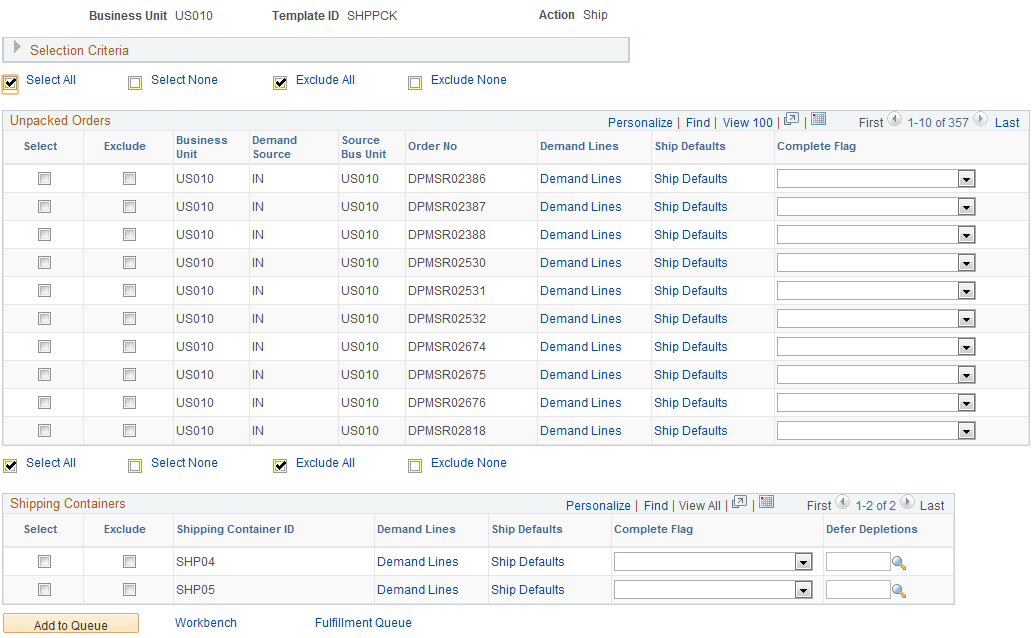
The Unpacked Orders section displays all orders with unpacked quantities matching the search criteria entered on the Fulfillment Workbench page. These orders appear by business unit, demand source, source business unit, and order number. The Shipping Containers section displays orders matching the search criteria that have already been packed into a shipping container. These orders appear by business unit and container.
Orders that are partially packed or partially unpacked are shown in both the Unpacked Orders group box and the Shipping Containers group box. If the order is selected from the Unpacked Orders group box, then both the packed and unpacked demand lines on the order with full quantities are processed by the fulfillment engine. If the container is selected, then only the demand lines in the container and only the packed quantities in the container are processed.
| Field or Control | Description |
|---|---|
|
Select All |
Click to select all the Select check boxes for each row. Any rows with clear Exclude check boxes are enabled. |
|
Select None |
Click to clear all the Select check boxes for each row. Any rows with selected Exclude check boxes are cleared and disabled. |
|
Exclude All |
Click to select all the Exclude check boxes for each row. Any rows with cleared Select check boxes are selected. |
|
Exclude None |
Click to clear all the Exclude check boxes for each row. |
|
Select |
Check to include this order in the request. |
|
Exclude |
Select to define the search criteria as exclusion criteria. This check box appears only if Detail is selected in the Search By field. Selection criteria entered are used to exclude demand data from the group. For example, if you want to ship all the orders in a pick batch ID except order number 55, then enter the pick batch ID at the group level and add the group segment to the fulfillment queue. Next, bring up the detail selection information by entering Detail in the Search By field and selecting the Exclude check box. Then enter the pick batch ID and order number 55. Add the detail segment to the fulfillment queue. Then use the Fulfillment Queue link to review the transaction request and write it to the staging tables when you click the Process button. Note: If the Exclude check box is selected at the order or demand line level, then that order or demand line must exist in the selection criteria established at the group level. If it is not in the selection criteria, then the fulfillment engine rejects the transaction request. |
|
Demand Lines |
Select to access the Demand Lines page, where you can view the demand lines associated with this order number. |
|
Ship Defaults |
Select to access the Picking/Shipping Overrides page where you can override the picking storage location and shipping parameters. The overrides entered through this link apply only to the order selected. |
|
Complete Flag |
Choose a Complete Flag option to automatically performing picking functionality on demand lines that have no previous picking activity reported against them. |
|
Add to Queue |
Select to add the order as a detailed-level segment in the fulfillment queue. You can view the demand lines on the Fulfillment Queue page. When an order is selected and added to the fulfillment queue, a group level entry is automatically created in the fulfillment queue if one was not previously added from the Fulfillment Workbench page. In this situation, the group level entry has no selection criteria. This is done to meet the fulfillment engine's requirement for all detail segments to belong to a group ID on the transaction request being processed. |
|
Workbench |
Select to go to the Fulfillment Workbench page. |
|
Fulfillment Queue |
Select to go to the Fulfillment Queue page, where you can view and edit the details of the current orders on this request. |