Demand Lines Page
Use the Demand Lines page (IN_FW_DEMANDLINES) to view the demand lines of the material stock orders and sales orders selected by the selection criteria on the Fulfillment Workbench or the order number chosen on the Orders page, depending on how the page was accessed.
Navigation:
Select the Demand Lines link on the Fulfill Workbench page, the Orders page, or the Fulfillment Queue.
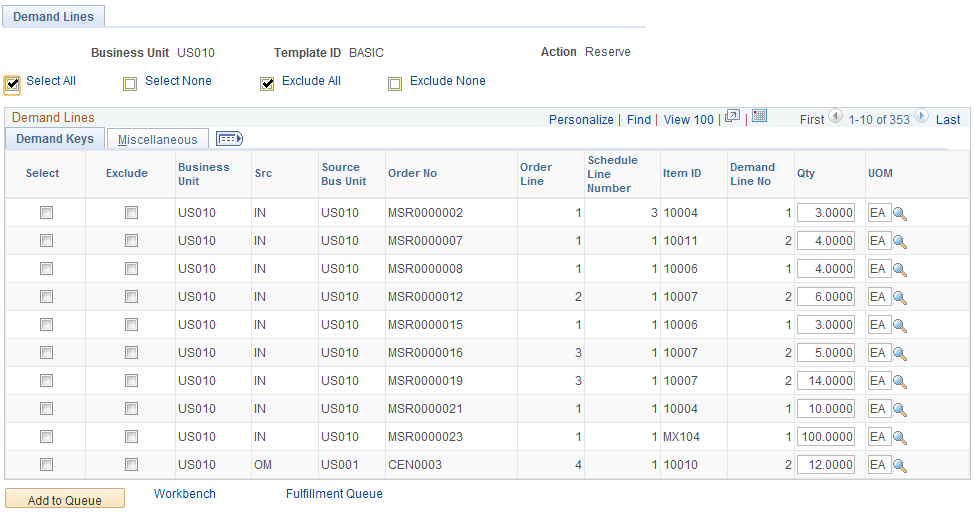
This example illustrates the fields and controls on the Demand Lines page of the Fulfillment Workbench. You can find definitions for the fields and controls later on this page.
This example illustrates the fields and controls on the Demand Lines page of the Fulfillment Workbench (Miscellaneous tab). You can find definitions for the fields and controls later on this page.
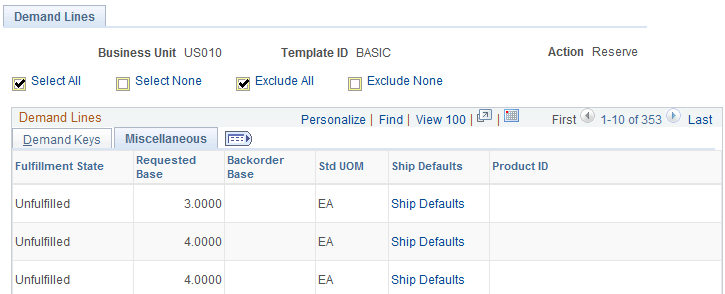
Use this page to include or exclude specific demand lines. You can also change the quantity to be reserved or promised (if you are using an Action of Reserve) or shipped (if you are using an Action of Front End Ship or Ship).
This page displays in fulfillment state and demand key sequence.
| Field or Control | Description |
|---|---|
|
Select All |
Click to select all of the Select check boxes for each row. Any rows with disabled Exclude check boxes are enabled. |
|
Select None |
Click to clear all of the Select check boxes for each row. Any rows with Exclude selected are cleared and disabled. |
|
Exclude All |
Click to select all of the Exclude check boxes for each row. Any rows with Select check boxes cleared are selected. |
|
Exclude None |
Click to clear all the Exclude check boxes for each row. |
Demand Keys tab
| Field or Control | Description |
|---|---|
|
Select |
Select to include this demand line in the request. |
|
Exclude |
Select to exclude this demand line from the selection criteria entered at the group level. |
|
Qty (quantity) |
Enter an override quantity for this demand line. If you are using an action of Reserve on the Fulfillment Workbench page, then this value overrides the releasable quantity on the demand line. If you are using an action of Pick Confirm on the Fulfillment Workbench page, then this value overrides the released quantity on the demand line. If you are using an action of Front End Ship or Ship on the Fulfillment Workbench page, then this value overrides the shipped quantity on the demand line. |
|
UOM (unit of measure) |
Enter the UOM for the quantity field. The shipping UOM is used as the default for all actions but reserve, but you can override it with any valid UOM for the item. For the action of reserve, the ordering UOM is used as the default. |
|
Location / Lot / Serial |
Click this link to access the Fulfillment Queue Location / Lot / Serial page, where you can review and change information related to specific items picked and shipped for this detail row in the transaction request. |
Miscellaneous tab
| Field or Control | Description |
|---|---|
|
Fulfillment State |
Displays the current fulfillment state for this demand line. |
|
Requested Base |
Displays the requested quantity in the base unit of measure. |
|
Backorder Base |
Displays the backordered quantity in the base unit of measure. |
|
Std UOM |
Displays the item's standard unit of measure. |
|
Short Ship Opt |
Select an option for short shipping this demand line. Options are:
|
|
Complete Flag |
Choose a Complete Flag option to automatically performing picking functionality on demand lines that have no previous picking activity reported against them. The LLS segment and the override location are applied prior to implementing the complete flag logic. Using the Complete Flag, the line can be moved to different sub-states within the Released state, or, with auto-processing, moved downstream to the shipped or depleted states.
|
|
Product ID |
Displays the product ID tied to the item ID on the demand line. |
|
Kit ID |
Displays the product kit ID if this demand line contains a kit component. This value is also a link to the Kit Display page. See Kit Display Page. |
Additional Buttons and Links
| Field or Control | Description |
|---|---|
|
Add to Queue |
Select to add the demand lines matching the search criteria to the fulfillment queue to be processed later. You can view the demand lines on the Fulfillment Queue page. When a demand line is selected and added to the fulfillment queue, a group level entry is automatically created in the fulfillment queue if one was not previously added from the Fulfillment Workbench page. In this situation, the group level entry has no selection criteria. This is done to meet the fulfillment engine's requirement for all detail segments to belong to a group ID on the transaction request being processed. |
|
Workbench |
Select to go to the Fulfillment Workbench page. |
|
Fulfillment Queue |
Select to go to the Fulfillment Queue page, where you can view and edit the details on this request. |
|
Orders |
Select to go to the Orders page, where you can view the orders in the current search criteria. |