Example: Entering an Installed Asset from CRM HelpDesk
The following presents an example of entering an installed asset from CRM HelpDesk:
-
Log on to the CRM database. Access the Installed Products Configuration – Set Up Options page (Set Up CRM, Product Related, Installed Product, Configuration.)
This example illustrates the fields and controls on the Installed Products Configuration - Set Up Options page (CRM).
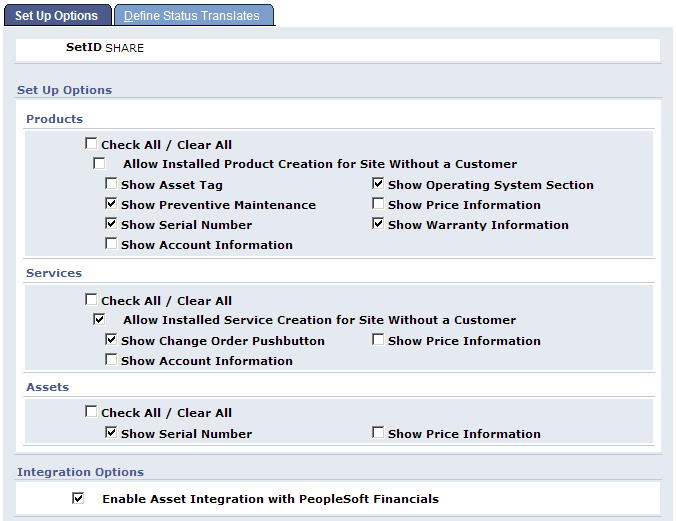
Select the Show Serial Number check box and the Enable Asset Integration with PeopleSoft Financials check box. Save.
-
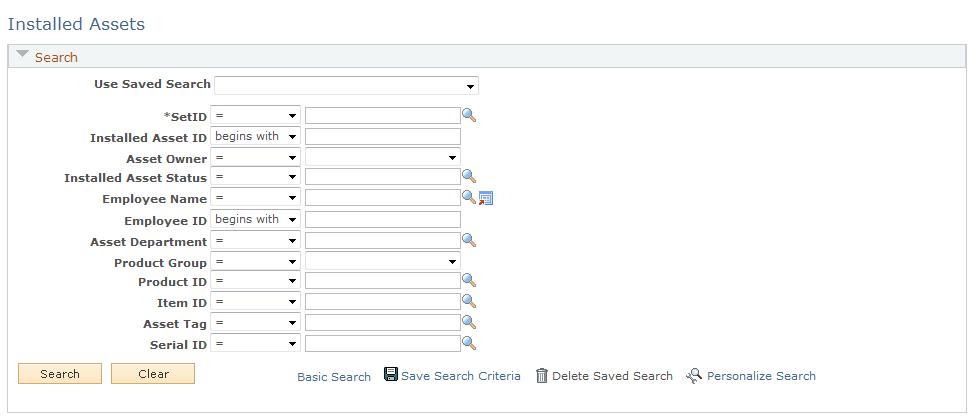
Enter an asset. Access the Installed Assets page (HelpDesk, Installed Assets):
This example illustrates the fields and controls on the Installed Assets page.
-
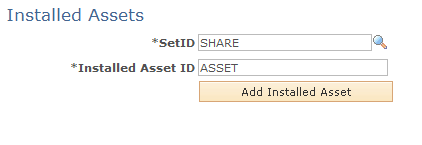
Click the Add Installed Asset button and enter the following information:
This example illustrates the fields and controls on the Add Installed Asset Button Page.
-
Select the SetID from the list, enter the Installed Asset ID, and click the Add Installed Asset button:
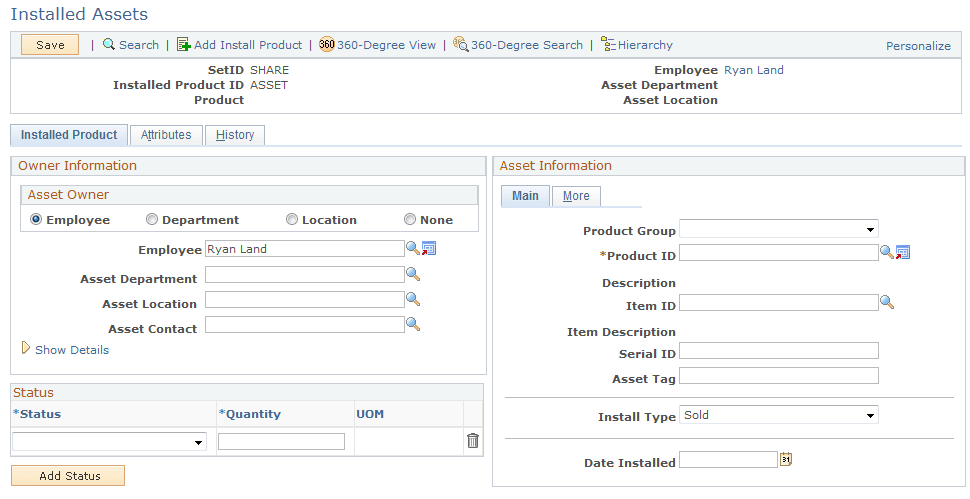
This example illustrates the fields and controls on the Installed Assets (Installed Product) Page.
-
Enter a First Name value (Ryan, in this example) and click the Search button. Enter data as shown below:
This example illustrates the fields and controls on the Installed Assets (Installed Product) Page with data. You can find definitions for the fields and controls later on this page.
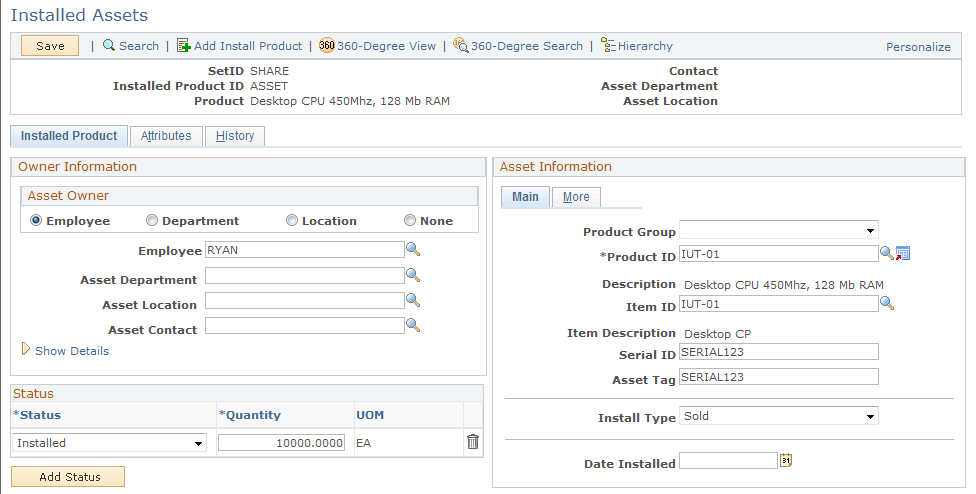
Enter the following values:
-
Product ID = IUT-01
-
Serial ID and Asset Tag = SERIAL123
-
Asset Type = IT Hardware
-
Asset Subtype = DESKTOP
-
Status = Installed; Quantity = 1.0000
Click the Save button.
-
-
Access the Integration Broker Asynchronous Services – Monitor Overview page (PeopleTools, Integration Broker, Service Operations Monitor, Monitoring, Asynchronous Services, Monitor Overview):
This example illustrates the fields and controls on the Asynchronous Services Monitor Overview Page.
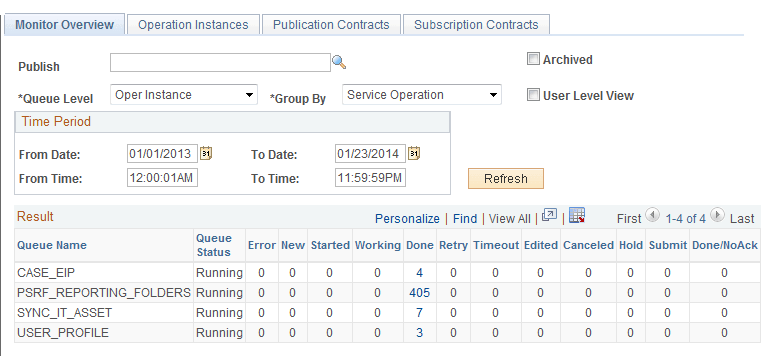
Click the Done hyperlink for the Service Operation, SYNC_IT_ASSET:
This example illustrates the fields and controls on the Asynchronous Serious — Operation Instances Page.
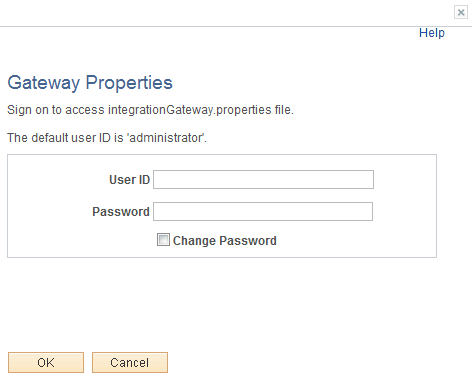
-
Click on Details link and ensure that the Publication Contract has a Status of Done.
This example illustrates the fields and controls on the Asynchronous Details (SYNC_IT_ASSET) Publication Contracts Subscriber Node.
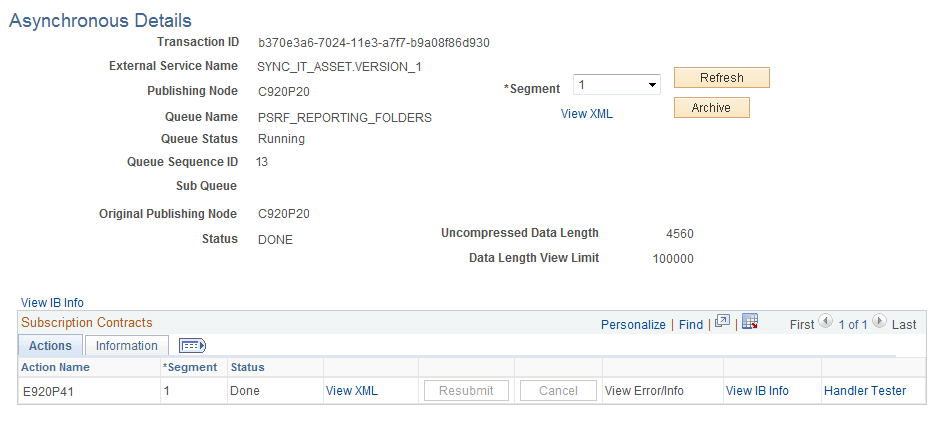
-
Click on View XML link and confirm that this is the Installed Asset that you entered by scrolling through the XML and finding your Serial ID.
This example illustrates the fields and controls on the Asynchronous Details (IB XML) Publication Contracts.
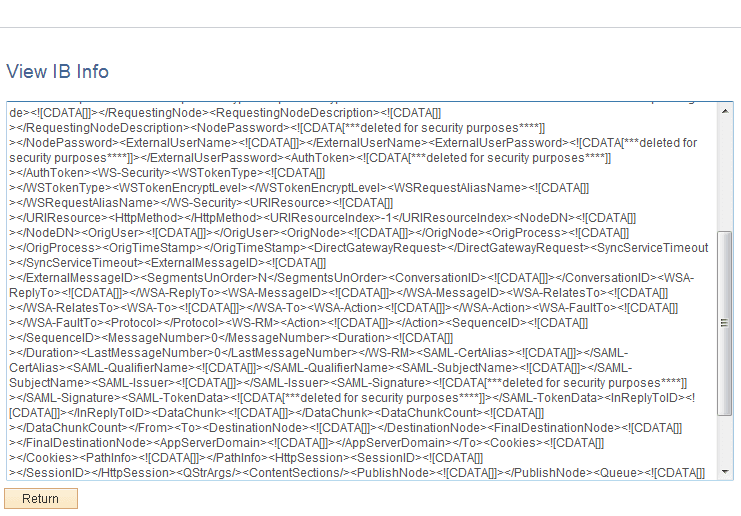
The Done status indicates that it published the XML successfully.
-
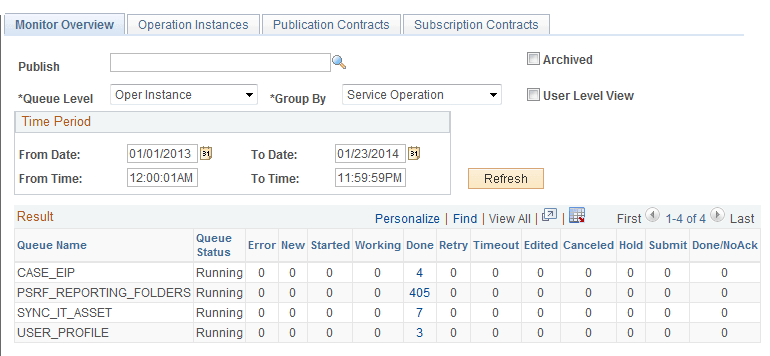
Log into the Financials database and confirm that the asset was integrated and added successfully. Access the Asynchronous Services page in PeopleTools Integration Broker (PeopleTools, Integration Broker, Service Operations Monitor, Monitoring, Asynchronous Services, Monitor Overview):
This example illustrates the fields and controls on the Asynchronous Services Page in PeopleTools Integration Broker.
-
Click on the link in the Done column of the SYNC_IT_ASSET Service Operation. Confirm that the Status = Done.
Click on View XML link:
This example illustrates the fields and controls on the Service Operation (IB XML SYNC_IT_ASSET) Subscription Contracts Page.
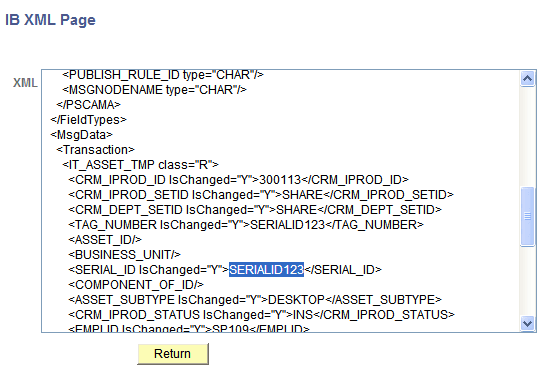
Scroll through the XML and verify that it is the Installed Asset entered in the CRM database (C920P20 in this example).
-
Find the asset in PeopleSoft Asset Management. Access the Search for an Asset page (Asset Management, Search for an Asset):
This example illustrates the fields and controls on the Search for an Asset Page.
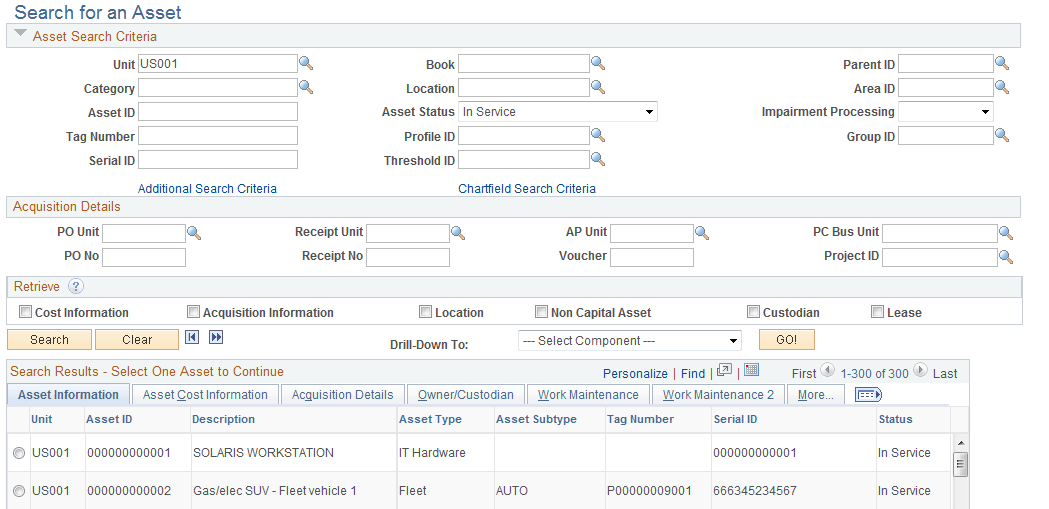
Enter the Serial ID of the Installed Asset that was created in C920P20 (in this example) and click on Search button. If the asset was created successfully, you should see it in the Search Results section.