Example: Integrating an Asset from Financials to CRM
Assumption: Integration Broker Nodes for the Financials and CRM database are already created (previous steps).
-
Add a new routing to the service operation, SYNC_IT_ASSETS. Access the Service Operations - Routings page for the SYNC_IT_ASSETS service (PeopleTools, Integration Broker, Integration Setup, Service Operations. Find the SYNC_IT_ASSETS service operation and click the Routings tab):
This example illustrates the fields and controls on the Service Operations (SYNC_IT_ASSET) Routings Page.
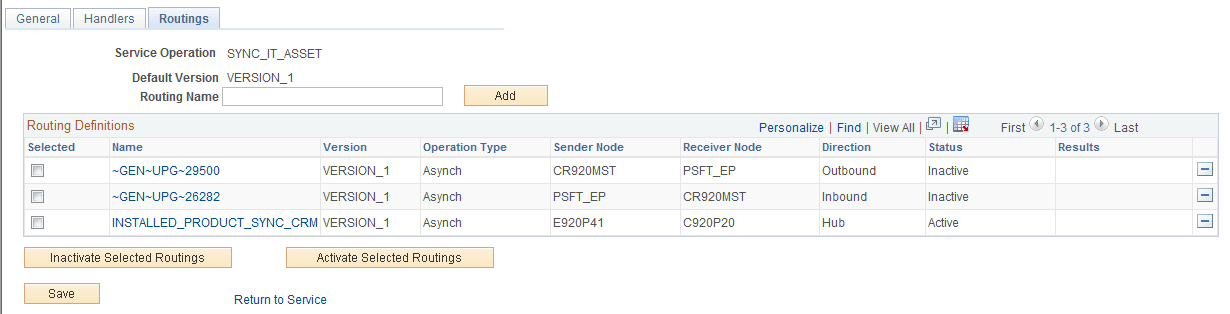
Create a Routing called ITAM2 (for example) from the Financials to the CRM database. Enter ITAM2 for the Routing Name field and click the Add button (ITAM2 pictured as already created above):
This example illustrates the fields and controls on the Create Routing (Financials to CRM) Page. You can find definitions for the fields and controls later on this page.
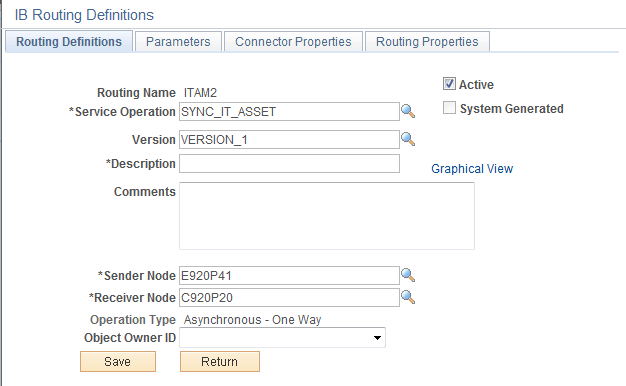
Enter the following information:
-
Service Operation = SYNC_IT_ASSET
-
Sender Node = E920P41 (in this example)
-
Receiver Node = C920P20 (in this example)
-
Save
-
-
Log in to the CRM database and add a new Routing from E920P41 to C920P20 (values in this example) for the SYNC_IT_ASSET Service Operation:
-
Access the Service Operations - Routings page for the SYNC_IT_ASSETS service (PeopleTools, Integration Broker, Integration Setup, Service Operations.)
-
Find the SYNC_IT_ASSETS service operation and click the Routings tab):
This example illustrates the fields and controls on the Routings (SYNC_IT_ASSET) Page.
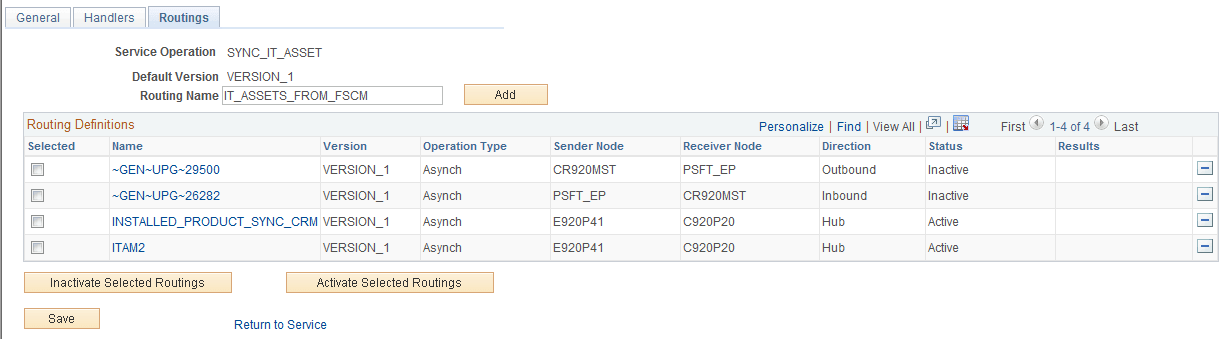
Enter a Routing Name (for example, IT_ASSETS_FROM_FSCM) and click the Add button (shown above as already created):
This example illustrates the fields and controls on the Add Routing Name (IT_ASSETS) on Routing Definitions Page
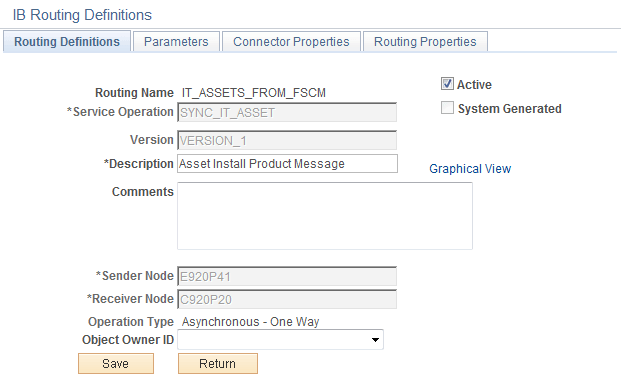
Click the Save button.
-
-
Click on the Parameters tab
This example illustrates the fields and controls on the Parameters (INST_PROD_SYNC) Page. You can find definitions for the fields and controls later on this page.
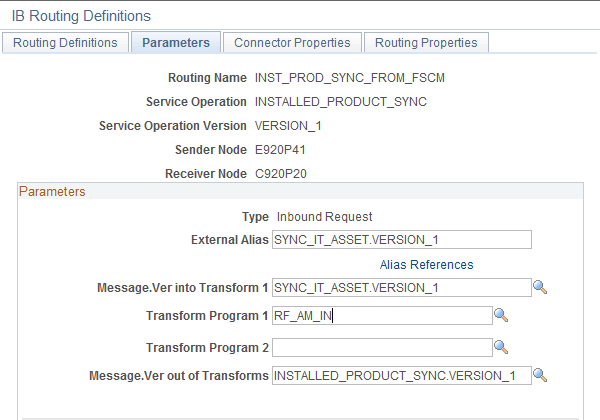
Enter the following information:
-
External Alias: SYNC_IT_ASSET.VERSION_1
-
Message.Ver into Transform 1: SYNC_IT_ASSET.VERSION_1
-
Transform Program 1: RF_AM_IN
-
Message.Ver out of Transforms: INSTALLED_PRODUCT_SYNC.VERSION_1
-
-
Test the integration by entering a new asset in the Financials database:
-
Access the Asset Management Basic Add page and add a new value (Asset Management, Asset Transactions, Owned Assets, Basic Add). Enter an Asset Identification (for example: TEST_1) and click the Add button:
This example illustrates the fields and controls on the Asset Management — Basic Add Page. You can find definitions for the fields and controls later on this page.
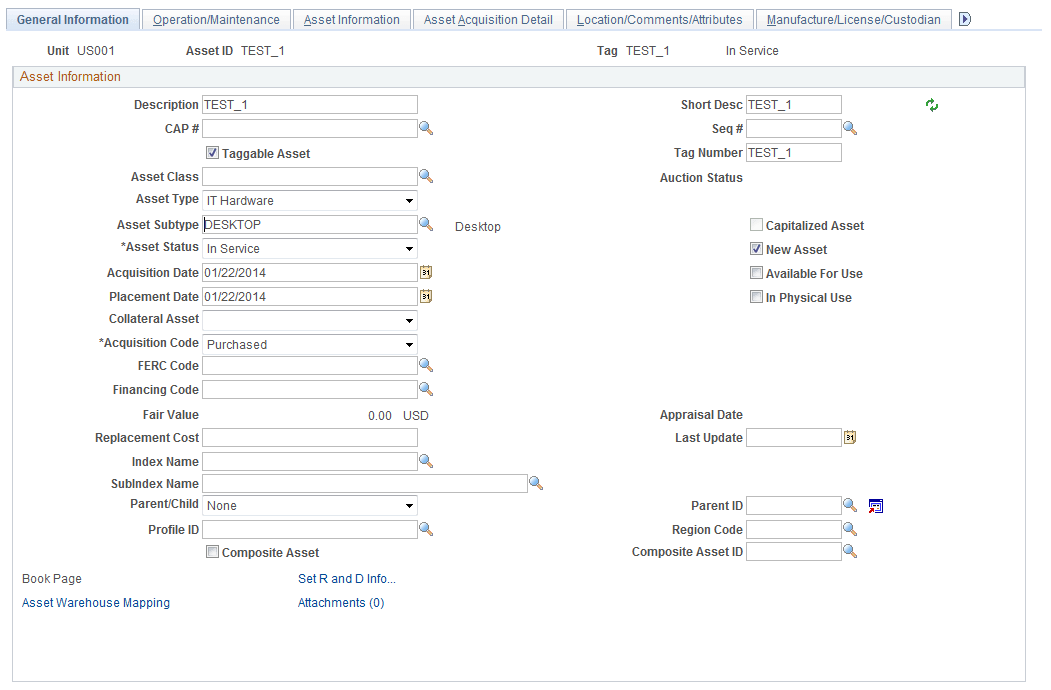
Enter the following information:
-
Description: TEST_1
-
Short Description: TEST_1
-
Tag Number: TEST_1
-
Asset Type: Hardware
-
Asset Subtype: DESKTOP
Click the Operation/Maintenance tab:
This example illustrates the fields and controls on the Asset Management Operations Maintenance Page.
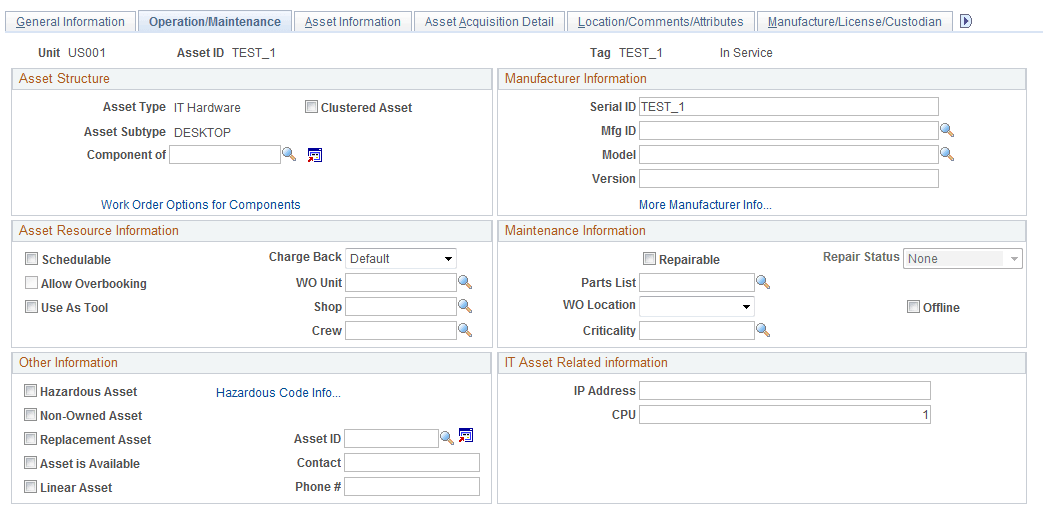
Enter a Serial ID value (ex: TEST_1) and save the asset.
-
-
Access the Asynchronous Services - Publication Contracts page (PeopleTools, Integration Broker, Service Operations Monitor, Monitoring, Asynchronous Services, Publication Contracts):
Enter SYNC_IT_ASSET and click the Search button:
Click the Details link for your transaction:
This example illustrates the fields and controls on the Asynchronous Details (SYNC_IT_ASSET) Publication Contracts Subscriber Node C920P20.
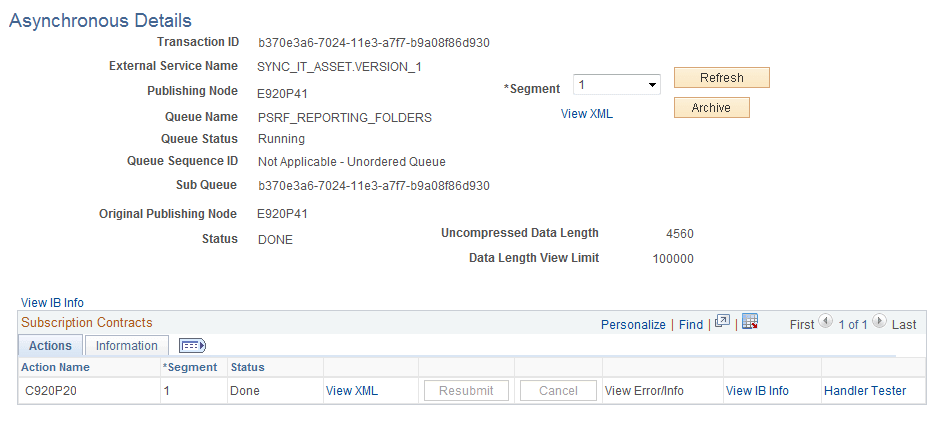
The Publication Contract status should be Done.
Click the View XML link:
This example illustrates the fields and controls on the Asynchronous Details (IB XML) Asset ID Page.
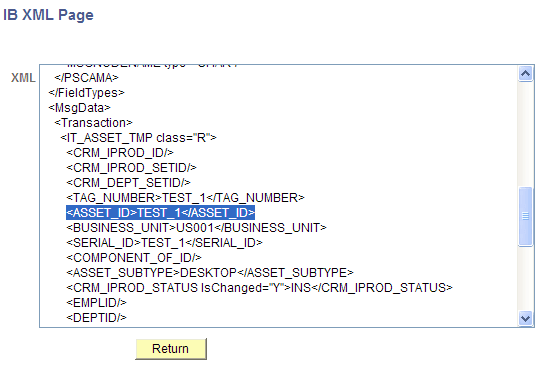
Scroll through the XML and locate the ASSET_ID tag. Verify the Asset ID value.
-
Log in to the CRM database and access the Asynchronous Services - Subscription Contracts page (PeopleTools, Integration Broker, Service Operations Monitor, Monitoring, Asynchronous Services, Subscription Contracts):
On the Subscription Contracts page, click the Details link.
Verify that the transaction status is Done.
Click the View XML link:
This example illustrates the fields and controls on the Asynchronous Details (SERIAL_ID) IB XML Page.
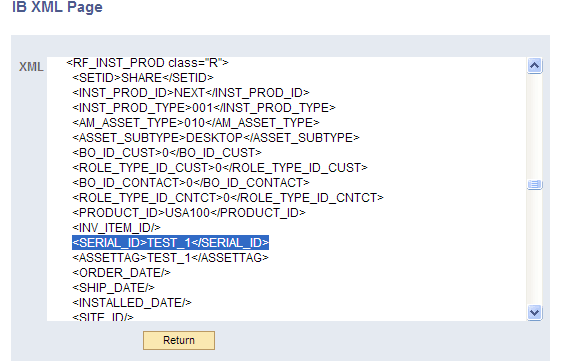
Scroll through the XML and find the Asset ID/Serial ID that was created in the Financials database.
-
Search for the Asset by Serial ID (TEST_1 for the SHARE SetID) from the Installed Assets page (HelpDesk, Installed Assets):
This example illustrates the fields and controls on the Search for Asset on Installed Assets Page.
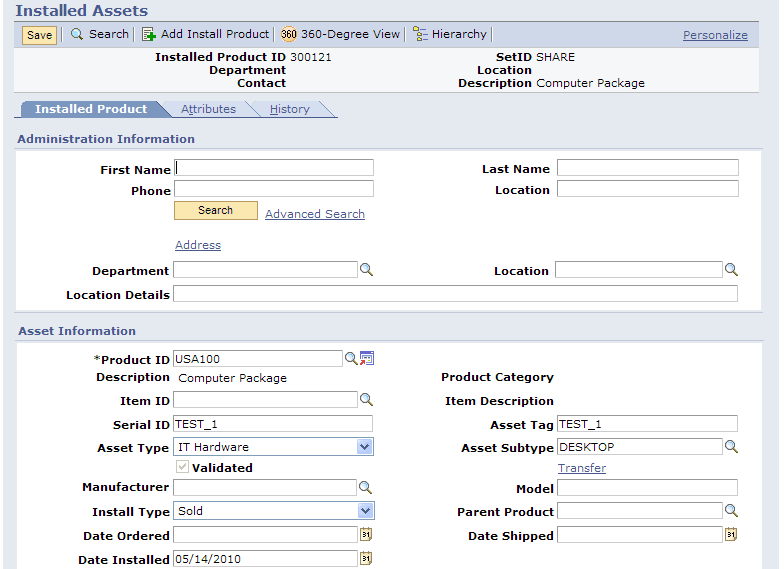
Note that the check mark in the Validated check box on this page indicates that the displayed CRM installed asset has been validated (synchronized) with the data from the Financials asset system.