Setting Up CRM Integration Broker for Asset Integration
The following are the appropriate steps :
-
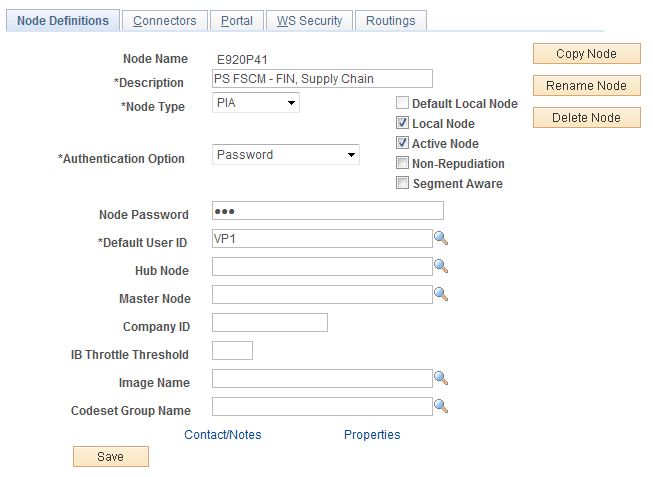
Set up the FSCM Default Local Node. Use the Node Definitions page (IB_NODE) to create a remote node for the CRM database (C920P20, for example) in your Financials database (if it does not yet exist).
Navigation: PeopleTools, Integration Broker, Integration Setup, Nodes, Node Definitions.
This example illustrates the fields and controls on the Node Definitions page (set up FSCM node).
-
Also, create the CRM remote node (for example, C920P20):
This example illustrates the fields and controls on the Node Definitions page (set up CRM node).
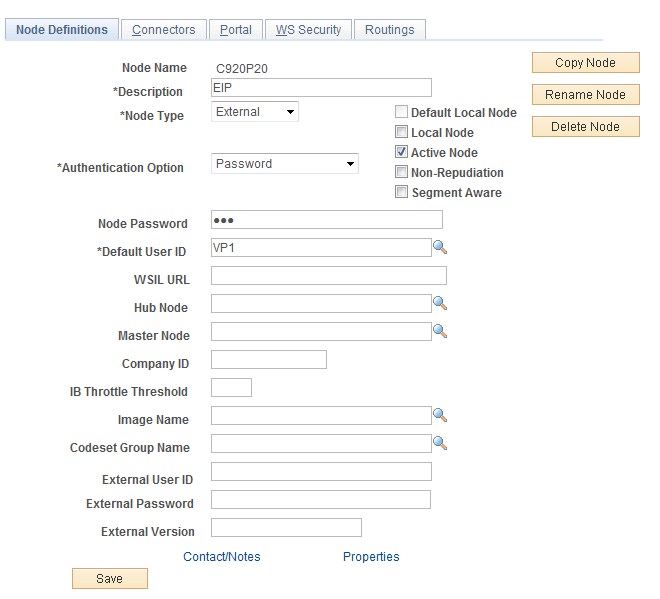
The Default User ID should be the same as the User ID for the FSCM node in CRM (for example, E920P41).
The User ID is also the same as the one used in the Gateway Properties for this Node (VP1). Save.
-
Click the Connectors tab:
This example illustrates the fields and controls on the Node Definitions Page (Connectors Tab).
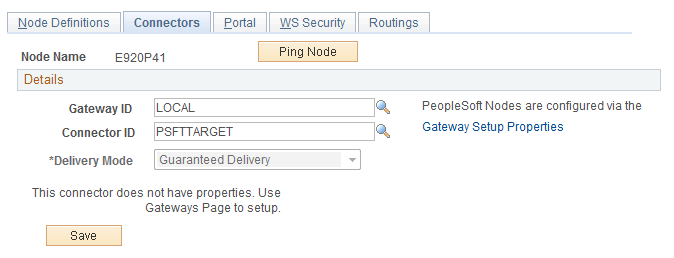
Supply a name for the default Gateway (for example: LOCAL). Enter a Connector ID of PSFTTARGET and save your changes.
-
Use the Gateway Properties page (IBGWSIGNON) to access the IntegrationGateway properties file.
Navigation: PeopleTools, Integration Broker, Configuration, Gateways, Gateway Setup Properties.
This example illustrates the fields and controls on the Gateway Setup Properties Page.
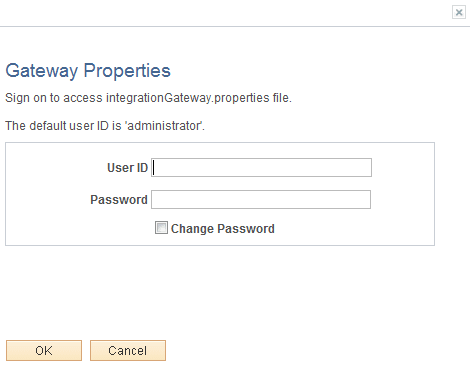
Gateway Properties page
Log in with UserID and Password.
Once you click OK, you are directed to the PeopleSoft Node Configuration page:
Find and confirm the App Server URL values for both Node Names: Default Local Node (E920P41 used in this example) and the CRM database node (C920P20, used in this example). Click the Ping Now button to confirm each node. (If you receive No Success, log in to the CRM database (C920P20, for example) and press CTRL+J to confirm the Application Server URL).
-
Add the CRM remote node (C920P20, for example) to the Single Signon setup. Use the Single Signon page (SINGLE_SIGNON) to add the FSCM remote node (E920P41, for example) to the Single Signon setup.
Navigation: PeopleTools, Security, Security Objects, Single Signon.