Activating and Configuring the Service Operations for Asset Integration in FSCM
Activate and configure the following service operations:
-
COPY_AM_SUBTYPE
-
MANUFACTURER_FULLSYNC
-
COPY_IT_ASSET
-
SYNC_IT_ASSET
-
Use the Domain Status page (AMM_MULTIDOM) to confirm that the domain is active.
Navigation: PeopleTools, Integration Broker, Service Operations Monitor, Administration, Domain Status.
-
Activate the COPY_AM_SUBTYPE service operation. In the FSCM database, Use the Service Operations - General page (IB_SERVICE) to activate the service operations.
Navigation: PeopleTools, Integration Broker, Integration Setup, Service Operations
This example illustrates the fields and controls on the Service Operations - General Page (Activate COPY_AM_SUBTYPE).
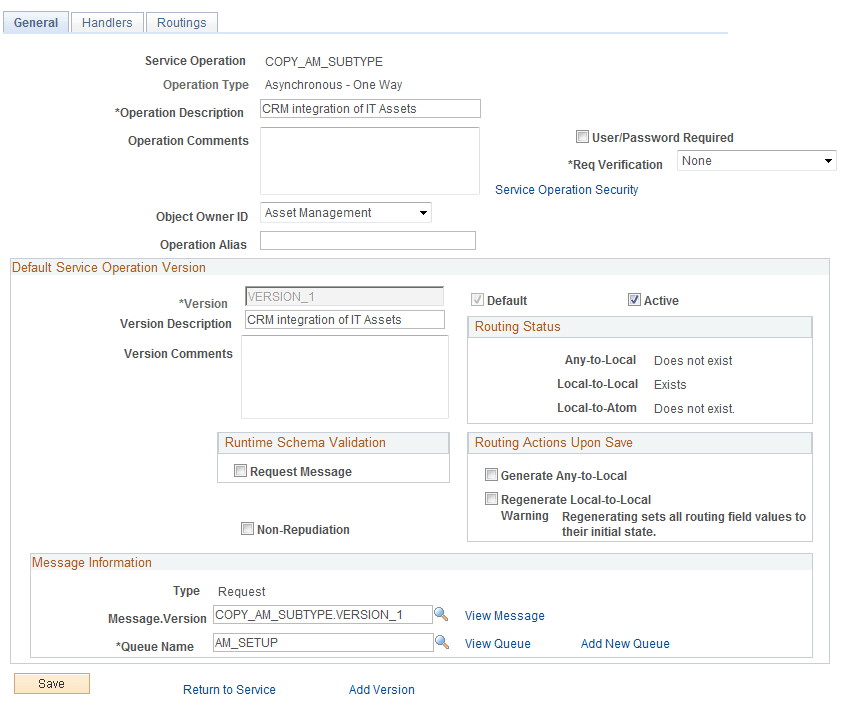
Select the Active check box to activate the service operation. Access the Handlers page and make sure that the Status is Active.
Access the Routings page and add a new routing that reflects the integration. This service operation (COPY_AM_SUBTYPE) is for Full Sync from FSCM to CRM as part of the initial setup for the integration:
This example illustrates the fields and controls on the Adding a Routing (Routings Page — COPY_AM_SUBTYPE).
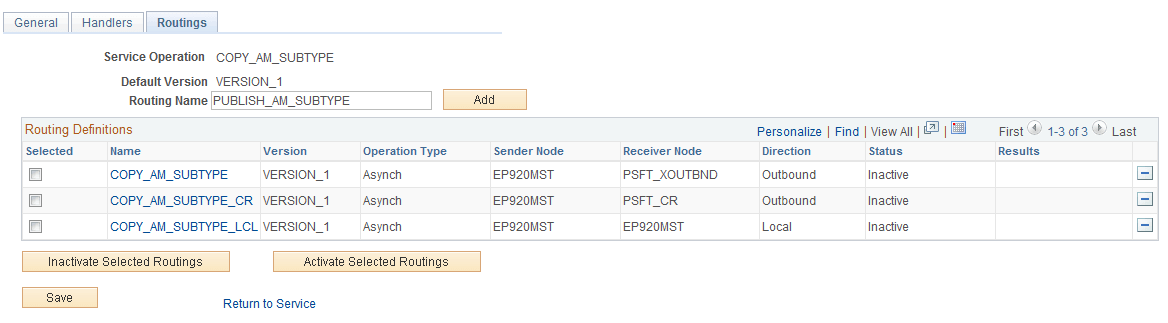
Supply the new Routing Name, PUBLISH_AM_SUBTYPE, (for example) and click the Add button.
You will be directed to the Routing Definitions page for the routing name that you just added:
This example illustrates the fields and controls on the Routing Definitions page.
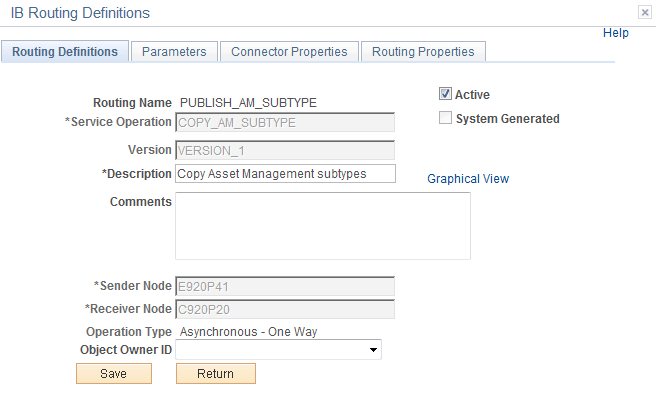
Make sure the Active check box is selected, supply a description and make sure the Sender Node is the defined FSCM local node and the Receiver Node is the CRM remote node.
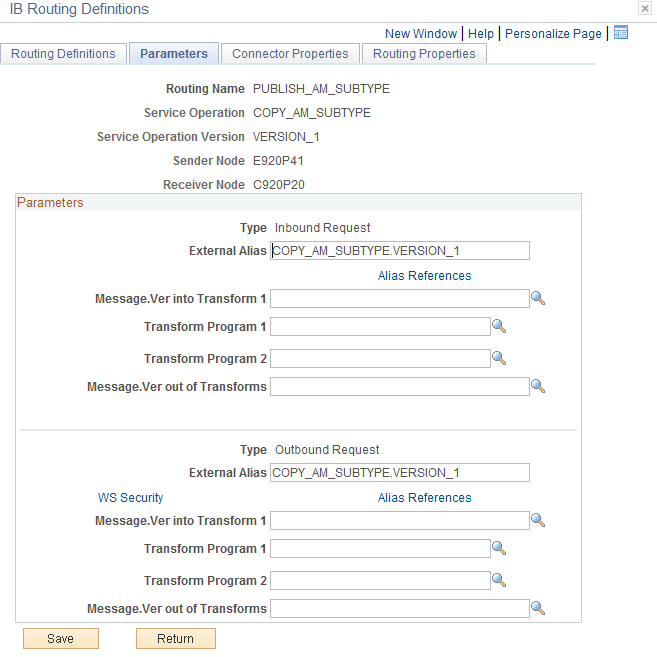
Access the Parameters page and check the External Alias. In FSCM, the routing type should be Outbound and in CRM, it should be Inbound:
This example illustrates the fields and controls on the Parameters page.
-
Activate the MANUFACTURER_FULLSYNC service operation. In the FSCM database, access the Service Operations – General page (PeopleTools, Integration Broker, Integration Setup, Service Operations. Find the MANUFACTURER_FULLSYNC service operation):
This example illustrates the fields and controls on the Service Operations — General Page (Activate MANUFACTURER_FULLSYNC).
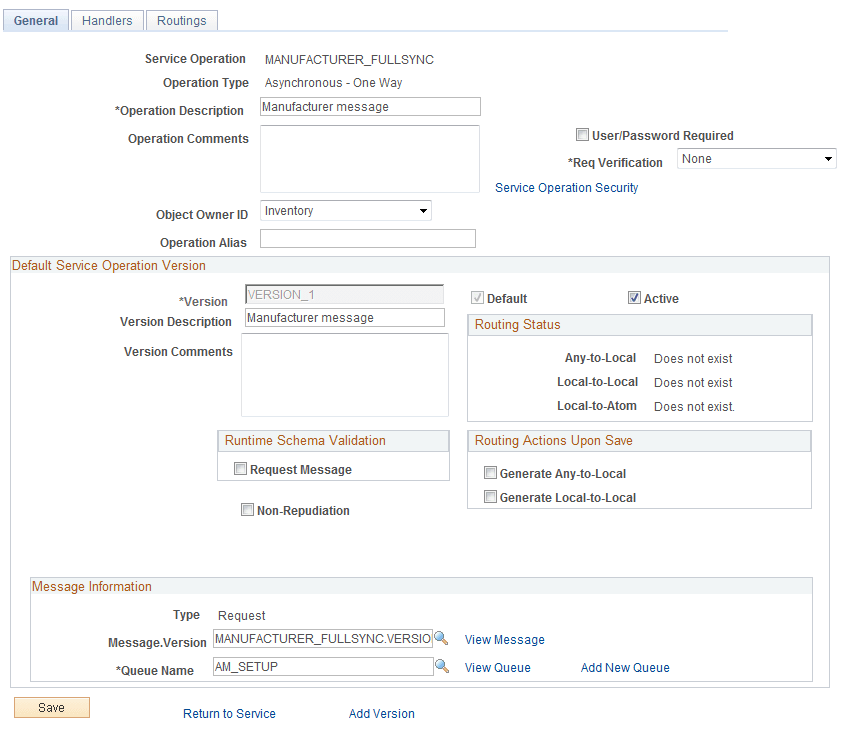
Select the Active check box. Access the Handlers page and activate the delivered handlers.
Access the Routings page and add a new routing for the integration:
This example illustrates the fields and controls on the Routings page.
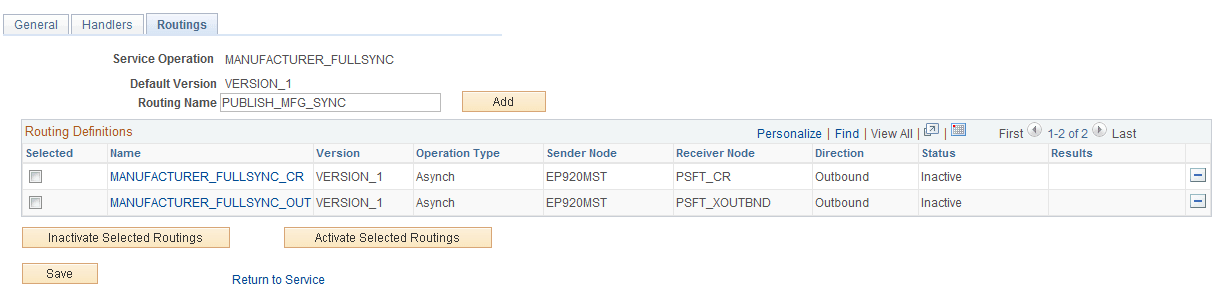
Supply the new Routing Name, PUBLISH_MFG_SYNC, (for example) and click the Add button. You will be directed to the Routing Definitions page for the routing name that you just added:
This example illustrates the fields and controls on the Routing Definitions page.
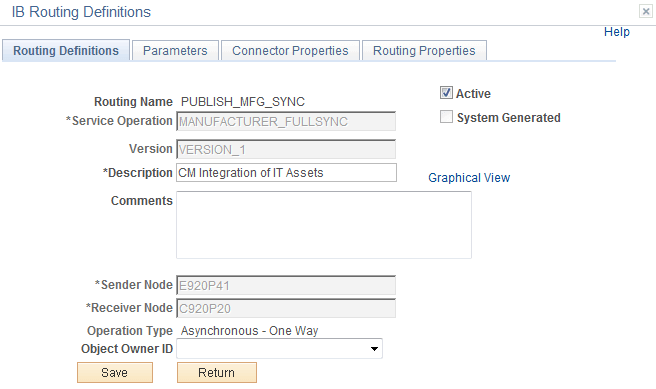
Make sure the Active check box is selected, supply a description. Make sure that the Sender Node is the FSCM local node and the Receiver Node is the CRM remote node.
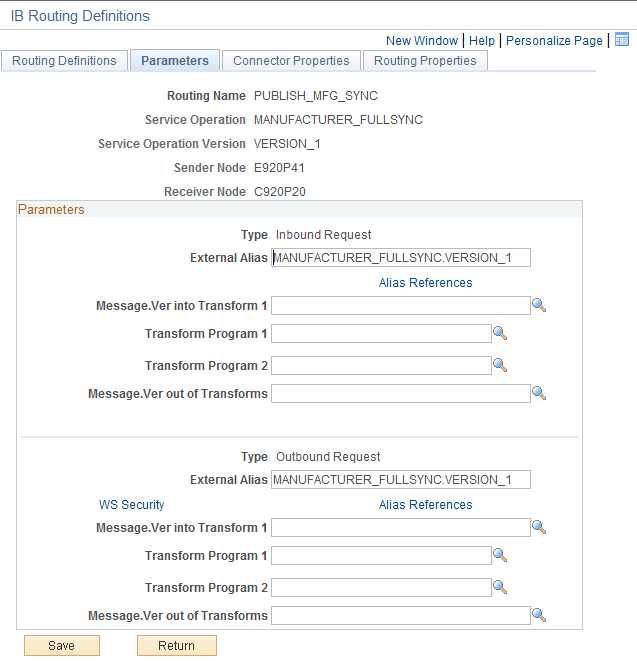
Access the Parameters page and review the External Alias:
This example illustrates the fields and controls on the Parameters page.
-
Activate the COPY_IT_ASSET service operation. In the FSCM database, access the Service Operations - General page (PeopleTools, Integration Broker, Integration Setup, Service Operations):
This example illustrates the fields and controls on the Service Operations — General Page (Activate COPY_IT_ASSET).
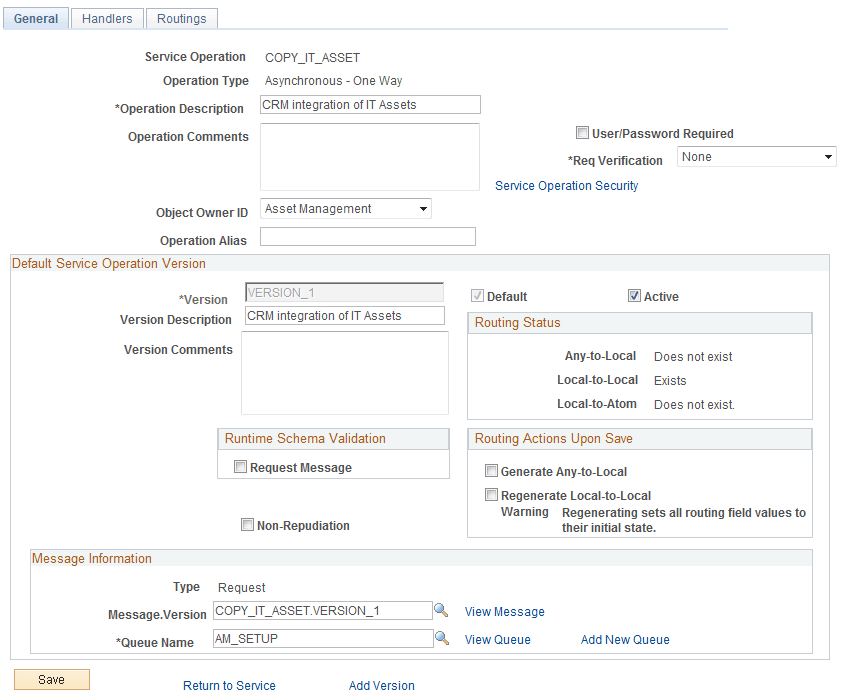
Select the Active check box. No need to activate handlers. Access the Routings page:
This example illustrates the fields and controls on the Routings page.
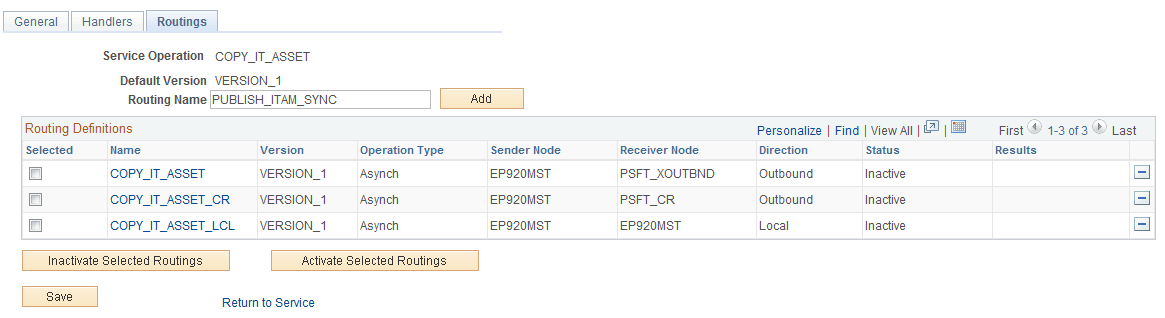
Add a new Routing Name, PUBLISH_ITAM_SYNC, (for example) and click the Add button.
You will be directed to the Routing Definitions page of the routing that you just added:
This example illustrates the fields and controls on the Routing Definitions page.
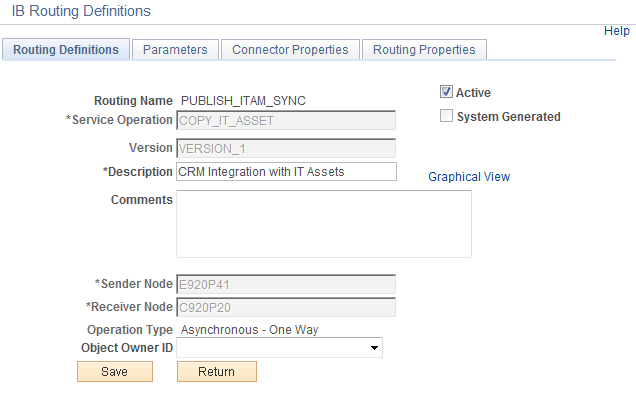
Make sure that the Active check box is selected, supply a description and supply the Sender Node (FSCM local node) and the Receiver Node (CRM remote node).
-
Activate the SYNC_IT_ASSET service operation. Access the Service Operations – General page (PeopleTools, Integration Broker, Integration Setup, Service Operations):
This example illustrates the fields and controls on the Service Operations — General Page (Activate SYNC_IT_ASSET).
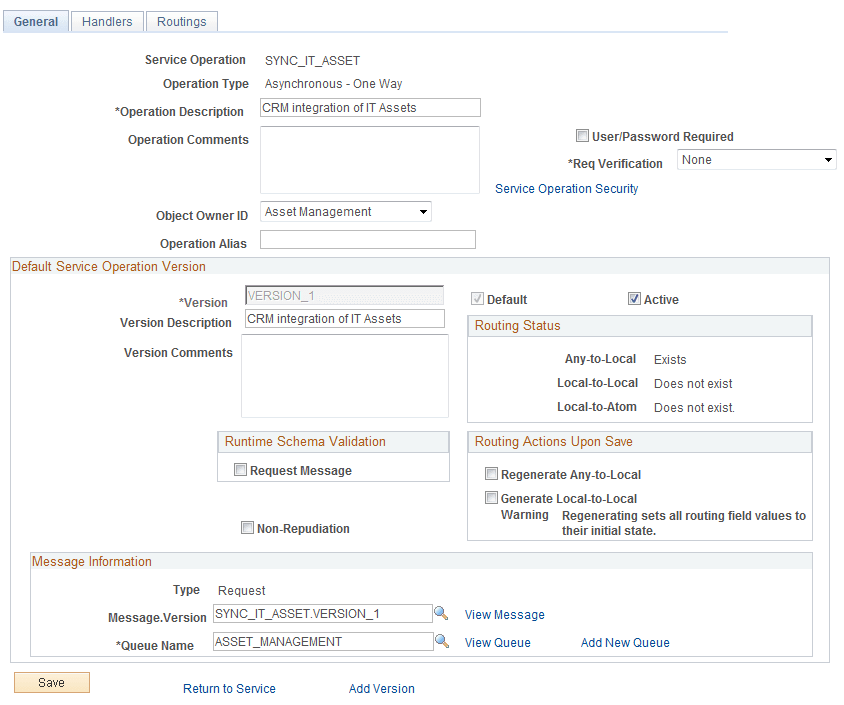
Select the Active check box. Access the Handlers page and activate its handler. Access the Routings page and add new routings for the integration:
This example illustrates the fields and controls on the Routings page.
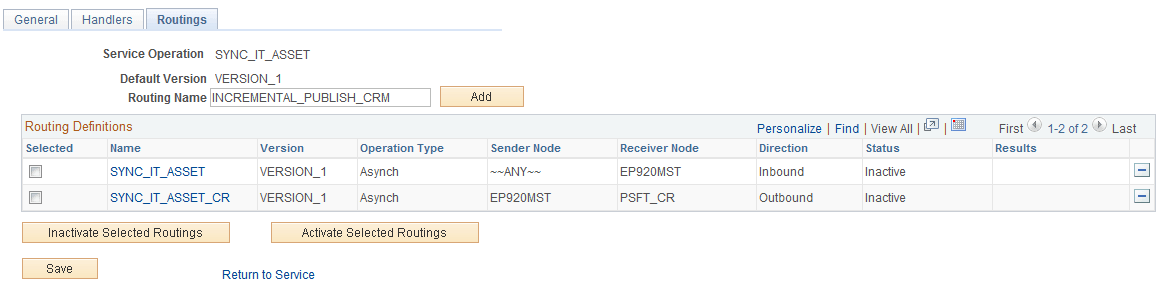
Add the Routing Name of INCREMENTAL_PUBLISH_CRM (outbound routing) and click the Add button. You will be directed to the Routing Definitions page:
This example illustrates the fields and controls on the Routing Definitions page.
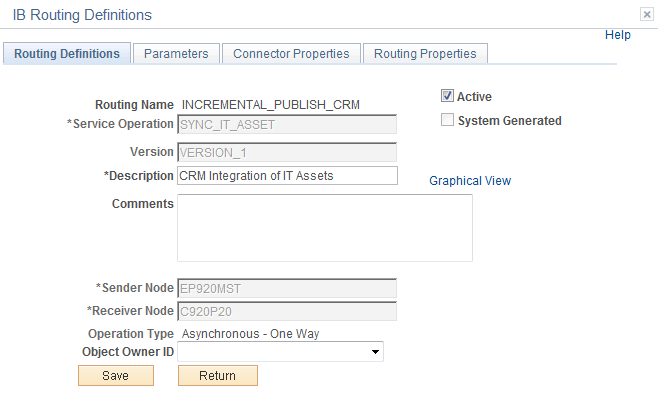
Supply a description. The Sender Node is the FSCM node and the Receiver Nodes is CRM node.
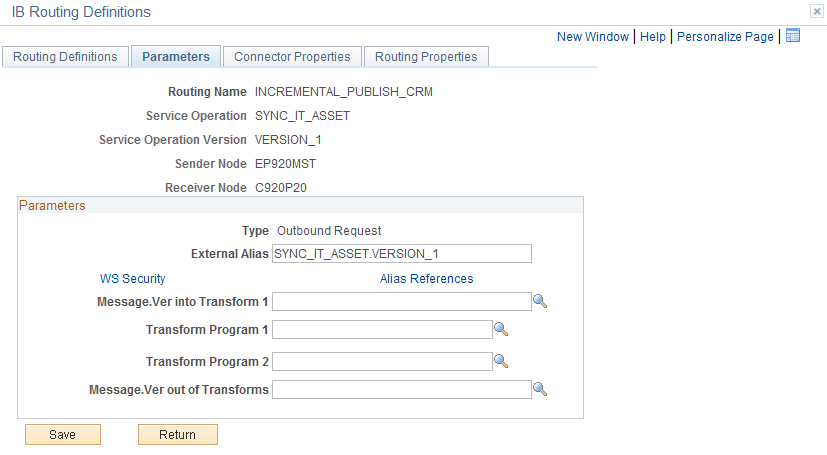
Access the Parameters page:
This example illustrates the fields and controls on the Parameters page.
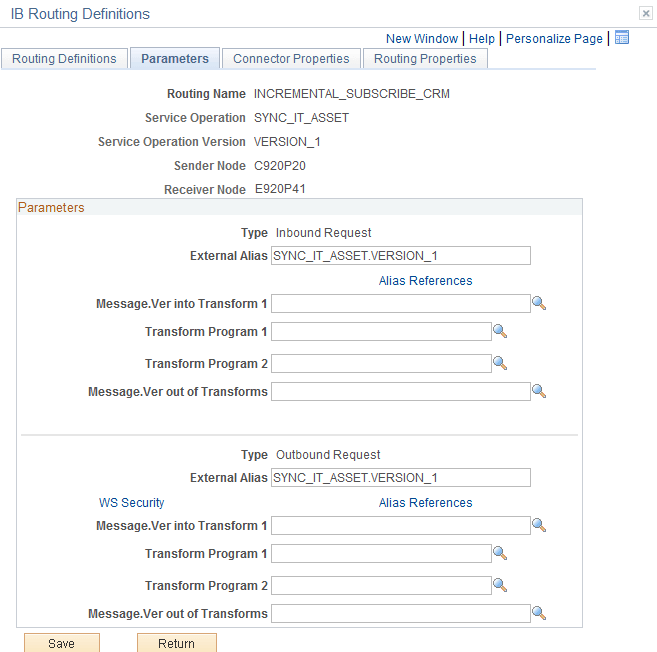
Add inbound routing, INCREMENTAL_SUBSCRIBE_CRM (for example):
This example illustrates the fields and controls on the Routing Definitions page.
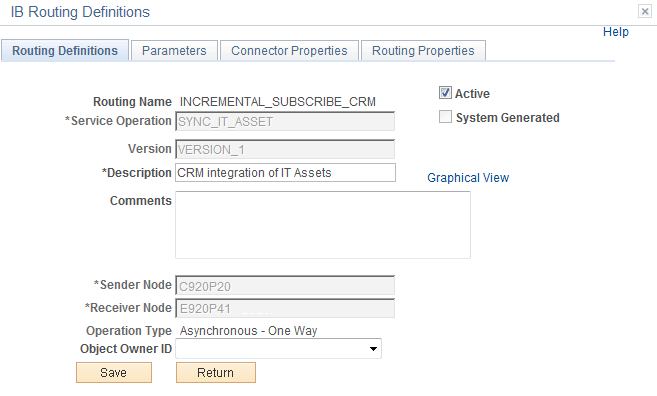
Sender Node should be the CRM remote node and the Receiver Node is the FSCM local node.
Access the Parameters page:
This example illustrates the fields and controls on the Parameters page.
-
Use the Queue Status page (IB_MONITOR_ QUEUES) to confirm the Asset Management queue is active.
Navigation: PeopleTools, Integration Broker, Service Operations Monitor, Administration, Queue Status.
This example illustrates the fields and controls on the Queue Status page.
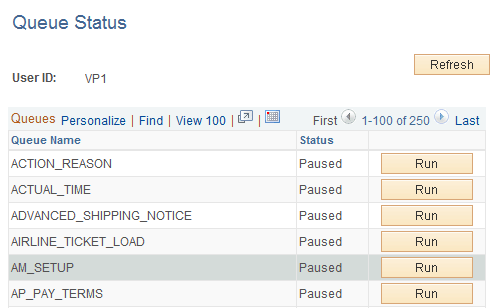
If the status is Paused, (as the AM_SETUP queue pictured), click the Run button.