Using Work Management in the Lease WorkCenter
The PeopleSoft Fluid Lease WorkCenter can optionally use the Work Management Framework, which is an Enterprise Components feature.
This topic discusses how to setup up Work Management for the Lease WorkCenter and provides an example for one delivered Manage Lease Status: Disputed Leases.
Understanding Work Management in the Lease WorkCenter
The purpose of the Work Management Framework is to view and manage exception transactions when they appear in the My Work section of the WorkCenter.
It is important to understand the Work Management Framework from a high-level perspective before applying it to PeopleSoft Lease Administration. Please review Enterprise Components: Understanding the Work Management Framework prior to reading the following information.
The Work Management Framework provides actions and filters to My Work pagelets to assist users with managing a large list of transactions. Users may assign a specific transaction to themselves, defer the transaction for follow-up to a later date, or mark a transaction as not an exception (inactive). Filters allow the user to view transactions not yet assigned to anyone, transactions assigned to themselves, inactive transactions, or a full list of all transactions. You can also view a history of actions taken on the transaction.
Setting Up Work Management for the Lease WorkCenter
This list provides the steps to setup the optional Work Management feature for the Lease WorkCenter:
-
Use the EOXC_USER role to access the Work Management setup pages.
-
Access the Enterprise Components: Work Management Link ID's Page.
-
Search for Link ID corresponding to the My Work section for Lease WorkCenter where you want to use the Work Management feature.
Link IDs corresponding Lease WorkCenter - My Work, Manage Lease Status are:
Link ID Description RE_DISPUTE_LS
Disputed Leases
RE_HOLDOVER_LS
Holdover Leases
RE_EXPIRE_LS
Expired Leases
Link IDs corresponding Lease WorkCenter - My Work, Manage Critical Dates are:
Link ID Description RE_CLS90_LEASES
Clauses within 90 days
RE_OPTN90_LEASES
Options within 90 days
-
Select the View button to access the Enterprise Components: Enable Work Mgmt Exception Page.
-
Select the Enable option to activate the Work Management feature for that Link ID.
-
Follow instructions in the Enterprise Components documentation for the Enterprise Components: Enable Work Mgmt Exception Page to complete your setup.
Pages Used to Manage Work in the Lease WorkCenter
| Page Name | Definition Name | Usage |
|---|---|---|
|
Lease WorkCenter Page - Disputed Leases (Work Management Enabled) |
RE_WC_DISPUTE_FL |
Access and manage leases in dispute status. |
Lease WorkCenter Page - Disputed Leases (Work Management Enabled)
Use the Lease WorkCenter - Disputed Leases page when Work Management is enabled to assign and work on the disputed leases.
Navigation: .
This example illustrates the fields and controls on the Lease WorkCenter - Disputed Leases page when using Work Management.
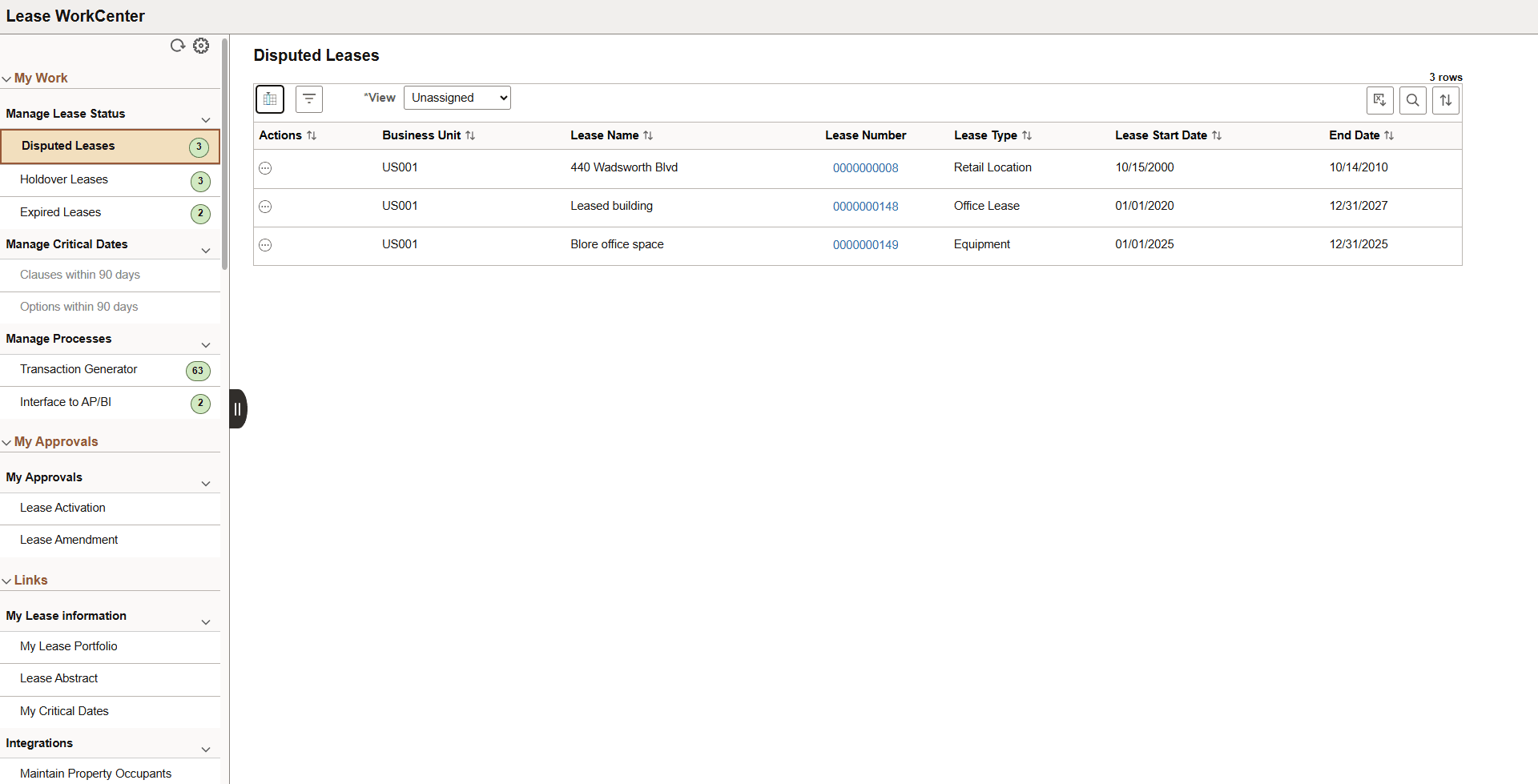
When Work Management is enabled for an exception, there are two changes on the WorkCenter page:
-
The View drop-down box appears above the grid.
-
Additional action options are added to the Actions button.
The actions for Disputed Leases are Lease Abstract, Add to Portfolio and Resolve Dispute. When Work Management is enabled, additional actions are available depending on the option selected in the View field: See Enterprise Components: Understanding the Work Management Framework, Actions by View section.