Schedules Tab — Crew Scheduling Workbench Page
Use the Schedules tab on the Crew Scheduling Workbench page to view the schedules.
Navigation:
This example illustrates the fields and controls on the Crew Scheduling Workbench page: Schedules tab. You can find definitions for the fields and controls later on this page.
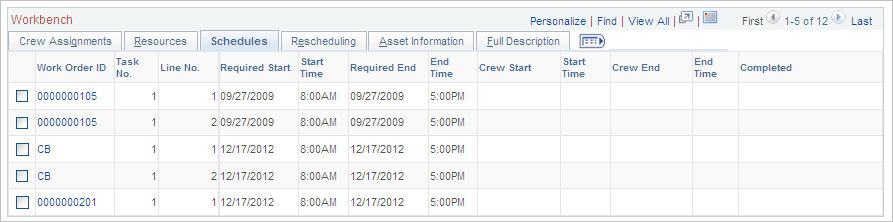
The required start and end dates and times that appear for each craft are defined in the work order task labor requirements. They appear only in this grid.
| Field or Control | Description |
|---|---|
|
Crew Start |
When you assign a crew to a row, this field displays the start date of the period. You can change the data in this field by selecting the action Change Crew Start Date and Time or by changing the value in one row. Note: If you change this date in a single row to a date outside the Schedule dates in the work order task, the system validates the change based on whether the Override Task Schedule Dates check box is selected. When you select the Change Crew Start Date and Time action, you can select the check box that enables you to override the task scheduled dates. However, the check box is not available if you change the dates for a single row. If you change the Crew Start date field directly in the workbench for a single row, then the system validates the field value based on whether the Override Tasks Schedule Dates option was selected or not the last time the Override Tasks Schedule Dates option was applied to selected rows of the workbench. If the check box was selected, then the system issues a warning that the scheduled dates on the task may change. If the check box was not selected, the system issues an error indicating that the change in the crew start and end dates for the row are outside of the range of the scheduled dates for the task. |
|
Start Time |
When you assign a crew to a row, this field displays the crew's shift start time for the corresponding day of the week in which the crew start date falls. You can change the data in this field by selecting the action Change Crew Start Date and Time. |
|
Crew End |
When you assign a crew to a row, this field displays the start date of the period plus the difference between the required start and end dates. You can change the data in this field by selecting the action Change Crew End Date and Time. Refer to the note under Crew Start Date when changing the date for a single row outside of the task schedule date. |
|
End Time |
When you assign a crew to a row, this field displays the crew's shift end time for the corresponding day of the week in which the crew end date falls. You can change the data in this field by selecting the action Change Crew End Date and Time. |
|
Completed |
Displays the date that the crew completed the task. This field is automatically updated if the work order task status is changed to complete. You can select the action Report Complete Date to update this field or update a single row. The available fields in the row on each grid become unavailable except for this field. Carryover hours are set to zero. |