Resources Tab — Crew Scheduling Workbench Page
Use the Resources tab on the Crew Scheduling Workbench page to view the resources.
Navigation:
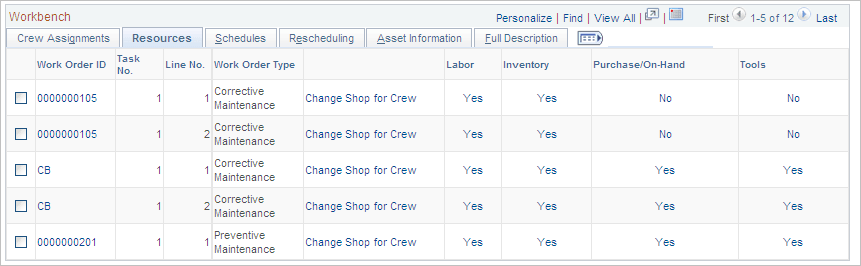
This example illustrates the fields and controls on the Crew Scheduling Workbench page: Resources tab. You can find definitions for the fields and controls later on this page.
| Field or Control | Description |
|---|---|
|
Change Shop for Crew |
Click this link to access a secondary page to change the shop associated with the selected crew to another shop to which the crew is assigned. Note: If you change the shop for the crew at the task level, the cost and bill rates for these rows are still determined by the shop specified in the header of the work order. |
|
Labor |
Displays a Yes or No for each row, which indicates whether or not labor resources are scheduled for the selected work order task row. Clicking the link (Yes or No) takes you to the Schedules page and the Labor Schedules grid in the work order. |
|
Inventory |
Displays a Yes or No for each row, which indicates whether or not inventory parts are scheduled for the selected work order task row. Clicking the link (Yes or No) takes you to the Schedules page and the Inventory Schedules grid in the work order. Note: This field does not appear if PeopleSoft Inventory is not installed. |
|
Purchase/On-Hand |
Displays a Yes or No for each row, which indicates whether or not non-inventory and open description labor, material, and tools are scheduled to be purchased or are on-hand for the selected work order task row. Clicking the link (Yes or No) takes you to the Schedules page and the Purchase/On-Hand Schedules grid in the work order. |
|
Tools |
Displays a Yes or No for each row, which indicates whether or not tool resources are scheduled for the selected work order task row. Clicking the link (Yes or No) takes you to the Schedules page and the Tool Schedules grid in the work order. |