Crew Assignments Tab — Crew Scheduling Workbench Page
Use the Crew Assignments tab on the Crew Scheduling Workbench page to view the crew assignments.
Navigation:
Maintenance Management
This example illustrates the fields and controls on the Crew Scheduling Workbench page: Crew Assignments tab. You can find definitions for the fields and controls later on this page.
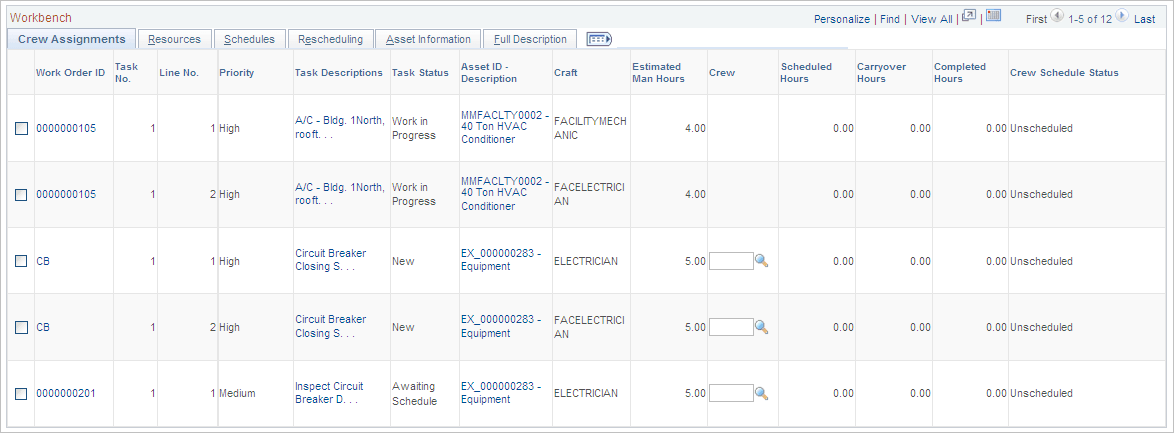
| Field or Control | Description |
|---|---|
|
Work Order ID |
Click this link to access this specific work order in the Work Order component. |
|
Task No. (task number) |
Identifies a task associated with each work order ID (display-only field). |
|
Line No. (line number) |
Identifies the labor requirement line number associated with this task (display-only field). |
|
Priority |
Displays the level of priority of the work order associated with this task (display-only field). |
|
Task Descriptions |
Click this link to access the WO Task Descriptions secondary page, which displays the work order ID, business unit, and task description. Note: Select the Full Description tab to view the full description entered in the work order and each task. |
|
Task Status |
Displays the current status of the work order task. You can change the status of each task line by selecting the row and selecting an action of Change Status. |
|
Asset ID Description |
Click this link to access the Asset Information page, which lists the characteristics and attributes of the asset along with a long description of the asset. |
|
|
Click this Warranties icon to display the Asset Warranties page, where you can create a warranty claim or apply a warranty template to the claim. This icon appears when an asset has active warranties. See Understanding Warranty Claim Management in PeopleSoft Maintenance Management. |
|
|
Displays this Hazardous icon if an asset is associated with any hazardous regulations (display-only field). |
|
Craft |
Identifies each craft assigned to a task row based on the work order labor requirements definition (display-only field). |
|
Estimated Man Hours |
Displays the labor requirement hours from the work order. |
|
Crew |
Select a crew to perform a crew assignment, if desired. This field is also changed when you select one or more rows, select the Assign Crew action, and select a different crew. If you select the Remove from Schedule action, this Crew field is blank. |
|
Scheduled Hours |
Enter or update the hours on the task that are scheduled for the selected crew. This field value is updated when you select one or more rows and select the Update Scheduled Hours action. Note: You must enter a positive value, which can exceed the estimated duration of the task. This field is available for entry as long as you do not select Report Completed Date for this row. |
|
Carryover Hours |
You can update the number of remaining hours that are still available to schedule for the crew. You can carry over these hours to the next period, if desired. You can also select one or more rows, and select the Update Carryover Hours action to update the carryover hours for each selected row. Note: You must enter a positive value, which can exceed the estimated duration of the task. This field is available until you mark the row completed using the Report Completed Date action. You must also have the Report Crew Carryover Hours check box selected for the user in the user preferences. |
|
Completed Hours |
Enter the number of hours that have been completed. These hours are usually reported by technicians. You can also select one or more rows and the Update Completed Hours action to update this field value. |
|
Crew Schedule Status |
Displays one of these values to indicate the current status of the crew schedule:
|

