Crew Scheduling Workbench Page
Use the Crew Scheduling Workbench page (WM_CREW_SCHD_WB) to schedule crews to work order task labor requirement lines.
Navigation:
This example illustrates the fields and controls on the Crew Scheduling Workbench page. You can find definitions for the fields and controls later on this page.
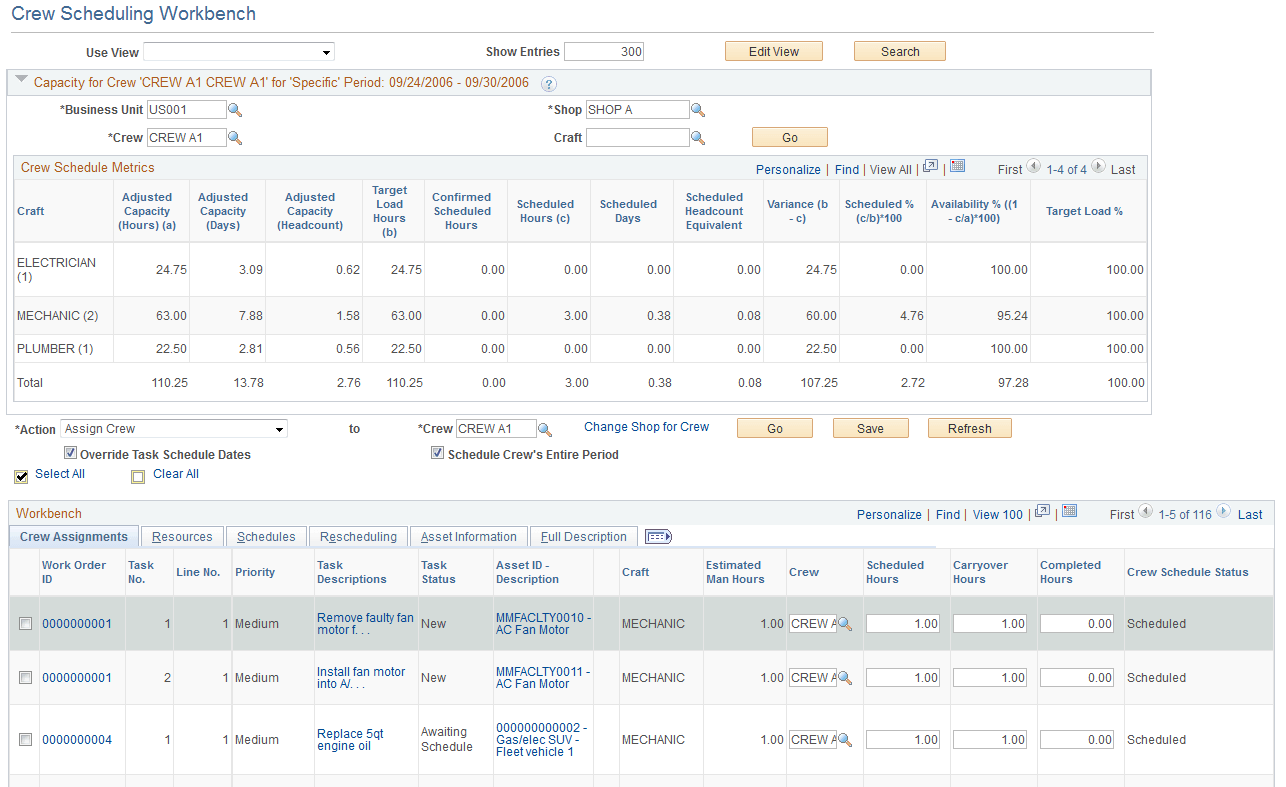
Capacity for Crew
| Field or Control | Description |
|---|---|
|
Crew Business Unit |
Select the work order business unit associated with the shop that contains the crew for which you want to display capacity. |
|
Crew Shop |
Select the shop that contains the crew for which you want to display capacity. |
|
Crew |
Select the crew for which you want to display capacity. |
|
Craft |
Select a craft associated with the selected crew if you want to display capacity for only one craft. This field is optional. |
|
Go |
Click this button after entering all or some of the search criteria (business unit, shop, crew, craft) associated with a crew. This action enables you to display the crew capacity data for a different crew. |
|
Adjusted Capacity (Hours) |
Displays the adjusted capacity in hours, which is set up as part of the metrics for the crew and period. It typically represents the crew's: Total shift hours for the period – Any time off (vacation, holidays, sick days and more) |
|
Adjusted Capacity (Days) |
Displays the adjusted capacity in days, which is set up as part of the metrics for the crew and period. It typically represents the crew's: (Total shift hours for the period – Any time off) / Standard day hours defined in the crew's shop |
|
Adjusted Capacity (Headcount) |
Displays the adjusted capacity headcount, which is set up as part of the metrics for the crew and period. It typically represents the crew's: The adjusted capacity days / The number of days in the schedule period |
|
Target Hours |
Displays the calculated target load hours in which Target load hours = Adjusted capacity (hours) * Target load % |
|
Confirmed Scheduled Hours |
Displays the number of hours from the crew schedule that are confirmed for the period. Scheduled hours are confirmed when you select the Confirm Metrics action, which updates the data in the crew capacity plan based on the selected rows. |
|
Scheduled Hours |
Displays the total number of hours for which a craft is scheduled for the period. Assigning a crew to a requirement, updating scheduled hours, or changing a period updates the value in this field. |
|
Scheduled Days |
Displays the total number of days for which a craft is scheduled. Scheduled days = Scheduled hours / Standard number of hours in workday in the crew's shop |
|
Scheduled Headcount Equivalent |
Displays the total headcount for which a craft is scheduled. Scheduled headcount = (Scheduled hours / Standard number of hours in workday in the crew's shop) / Number of days in the period based on the shift |
|
Variance (b – c) |
Displays the difference between the scheduled hours and the target load hours. |
|
Scheduled % (c/b * 100) |
Displays the actual schedule load relative to the target load hours. Scheduled % = (Scheduled hours / Target load hours) * 100 |
|
Availability % (1– c/a) * 100 |
Displays the actual schedule load relative to the adjusted capacity. Availability % = (1 – Scheduled hours / Adjusted capacity hours) * 100 |
|
Target Load % |
Displays the crew's expected load against the adjusted capacity in terms of percentage for all planned work. Typically, it is set below 100 percent to accommodate any unplanned and emergency entries that may occur throughout the period. |
Actions
This section describes each selected action and its relationship to the Crew Scheduling Workbench.
| Field or Control | Description |
|---|---|
|
Action |
Select work order rows in the workbench and select an action to perform on the selected rows. Values are:
|
|
Go |
Click this button to perform the selected action, validate the action for the selected rows, and display warning, error, and informational messages on the Message tab, which only appears when messages are generated. Note: Clicking the Go button does not save the changes resulting from the action. You must click the Save button. |
|
Save |
Click this button to save the Crew Scheduling Workbench. This action also updates the crew schedule metrics in the appropriate crew capacity plan. |
|
Refresh |
Click this button to refresh changes made on the Assignments tab and to update the Availability tab. This action causes deferred processing in field changes to proceed. |