Crew Scheduling Workbench Search Page
Use the Crew Scheduling Workbench Search page (WM_CREW_SRCH_SEC) to enter search criteria to search for a crew and work orders to schedule.
Navigation:
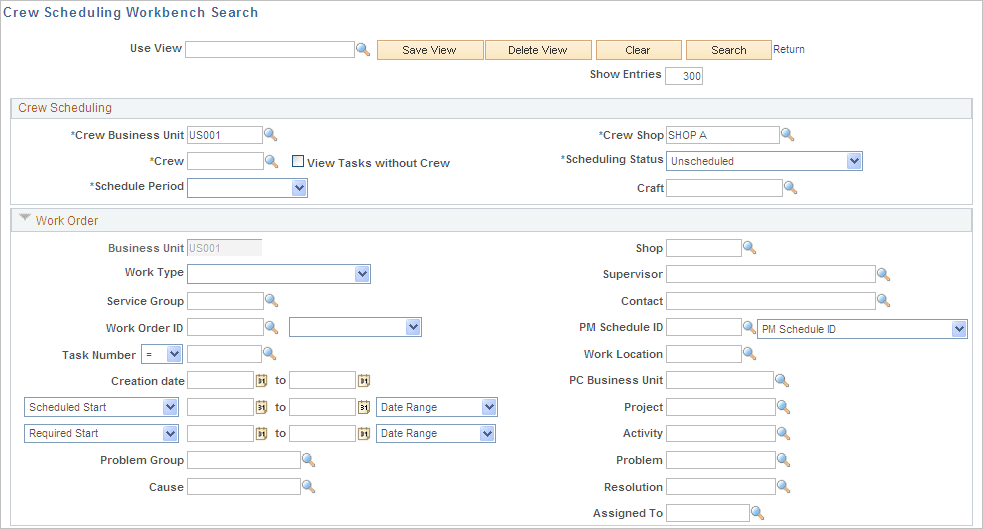
This example illustrates the fields and controls on the Crew Scheduling Workbench Search page (1 of 2). You can find definitions for the fields and controls later on this page.
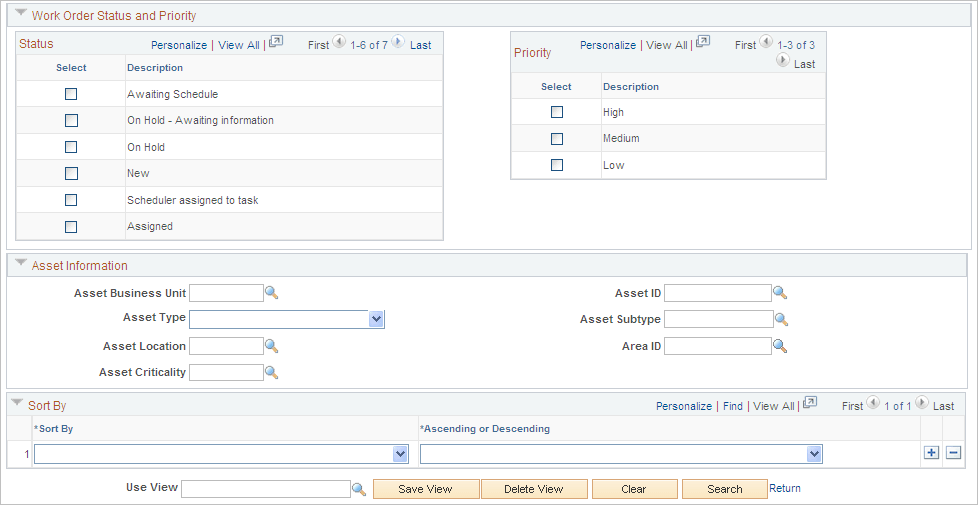
This example illustrates the fields and controls on the Crew Scheduling Workbench Search page (2 of 2). You can find definitions for the fields and controls later on this page.
| Field or Control | Description |
|---|---|
|
Use View |
Select an existing saved view as your search criteria. |
|
Save View |
Click this button if you change the criteria in a view or create a view of new search criteria. If you modified an existing view, the system asks if you want to override the view. If this is a new view, the system saves the view with the new name that you enter in the Use View field. |
|
Delete View |
Click this button to delete the current view. The system asks if you are sure that you want to delete the view. |
|
Clear |
Click this button to clear all the field values in a view. |
|
Search |
Click this button after entering any required or additional search criteria. The system searches for and displays a crew capacity plan for the selected crew and period and displays any work orders in the workbench grids that are either scheduled or can be scheduled based on the criteria. |
|
Return |
Click this link to return to the workbench. |
Crew Scheduling Search Criteria
| Field or Control | Description |
|---|---|
|
Crew Business Unit |
Select the work order business unit associated with a crew. The system searches for work order tasks associated with this selected business unit for unscheduled work orders, and for labor requirements associated with this business unit value for scheduled and carryover work orders. This is a required field. |
|
Crew Shop |
Select the shop to which this crew is assigned. The system searches for this selected shop value in work order tasks associated with this shop for unscheduled work orders, and searches for this selected shop value in the labor requirements for scheduled and carryover work orders. This is a required field. |
|
Crew |
Select a crew associated with the crew business unit and shop. The system searches for work order tasks that have the selected crew value in the Preferred Crew field of a task for unscheduled work orders. It searches for this selected crew value in the Crew field of a task's labor requirements for scheduled and carryover work order tasks. This is a required field. |
|
View Tasks without Crew |
Select this check box to search for and display any unscheduled work orders with tasks that do not have a default value in the Preferred Crew field of a work order task. |
|
Scheduling Status |
Select:
|
|
Schedule Period |
Select one of these periods:
The previous, next, and following period options depend on the period that the system identifies as the current period for the crew. If the system does not identify the current period, you can only select a specific period. |
|
Craft |
Select a craft to display labor requirements associated with this specific craft. |
Work Order Search Criteria
The fields in this group box are common to all work orders and work order tasks. Select the criteria to narrow your search for specific work orders. If you specify a shop, the system searches for the shop specified in the work order header information.
Work Order Status and Priority Search Criteria
You can search for work orders based on selecting one or more user-defined work order task statuses that have an internal status of:
-
Open
-
On Hold
-
Awaiting Schedule
-
Scheduled
-
Work in Progress
You can also select one or all of the work order priorities to use in your search.
Asset Information
Select the asset information to narrow your search to display work orders and work order tasks based on specific asset characteristics and attributes.
Sort By Search Criteria
| Field or Control | Description |
|---|---|
|
Sort By |
Select one of the following fields and select whether you want to sort the field values in the Crew Scheduling Workbench in either Ascending or Descending order:
Note: You can add rows to select more than one field name. |