Working With Exceptions
Exceptions include the following components:
-
Pending WO for Closure
-
Preventive Maintenance Exceptions
Pages Used to View and Edit Exceptions
| Page Name | Definition Name | Usage |
|---|---|---|
|
WM_HDR_APP_GRID |
View and edit pending work orders for closure transactions. |
|
|
WM_HDR_APP_GRID |
View and edit preventive maintenance exceptions transactions. |
Pending WO for Closure Page
Use the Pending WO for Closure page to view and edit pending work orders for closure transactions.
Navigation:
This example illustrates the fields and controls on the Pending WO for Closure page.
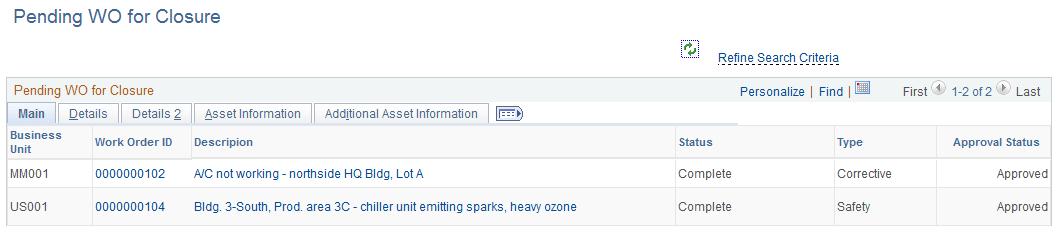
This exception provides maintenance planners, schedulers, and coordinators a quick view of work orders with all tasks completed but not closed. Data that appears on this page is based on filter criteria defined in the Search Criteria page. Users can modify the search criteria by clicking the Refine Search Criteria link.
The Pending WO for Closure grid include five tabs: Main, Details, Details 2, Asset Information, and Additional Asset Information. In every tab, some fields—such as Work Order ID and Description—have links that users can click to access the Work Order page, which opens in a new window.
| Field or Control | Description |
|---|---|
|
Refine Search Criteria |
Click to view and edit the predefined filter criteria for the exceptions. Defined search criteria are:
|
|
|
Click this icon to refresh the grid. |

Preventive Maintenance Exceptions Page
Use the Preventive Maintenance Exceptions page to view and edit preventive maintenance exceptions transactions.
Navigation:
This example illustrates the fields and controls on the Preventive Maintenance Exceptions page.

This exception displays preventive maintenance processing exceptions based on filter criteria defined in the Search Criteria page. Users can modify the search criteria by clicking the Refine Search Criteria link. Users can review the exception transactions that appear on this page and take an appropriate action, such as canceling the work order.
The Preventive Maintenance Exceptions grid includes four tabs: Main, Details, Asset Information, and Additional Asset Information. In every tab, some fields—such as PM Schedule ID, Work Order ID, and Description—have links that users can click to access the particular Schedule page or Work Order page, which opens in a new window.