Alternate Sources of Supply Page
Use the Alternate Sources of Supply page (ORDENT_SSRC_UPDT) to use to view supply source options and to choose the optimum sources for this order line or schedule.
You can choose one or more sources of supply from this page. This page is available only if you are using the Manual or Automatic Availability Option on the Order Entry Features page for the PeopleSoft Order Management Business Unit.
Navigation:
Click the Find Alternate Supply Sources link from the Line or Claimback/Supply Source tab in the line grid area on the Order Entry Form page.
Click the Find Alternate Supply Sources link from the Line or Claimback/Supply Source tab in the line grid area on the Shipment Schedules page.
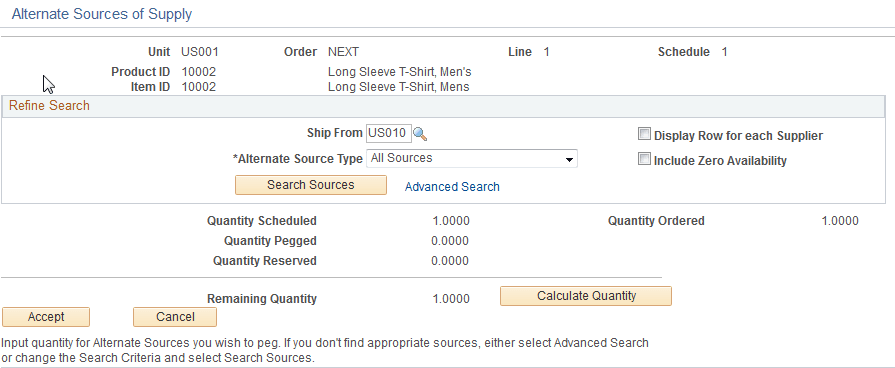
This example illustrates the fields and controls on the Alternate Sources of Supply page (1 of 2). You can find definitions for the fields and controls later on this page.
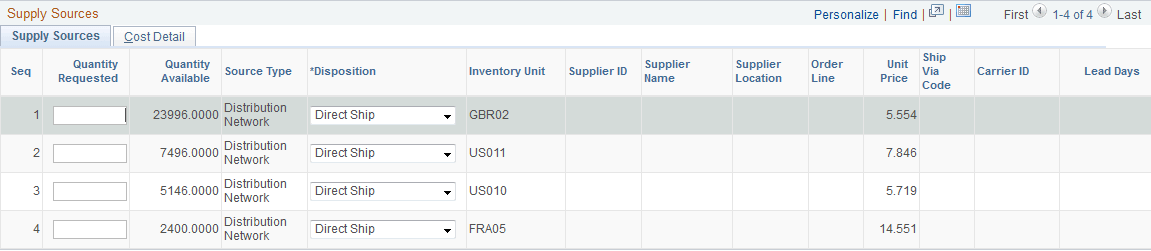
This example illustrates the fields and controls on the Alternate Sources of Supply page (2 of 2). You can find definitions for the fields and controls later on this page.
These restrictions exist for using advanced sourcing, depending on the item and product attributes:
-
Product kits can only be sourced from Inventory Business Units or Inventory Business Units from a Distribution Network with a Direct Ship Disposition. You can perform advanced sourcing, but the availability of the kit components will not be validated until the order is saved. The system will return Inventory Business Units with zero availability because sourcing is performed at the product kit product ID level. Only Inventory Business Units that stock the component items will be returned.
-
Configured items can be sourced using alternate sourcing. No advanced sourcing options, however, can be used for configured product kits.
-
Non-inventory items can be sourced using Direct Ship requisitions or purchase orders.
-
Non soft-reserved items and configured item cannot be sourced from a requisition, purchase order, interunit transfer, or production order. If it is defined on the sources of supply formula, it will be skipped.
-
If an item is marked as a RFQ item (request for quote) on the Purchasing Controls page of the Purchasing Item Attributes component, you will not be able to create a new purchase order.
The PeopleSoft Order Management Business Unit, order, line and schedule, and the Product ID and associated Item ID display from the order.
Each line of the order line or schedule is sourced individually. If you use multiple sourcing options, a schedule is created for each of the sourcing options.
For new order lines or schedules, the sourcing options retrieved from the sourcing engine appear first. They appear in the order defined on the sourcing arbitration plan. If the user is authorized to peg to existing supply documents (requisition, purchase orders, interunit transfers, or production orders), these existing supply sources appear following the sourcing engine supply options.
For existing order lines or schedules, the existing supply source pegs appear first with the quantities that are pegged to the supply. Then, the sourcing options retrieved from the sourcing engine appear in the order defined on the sourcing arbitration plan. If the user is authorized to peg to existing supply documents (requisition, purchase orders, interunit transfers, or production orders), these existing supply sources appear following the sourcing engine supply options.
| Field or Control | Description |
|---|---|
|
Cross-CPU Product Availability |
Click the link to access the Product Availability page. |
|
Ship From |
Initially appears from the schedule. You can change the value, but you need to select the Search Sources button to display new results in the grid at the bottom of the page. This is the ship-from business unit from where the items will ship to the customer. |
|
Alternate Source Type |
Use to narrow down the types of sources displayed for the line or schedule. Only the source type that is selected will be returned to the supply sources grid or use the All Sources option to search for all the valid sources based on the options set up from the arbitration plan associated with the Shipping and Returns page on the PeopleSoft Order Management Business Unit. |
|
Display Row for each Supplier |
If you select this option, all of the suppliers will display for new purchase orders and requisitions. If this option is not selected, you can select the supplier from the available options. |
|
Include Zero Availability |
Select if you want the system to include inventory business units with quantity available of zero in the results. |
|
Search Sources |
Click the button to display your selection in the Supply Sources grid at the bottom of the page. |
|
Advanced Search |
Use to refine your search even further. For example, you could search for Direct Receipt Disposition types. |
|
Quantity Ordered and Quantity Scheduled |
Displays the total quantity ordered for the line and the quantity scheduled for the current schedule. |
|
Quantity Pegged |
Displays the supply pegged to the schedule. The pegged quantity will also be displayed in the first lines in the grid if you are viewing the page after the initial schedule has been pegged. |
|
Quantity Reserved |
Displays the amount that has already been reserved to the schedule for the ship-from BU. |
|
Calculate Quantity |
Click to calculate the remaining quantity to be sourced. |
|
Remaining Quantity |
Displays the amount that is left to source. |
|
Accept |
When you have made your selections and are satisfied with the sourcing, click the button to source the schedule from the alternate sourcing chosen in the grid and return to the sales order. The results are validated, and you will be prompted for required fields. A separate schedule is created for each sourcing option you choose.
|
|
Cancel |
Click to return to the order line or schedule without accepting the sourcing options. |
Note:
If you want the requisition or purchase order shipped to your warehouse, you can use the alternate sources page to select the direct receipt disposition for the items. Note that the item must be defined as a stocked item to receive the items into the destination warehouse. If the business unit item definition does not exist on the destination warehouse, then the system will create one for you based on the item template defined in the Inventory business unit transfer item copy definition.
Note:
When you create a direct receipt purchase order from alternate sources of supply, the location address of the Inventory business unit is defined as an override address on the purchase order line to ensure that the items are shipped to the exact location of the warehouse.
Choosing Alternate Sources on the Supply Sources Tab
The results of the sources appear in the grid.
| Field or Control | Description |
|---|---|
|
Seq (sequence) |
The results appear in this order:
|
|
Quantity Requested |
Enter an amount to be sourced. You can select multiple source options by entering quantity in different fields. Each quantity sourced becomes its own schedule. |
|
Quantity Available |
Displays the amount that is available for each Inventory business unit. |
|
Source Type |
Displays the source possibilities. The rows of the grid appear based on the sort option selected on the arbitration plan for alternate sources of supply. If pegs exist, then they appear first. They are followed by the sourcing engine sources of supply and then the existing supply documents if the user has the authority to peg to existing supply. |
|
Disposition |
For new sourcing, you can select the shipping option; otherwise, the field is unavailable for entry. Values are: Direct Receipt: Ship from the supplier or warehouse to a warehouse. Direct Ship: Ship from the supplier or warehouse to a customer. |
|
Inventory Unit |
The Inventory business unit appears for Inventory business unit and Network source types. |
|
Supplier ID |
If you set up alternate sources of supply rules, the supplier ID appears based on your sourcing formula. Otherwise, all of the valid suppliers for the item are available for you to choose from the prompt on the supplier ID field. The Supplier Name fields appears. For new requisitions and purchase orders, you can select from the valid list of suppliers. |
|
Supplier Location |
For existing sources, the field is display-only. For new sources, you can use the search button to select from a list of valid locations for the selected supplier. |
|
Order Line |
Displays line information for the purchase order. |
|
Unit Price |
Displays the purchase price of the item for source types of requisition or purchase order. This is the unit cost for Inventory business unit or Network source types. For purchase orders, the Unit Price is the cost that is used to calculate the margin. |
|
Get Price |
For new purchase orders where the Supplier ID was selected, click the button to retrieve the price that will be defaulted to the new purchase order. The price will be updated in the Unit Price field. |
| Field or Control | Description |
|---|---|
|
Ship Via Code |
Optionally select for Distribution Network and Inventory business unit source types where the disposition is direct receipt and you are creating an interunit transfer. |
|
Carrier ID |
Displays the ID of the freight carrier. Note: You can edit the ID only when the disposition is direct receipt. |
|
Lead Days |
If the Ship Via Code appears, then the interunit transportation lead times will be included for Distribution Network and Inventory business unit source types. The supplier lead time appears for new supply for purchase orders or requisitions. For existing pegs or existing supply not yet pegged, the lead time is calculated using the dates on the schedule. The production portion of the Lead Days displayed is based on the schedule quantity. If the user changes the new production quantity, the Lead Days will be recalculated based on the new quantity. If the lead days is blank, the lead days are less then zero. |
Note:
If you want to create an interunit transfer (MSR), select either Inventory Business Unit or Distribution Network in the Source Type field and Direct Receipt in the Disposition field.
If you want to create supply shipped directly from the supplier to your customer (drop ship), select either New Requisition or New Purchase Order in the Source Type field and Direct Ship in the Disposition field.
Changing Supply Information
Sourcing options for order schedules that were already pegged can be changed on the alternate sources of supply page. Schedules with existing pegs appear at the top of the supply sources grid with the peg quantity supplied by default to the requested quantity field in the grid. You can change the quantity to change the peg. If the supply is hard-pegged, the supply document will be automatically updated. If the supply is soft-pegged, a notification is sent to the buyer or the warehouse manager depending on the supply type.
Hard-pegged requisitions are updated through the Requisition Loader process.
Hard-pegged purchase orders are updated when you save the sales order if the update is allowed. You define when the purchase order update is allowed on the Order Management business unit. Update is allowed up to the purchase order due date or up to the time the purchase order is dispatched to the supplier.
Hard-pegged interunit transfers are updated if the demand change configuration for the source inventory business unit allows changes to be made from Order Management, depending on the state of the demand in fulfillment.
Changes for soft-pegged supply only results in a notification to the buyer or the warehouse manager, depending on the supply type. Changes for hard-pegged production orders will only be made if the status is Entered, Firmed or Released. When changes are made to a sales order with a direct receipt production order, the changes are only applied to the interunit transfer since the interunit transfer is hard-pegged to the sales order. Changes are not made to the soft-pegged production order. However, if a schedule change results in the interunit transfer being cancelled, the production order will also be cancelled if the order output quantity is equal to the interunit transfer quantity and the production order status is Entered, Firmed or Released.
Note:
If the purchase order has already been created for the requisition, changes made on the sales order will take effect immediately on the purchase order via the alternate sourcing order change functionality. Only the purchase order will be updated with the changes.
View Cost Information on the Cost Detail Tab
The fields display additional pricing and cost information.
| Field or Control | Description |
|---|---|
|
Total Unit Cost |
The unit cost of the item multiplied by the markup percent and the transportation cost. |
|
Unit Cost |
The unit cost of the item or the transfer price. |
|
Transfer Price |
The cost to transfer the item out of the PeopleSoft Inventory Business Unit from either the Inventory Business Unit item or Inventory Business Unit level. |
|
Transportation Cost |
The transit cost between two PeopleSoft Inventory business units, the Inventory Business Unit item level or Inventory Business Unit level. |
|
Price Markup % |
Percent of price markup defined at either the PeopleSoft Inventory Business Units item level or Inventory Business Unit level. If defined, this price markup is applied to the unit cost. |