Customizing Display Options
Use the Customize Sheet dialog box:
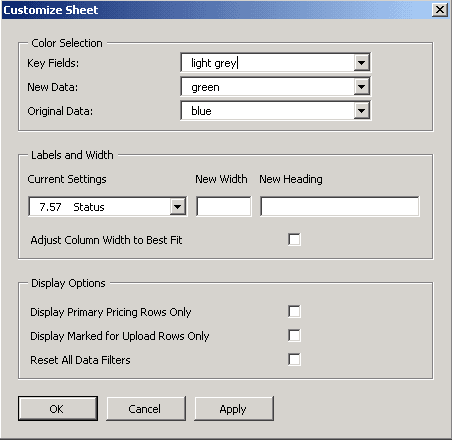
This example illustrates the fields and controls on the Customize Sheet dialog box. You can find definitions for the fields and controls later on this page.
| Field or Control | Description |
|---|---|
|
|
Click the Customize Sheet button. |
|
Current Settings |
Select each column from the drop-down list box, and enter a New Heading and or a New Width if you prefer different headings or column widths. |
|
Adjust Column Width to Best Fit |
Select this option to set column widths to display the values entered and override any manually entered column widths. |
|
|
|
|
Display primary pricing rows only |
Select this option to view only the bold rows on the spreadsheet. To view all rows, deselect this option. |
|
Display marked for upload rows only |
Select this option to view only changed rows. To view all rows, deselect this option. |
|
Reset all Data Filters |
Select this option to display all the downloaded data if you previously restricted the display of spreadsheet rows by using the filtering option on one or more columns. |
|
Hide Cost Columns |
Select this option to hide Cost Columns. |
|
Hide Alternate Cost Columns |
Select this option to hide Alternate Cost Columns. |
|
Redisplay this page when finished |
Select this option if you change the heading or width of columns. |
|
Apply |
Click the Apply button to apply changes to each column one at a time. |