Resetting List Price Data
Use the Reset Data dialog box to reset the data to the original data from the download:
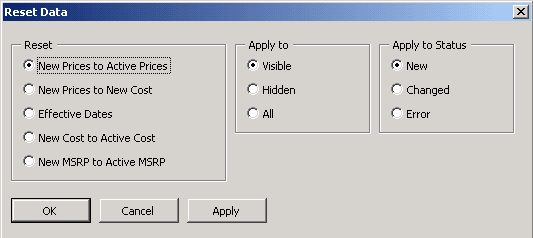
This example illustrates the fields and controls on the Reset Data dialog box. You can find definitions for the fields and controls later on this page.
| Field or Control | Description |
|---|---|
|
|
Click the Reset Data button on the Price Maintenance toolbar to reset the columns to the original settings from the download. You can apply resets selectively using the filtering function. |
|
New Prices to Active Prices |
Resets values in the New Price column to those that were downloaded. These are the same values as those in the Active Price column. |
|
New Prices to New Cost |
Resets values in the New price column to match the values in the New Cost column. |
|
Effective Dates |
Resets values in New Eff. Date column to those that were downloaded. |
|
New Cost to Orig. Value (reset new cost to original value) |
Resets the values in the New Cost column for non-inventory products to those that were downloaded. These values might not match those in the Active cost column if the Product Price As Of Date is different from the Product Cost Effective Date. |
|
New MSRP to Active MSRP |
Resets values in the New MSRP column to those that were downloaded. These values are the same as those in the Active MSRP column. |
