Using Mass Maintenance
Use the Price Maintenance dialog box to apply changes to multiple price lists prices or product price list prices in the editable columns:
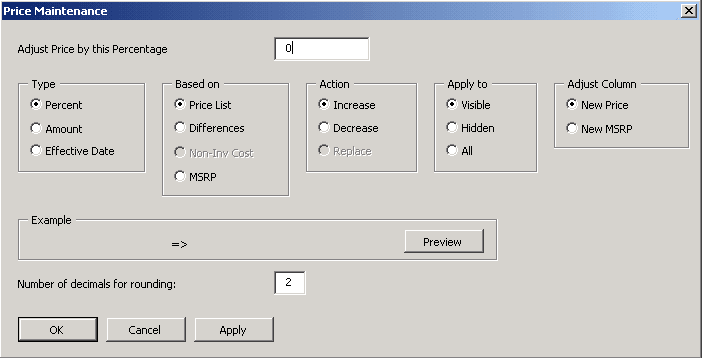
This example illustrates the fields and controls on the Price Maintenance dialog box. You can find definitions for the fields and controls later on this page.
| Field or Control | Description |
|---|---|
|
|
Click the Mass Maintenance button to access the Mass Maintenance dialog box. |
|
Type |
The selection options and the label of the first field change depending on the type of change you are making. Options are unavailable when the selection criteria do not apply. You can make a Percent change, an Amount change, or a change to the Eff. Date. |
|
Based On |
You can base a change on the: List Price (New Price column), Differences between the cost and list price (New Diff. column), Non-Inv Cost (New Cost column for non-inventory products only), and MSRP (New MSRP column). Note: The display mode for differences on the spreadsheet affects the selection criteria for changes. If differences appear as percentages, the Type must be Percent. If differences appear as absolute amounts, the Type must be Amount. |
|
Preview |
Click the Preview button to view an example of the current change before you apply it to the data. Keep in mind that prices are not limited to positive values. |
|
Number of decimals for rounding |
When a pricing change is applied, you can alter the number of decimals that the system uses to round to the new price or cost by changing the value in this field. Values are 0 to 4. You can round to a different number of decimals without changing any other data by keeping the default of 0 in the first field in the dialog box and altering the Number of decimals for rounding field. Note: The default value that appears in the Number of decimals for rounding field is determined by the settings on the computer. To change the default, select |