Managing Credit Card Data Using Action Links
The action links on the credit card data or detail pages vary depending on the setup of your Order to Cash system for a traditional credit card implementation or a hosted credit card implementation. For example, after converting to a hosted credit card implementation, the Credit Card Data page shows only the credit card data needed to create a token ID that matches up information between the PeopleSoft Order to Cash system and the profile now administered by the third-party processor.
Credit card action links appear on Order to Cash pages, including but not limited to those listed here:
-
Header - Credit Card page (Billing)
This page is accessed during express bill entry or standard bill entry when the payment type is Credit Card.
-
Payment Confirmation: Enter Credit Card Info page in the Payment Cart horizontal navigation (eBill Payment)
-
Credit Card Data page (Order Management)
-
Payment Option page under Express Order Add/Edit, Additional Information - Card page under Counter Sale, Refund Payment Groups page under RMA, Edit Credit Card Transactions page under Identify Pending Transactions (Order Management)
-
Cash Drawer Receipt - Additional Information page for Credit Card (Receivables)
-
Credit Card Details page (Receivables)
This page is available wherever the Pay by Credit Card or Credit Card Details links appear, such as on credit card worksheets and on the Credit Card Workbench, Item Detail, Account Overview, and Receivables WorkCenter pages.
Using Credit Card Action Links in the Hosted Model
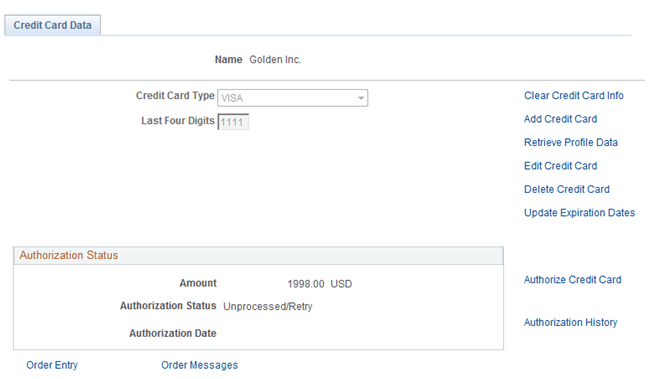
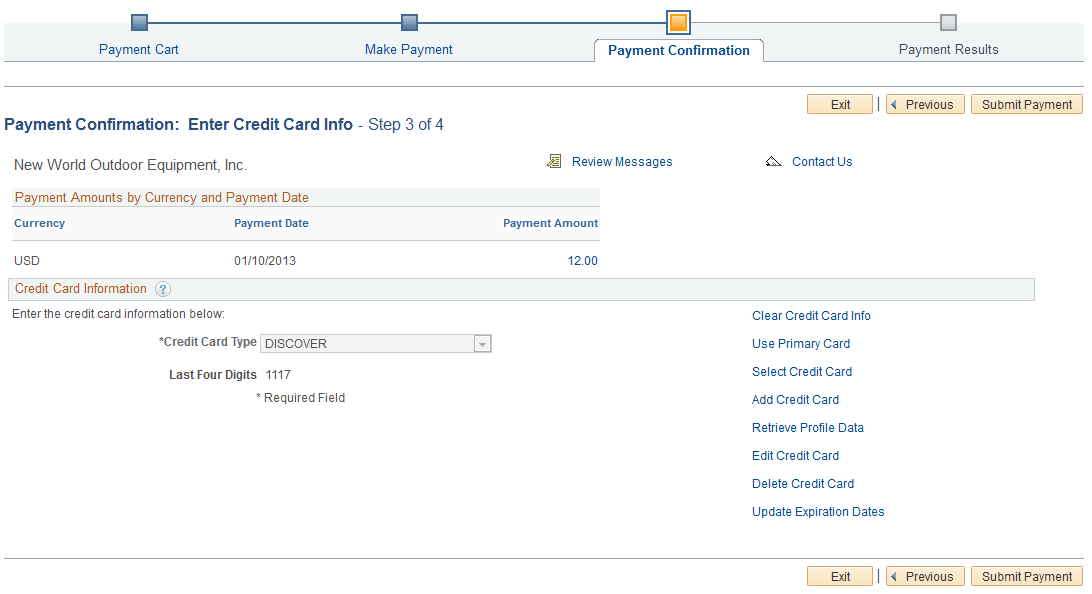
In general, the action links appear on the right side of a page that contains credit card data.
This example illustrates the fields and controls on the Credit Card Data page in a system with hosted credit card processing.
This example illustrates the fields and controls on the Payment Confirmation: Enter Credit Card Info page in a hosted credit card implementation.
| Field or Control | Description |
|---|---|
|
Clear Credit Card Info |
Click this link to clear the data existing in fields that appear on the page. This action does not affect stored credit card data. |
|
Use Primary Card |
Click this link to populate the Credit Card Information fields with card type and last four digits using the primary credit card as designated in this contact’s profile for a customer. |
|
Select Credit Card |
Click this link to open the Credit Card Selection page, which lists credit cards associated with this customer contact. This link is available if the contact has at least one saved temporary credit card profile. |
|
Add Credit Card |
Click this link to add data for a new credit card. This link transfers you to the third-party supplier set up for payment storage and processing in the hosted model. You enter credit card information on the hosted page, which is pre-populated with the customer contact’s billing information. |
|
Review Profile Data |
Click this link to send a request to the hosted site to retrieve profile data and then display it on the PeopleSoft page. Retrieved profile data is display-only. This link is available when the credit card type and last four digits appear on the page. |
|
Edit Credit Card |
Click this link to transfer to the hosted Website, where the customer contact can edit the card information. This link is available when the credit card type and last four digits appear on the page. |
|
Delete Credit Card |
Click this link to delete a credit card profile associated with this customer contact. If the profile is not used in any pending transaction, a background request deletes the profile in the hosted site. This link is available when the credit card type and last four digits appear on the page. |
|
Update Expiration Dates |
Click this link to update expiration month and year without transferring to the hosted site. When you enter the new expiration date, a background process updates the hosted site. This link is available when the credit card type and last four digits appear on the page. |
If payment tokenization is enabled for online transactions, the PeopleSoft Order to Cash system requires the use of hosted profiles and order pages. For transactions involving customer contacts that do not have permanent profiles, the PeopleSoft system may create a temporary profile. In this case, the PeopleSoft system is set up with one of these two options:
-
The temporary profile is set up before the credit card is processed on the hosted order page. This value is the default.
In this case, if no credit card profile exists for the customer contact in the PeopleSoft system, the customer must click the Add Credit Card link to establish a profile before continuing with the transaction.
-
The temporary profile is automatically created after the online transaction is complete, using the same data as in the credit card transaction.
Using Credit Card Action Links in the Traditional Model
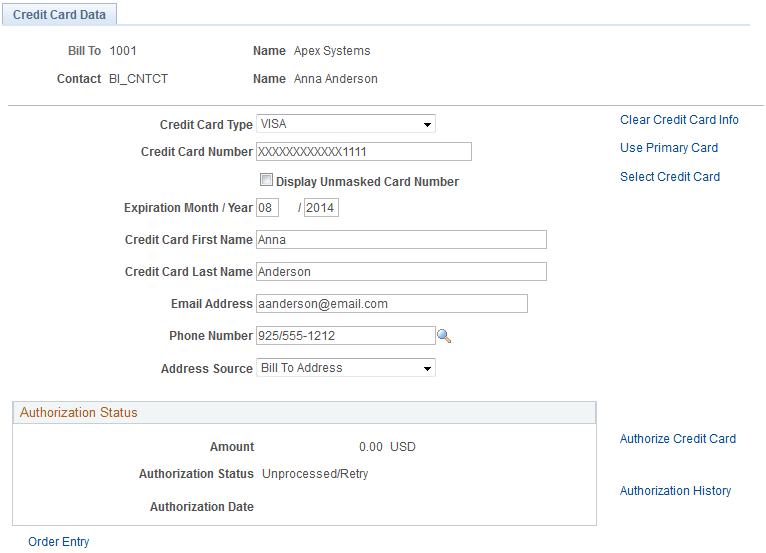
In general, the action links appear on the right side of a page that contains credit card data.
This example illustrates the fields and controls on the Credit Card Data page in Order Management, using the traditional credit card model. You can find definitions for the fields and controls later on this page.
| Field or Control | Description |
|---|---|
|
Clear Credit Card Info |
Click this link to clear the data existing in fields showing on the page. This action does not affect stored credit card data. |
|
Use Primary Card |
Click this link to populate the Credit Card Information fields with data using the primary credit card as designated in this contact’s profile for a customer. |
|
Select Credit Card |
Click this link to open the Credit Card Selection page, which lists credit cards associated with this customer contact. This link is available if the contact has at least one saved permanent credit card stored in the system. |
|
Authorize Credit Card |
Click this link to authorize payment on this credit card. |
|
Authorization History |
Click this link to review the authorization history for this credit card. |