Setting up Virtual Payment Cards in PeopleSoft
Enabling payment cards in PeopleSoft requires both system configurations and external actions with your payment card provider. Use the following steps to setup virtual payment cards:
-
Enrolling Suppliers to accept payment cards
The first step is for your financial institution to engage with your suppliers and have them opt-in to accept payment cards as a payment method. Typically, organizations share their supplier list with banks, who then run campaigns for supplier opt-in.
-
Setup Supplier Master to indicate which suppliers will accept payment cards
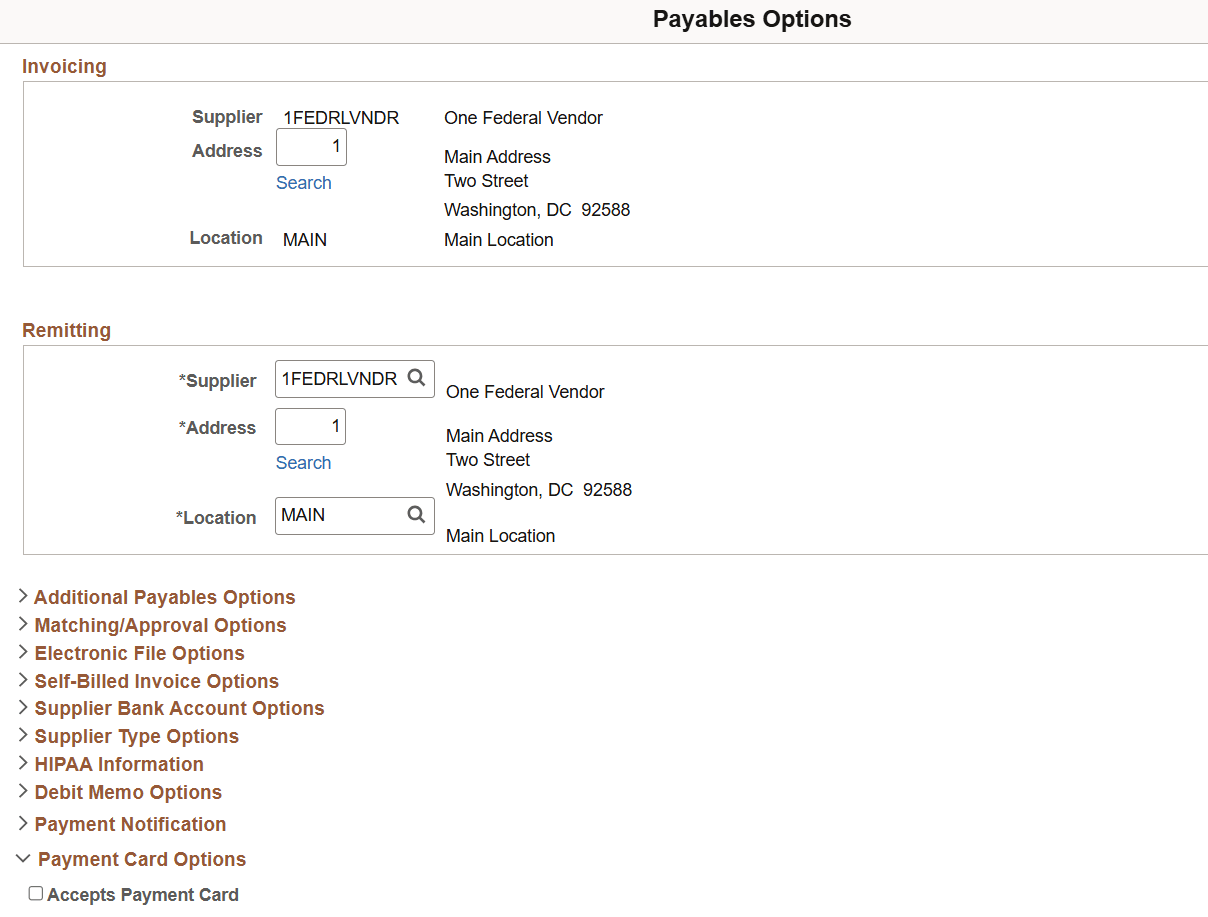
For suppliers that agree to accept payment cards, select the Accepts Payment Card flag at Suppliers > Suppliers Information > Add/Update > Supplier > Location Tab > Payables Options > Payment Card Options section. This allows the system to recognize the supplier as one who can receive payments using payment card. Supplier Bank Account information is also required for the payment to be successfully staged to Financial Gateway.
This example illustrates the fields and controls on the Payables Options - Payment Card Options section.
-
Setup Financial Institution as a Supplier
Your Payment Card provider must be setup as a supplier. This is needed to process payments to the payment card provider after reconciliation. Select the Payment Card Provider check box in Suppliers > Suppliers Information > Add/Update Suppliers > Identifying Information tab.
This example illustrates the fields and controls on the Supplier - Identifying Information page.
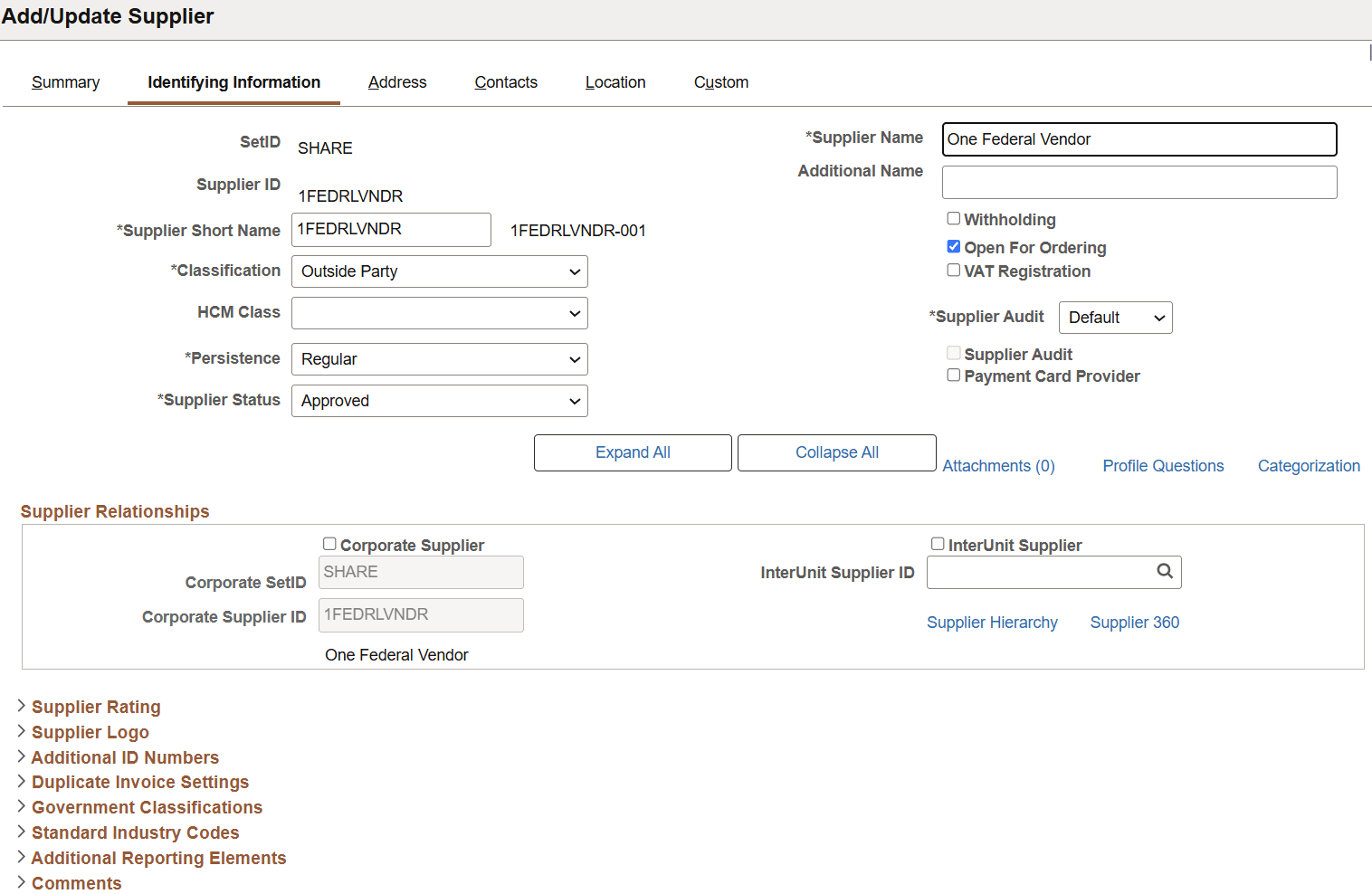
If the Payment Card Provider check box is selected on the Supplier Identifying Information page, the Payment Card Options section will not be available on the Supplier Information - Location page. See PeopleSoft Source to Settle Common Information: Identifying Information Page and PeopleSoft Source to Settle Common Information: Supplier Information - Location Page for additional information.
-
Setup new External Account for Payment Card
An external bank account type of Payment Card needs to be defined in PeopleSoft. While paying suppliers using payment card, the funds are not immediately transferred into the supplier's account. Instead, the payment is processed through the payment provider, and the actual cash flow to the supplier happens once the payment provider finalizes the payment. The Payment Card external account type ensures that the system recognizes this unique payment process, marking the payment method appropriately. When you define this external account, only the AP (Accounts Payable) checkbox is checked, as this method is directly linked to the AP payments.
This setup can be done by navigating to Banking > Bank Accounts > External Accounts and defining these options. This allows the payment to be categorized correctly within the accounts payable process.
This example illustrates the fields and controls on the External Accounts page.
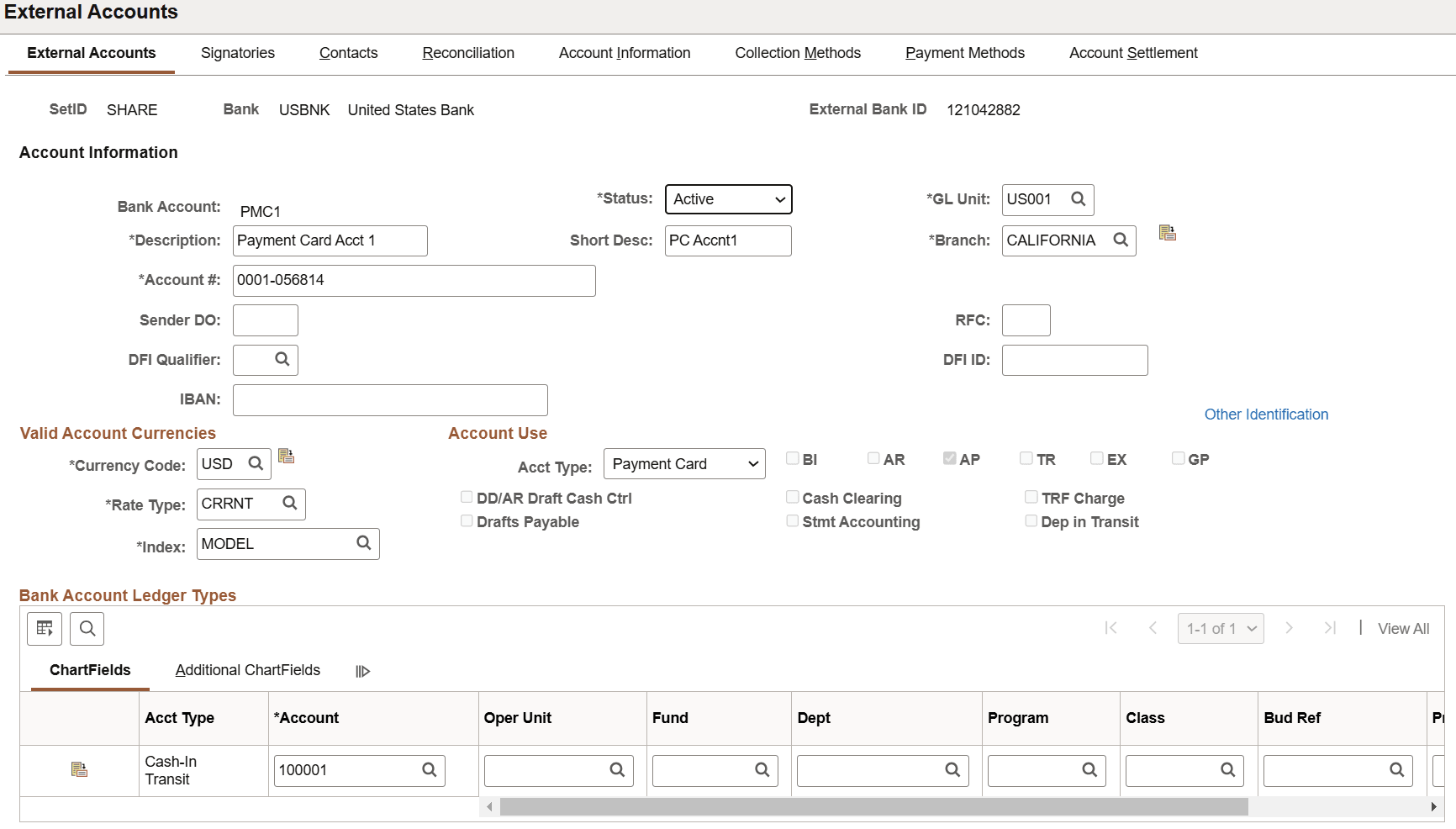
Additionally, a chartfield account type called Cash In Transit is needed for accounting purposes. Since the payment is in transit, this account type helps track the funds before they are fully transferred to the supplier. It ensures that the financial records accurately reflect the temporary status of the payment.
-
Define Payment Method and Layout Mapping
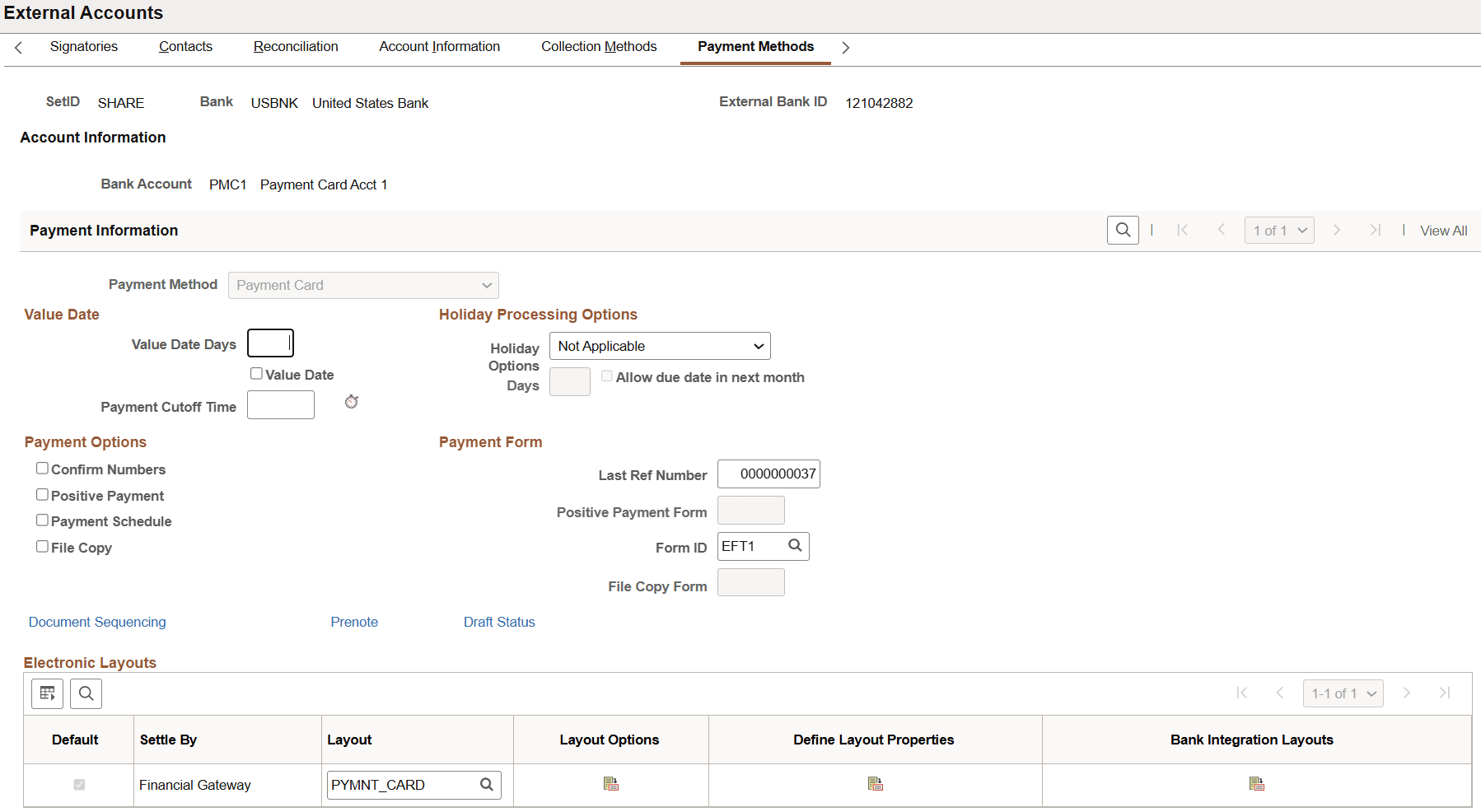
Define Payment Method and Layout Mapping in Banking > Bank Accounts > External Accounts> Payment Methods tab. You also need to define Payment Method of Payment Card. This step is necessary because it links the external bank account to the specific payment type used for transactions with the payment card provider. Without this setup, the system would not recognize that payment transactions are being processed using credit card.
Additionally, in the electronic layout section, you need to define mapping of new Layout PYMNT_CARD for Financial Gateway. Under Bank Integration Layouts, define the new PYMNT_CARD layout with a Document Type of Payment.
This example illustrates the fields and controls on the External Accounts page - PYMNT_CARD layout.
-
Financial Gateway Setup
To enable payment card payments, two new layouts have been added to the Data Export and Import Utility (DEIU).
-
Payment Card Layout (MAP_PYMNT_CARD): Access this data definition through DEIU Map Definition. This is an example definition of the outbound payment card file that PeopleSoft has defined. This is the format that Financial Gateway will generate the file when payment is created in AP. Collaborate with your payment provider to understand the exact format they require for payment data. The default PeopleSoft layout is an example, and you may modify this map to match the format that your payment provider uses.
-
Payment Card Import Layout (MAP_PYMNT_CARD_IMPORT): This is an example definition of the inbound payment card file that PeopleSoft has defined. This is the format that Financial Gateway uses to import the payment card file received from the payment provider containing payments made to suppliers. The file type must be .csv.
-
-
Payment Card Mapping
To ensure proper voucher distribution and correct financial accounting, mapping is required between the Bank Account and the Supplier. Use Payment Card Mapping page (Banking> Bank Accounts> Payment Card Mapping) to do mapping. This mapping enables PeopleSoft to derive the appropriate voucher distribution account when a payment is processed using the payment card.
This example illustrates the fields and controls on the Payment Card Mapping page

For Matched Transactions, where the payment has been successfully reconciled, PeopleSoft defaults the Cash In Transit account.
For Unmatched Transactions, where the payment details have not been reconciled, specify the account to post the unmatched amount.