Reviewing Status Reports
Pages Used to Review Status Reports
| Page Name | Definition Name | Usage |
|---|---|---|
|
PC_SR_COMPLETE |
View a list of completed status reports by employee. |
|
|
PC_SR_VIEW_DTL |
View the details of completed status reports. |
|
|
PC_SR_CONS_CUST |
Send an email notification that contains a consolidated report of all the status reports that pertain to a project and start date to customers. |
|
|
PC_SR_INCOMPLETE |
View a list of project team member and send email reminders to individuals who have not completed their status reports by the due date. |
|
|
PC_SR_NOTIFY |
Send email reminders to project team members with incomplete status reports. |
|
|
PC_SR_REMINDER |
Specify run control parameters to run the Status Report Reminder Application Engine process, which sends email notifications to project team members to remind them about their status report due dates. |
Completed Status Reports Page
Use the Completed Status Reports page (PC_SR_COMPLETE) to view a list of completed status reports by employee.
Navigation:
This example illustrates the fields and controls on the Completed Status Reports page. You can find definitions for the fields and controls later on this page.
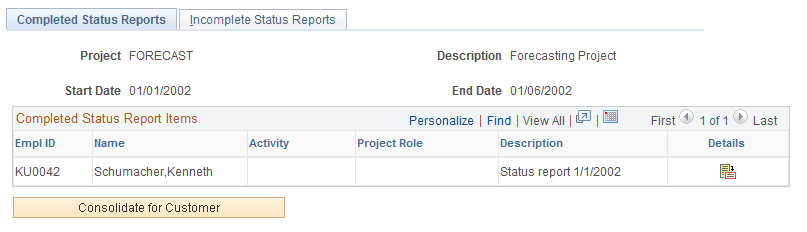
This page displays a list of status reports for the selected project and start date that have the Complete option selected on the Status Report Summary page.
| Field or Control | Description |
|---|---|
|
|
Click the Details icon to access the Status Report Details page and view additional information that pertains to the status report. |
|
Consolidate for Customer |
Click to access the Consolidate for Customer page, where the system compiles all completed status reports for the selected project and start date. |

Status Report Details Page
Use the Status Report Details page (PC_SR_VIEW_DTL) to view the details of completed status reports.
Navigation:
Click the Details icon on the Completed Status Reports page.
This example illustrates the fields and controls on the Status Report Details page. You can find definitions for the fields and controls later on this page.
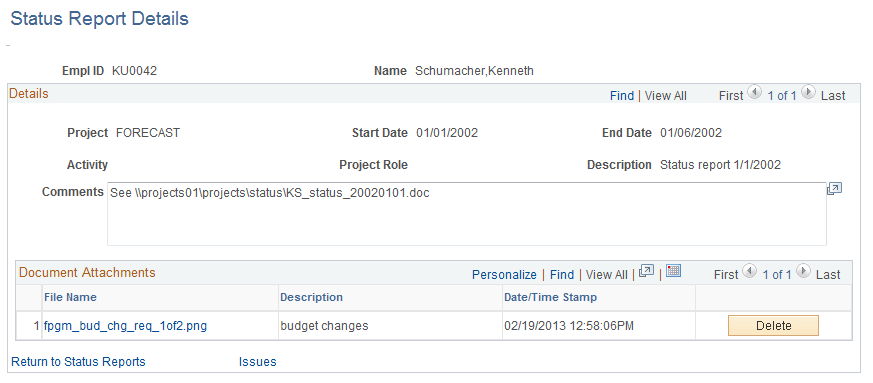
You can view and delete file attachments, but all other data is display-only. This page is typically used by project managers.
| Field or Control | Description |
|---|---|
|
Document Attachments |
Displays a list of file attachments pertaining to the status report. To open the attachment, click the filename, which is a link to the document. |
|
Issues |
Click to access the Issue Management component to view or update issues that are related to the status report. |
Consolidate for Customer Page
Use the Consolidate for Customer page (PC_SR_CONS_CUST) to send an email notification that contains a consolidated report of all the status reports that pertain to a project and start date to customers.
Navigation:
Click the Consolidate for Customer button on the Completed Status Reports page.
This example illustrates the fields and controls on the Consolidate for Customer page. You can find definitions for the fields and controls later on this page.
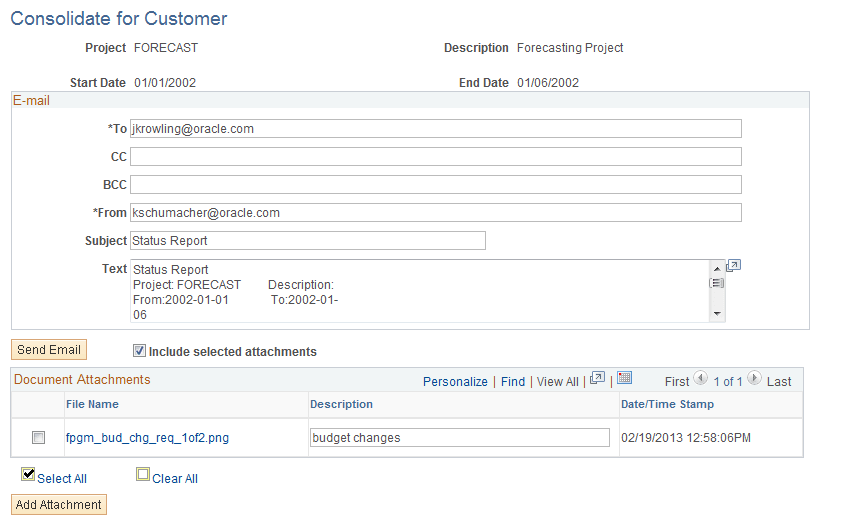
Enter the email addresses for the customers to whom you want to send this status report.
| Field or Control | Description |
|---|---|
|
Subject |
The system automatically populates this field with the text Status Report, which can be edited. |
|
Text |
Contains details from all of the completed team member status reports for the selected project and start date. You can edit the text before sending the consolidated report to customers, but the edits do not modify the original employee status reports. |
|
Send Email |
Click to send the status report to the recipients you specify in the To, CC, and BCC fields. |
|
Include selected attachments |
Select to attach the selected files from the Document Attachments grid to the email. |
Document Attachments
The Document Attachments grid lists all the files that have been attached to the status reports.
| Field or Control | Description |
|---|---|
|
Select All and Clear All |
Selects or deselects all file attachments to be included or excluded from the consolidated report. |
|
Add Attachment |
Click to append a file that pertains to the consolidated status report. When the file is uploaded, the file name appears in the Document Attachments grid. Note: Attachments are sent by using the file attachment option method that is specified by using the Installation Options - Project Costing page (INSTALLATION_PC). To ensure that attachments are sent, you should verify that this option is set up correctly. See PeopleSoft Asset Lifecycle Management, Enterprise Service Automation, Financial Management, Staffing Front Office, and Supply Chain Management Product-Specific Installation Instructions located on Oracle's PeopleSoft My Oracle Support website. |
Incomplete Status Reports Page
Use the Incomplete Status Reports page (PC_SR_INCOMPLETE) to view a list of project team member and send email reminders to individuals who have not completed their status reports by the due date.
Navigation:
This example illustrates the fields and controls on the Incomplete Status Reports page. You can find definitions for the fields and controls later on this page.
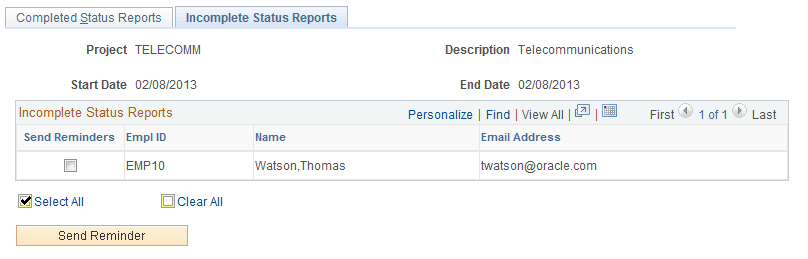
Select the individuals you would like to send an email notification to in the Send Reminders column. Click the Send Reminder button to set up the email on the Status Report Reminder page.
Status Report Reminder Page
Use the Status Report Reminder page (PC_SR_NOTIFY) to send email reminders to project team members with incomplete status reports.
Navigation:
Click the Send Reminder button on the Incomplete Status Reports page.
This example illustrates the fields and controls on the Status Report Reminder page. You can find definitions for the fields and controls later on this page.
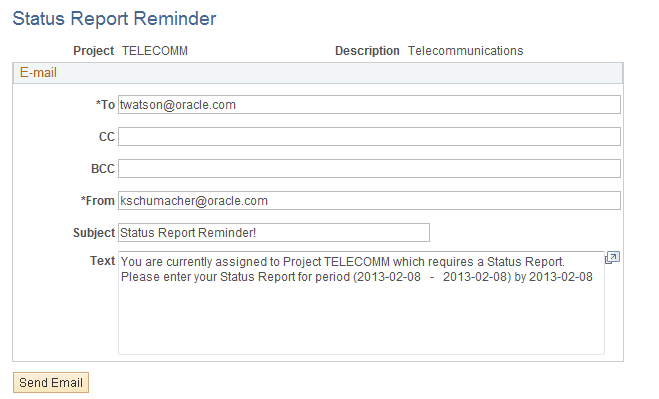
| Field or Control | Description |
|---|---|
|
Subject |
This field is automatically populated with the text: Status Report Reminder!, which you can edit. |
|
Text |
Displays text that the system automatically populates with information from the status report for which the employee is being reminded. You can edit the text before sending the email. This is typically done by project managers. |
|
Send Email |
Click to send the email to the specified employees. |
Status Report Reminder (run control) Page
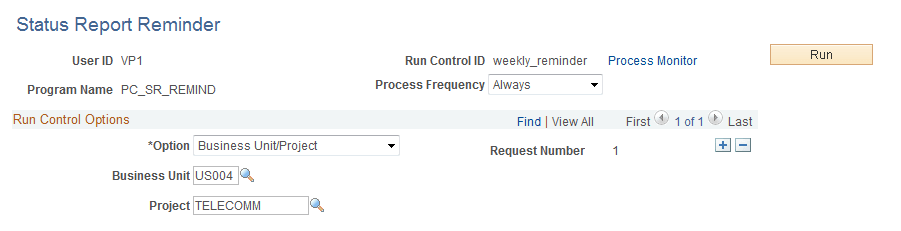
Use the Status Report Reminder (run control) page (PC_SR_REMINDER) to specify run control parameters to run the Status Report Reminder Application Engine process, which sends email notifications to project team members to remind them about their status report due dates.
Navigation:
This example illustrates the fields and controls on the Status Report Reminder page. You can find definitions for the fields and controls later on this page.
| Field or Control | Description |
|---|---|
|
Option |
Select from one of these options: All: Sends email notifications to all project teams members across all business units. Business Unit: Sends email notifications to all project team members within the business unit that you specify in the Business Unit field. Business Unit/Project: Sends email notifications to all project teams members within the business unit and project combination that you enter in the Business Unit and Project fields. Business Unit/Project/Activity: Sends email notifications to all project team members that are on the business unit, project, and activity combination that you enter in the Business Unit, Project, and Activity fields. |
Related Topics