Project Request Activity Guide Step 2 of 4: Project Request
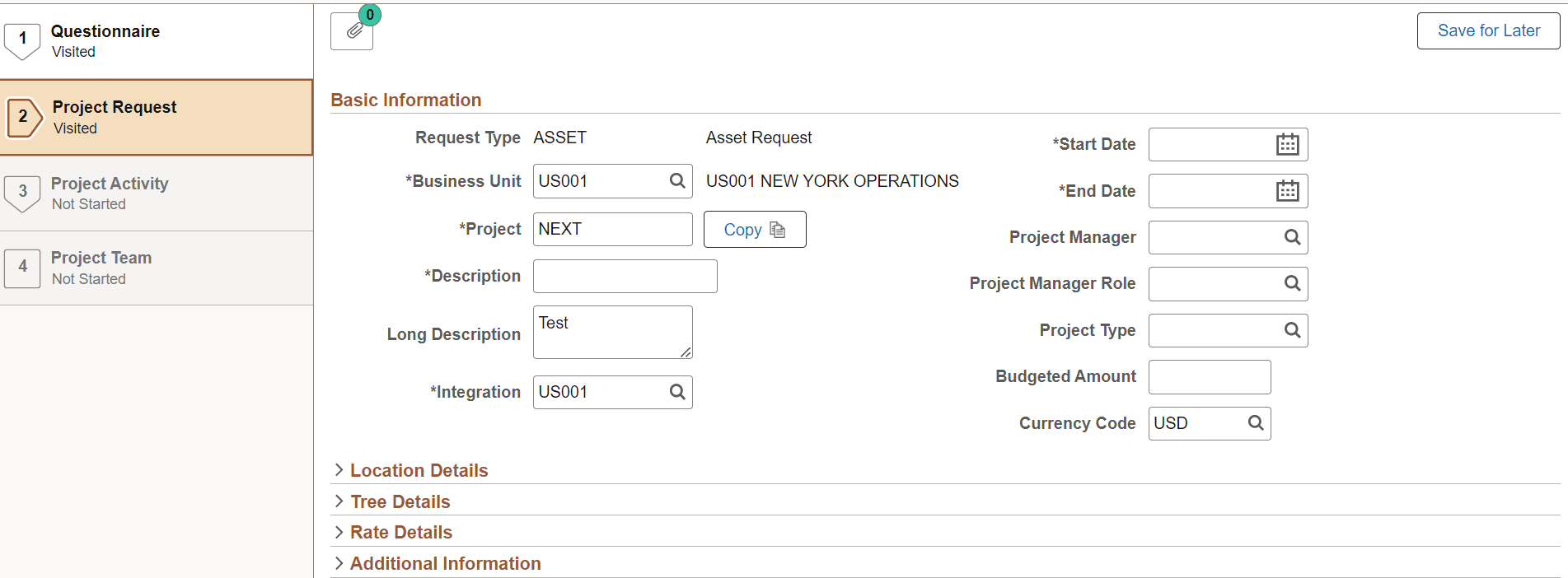
Use the Project Request page (PC_PRQ_PROJ1_FL) to enter the project information.
Navigation:
From the Project Request activity guide, select Project Request.
This example illustrates the fields and controls on the Activity Guide Step 2 of 4: Project Request page.
| Field or Control | Description |
|---|---|
|
|
Select to add multiple attachments to the project. |
|
Business Unit |
Displays the business unit. The business unit from the Project User Preferences is displayed as the default value. |
|
|
Select to copy information from an existing project or project template into the project request. |
|
Start Date and End Date |
Enter a start date and an end date. The dates entered here are used as the default date in other tasks of the activity guide. |
|
Integration and Currency Code |
Displays the values from Project User Preferences as the default option. |
|
Standard Activities |
Select Yes to include a prompt for Activity ID on the Project Activity step. |
|
Grants Projects |
For customers who license the Grants application. |
|
Project Category |
For customers who license the Project Management application. |
|
Organization |
Displayed if Project Organization configuration has been created by the organization. |


Note:
The fields displayed on each page can be configured using the Page and Field Configurator. For more information, see Enterprise Components: Using Page and Field Configurator.
Careful consideration should be given when using Page and Field Configurator to hide fields. If all fields are hidden in a group box, then the group box will be hidden. If a separate editable field is changed by the user that triggers a hidden field in the group box to be required, the required field will not be displayed immediately. The field is displayed only after the page is refreshed.