Project Request Page
Use the Project Request page (EOAWMA_TXNHDTL_FL) to view project information and perform the approval tasks.
Navigation:
From the Pending Approval page, select a project request transaction on the right.
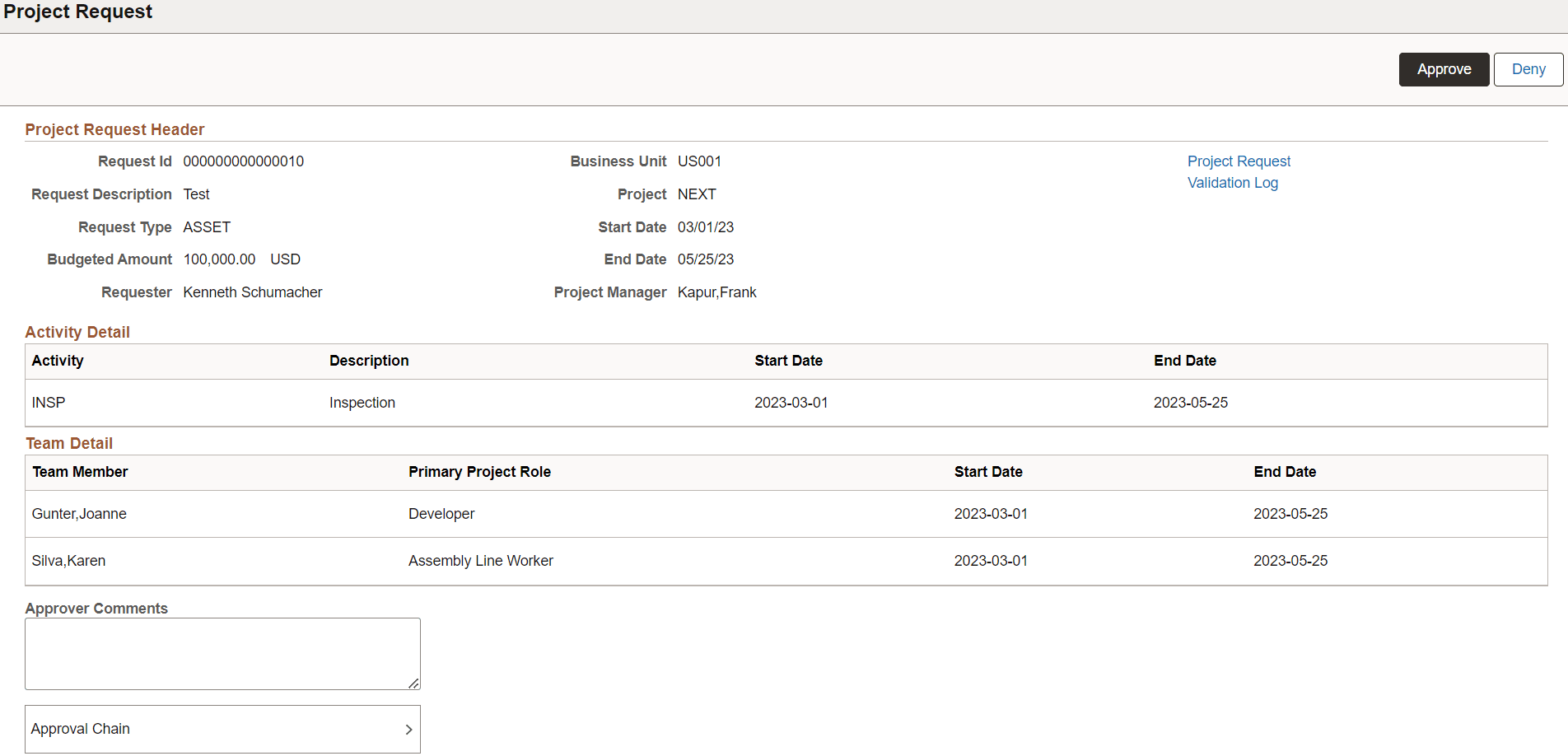
This example illustrates the fields and controls on the Project Request page. You can find definitions for the fields and controls later on this page.
| Field or Control | Description |
|---|---|
|
Approve and Deny |
Select an option for the transaction. When you select one of these buttons, the system allows you to confirm or cancel your action. After you click Approve, you can enter a comment and then select the Submit button to send your approval of the transaction to the system. The system removes the transaction from your Pending Approvals queue and adds it to your Approvals History page. |
|
Project Request |
Select to access the project request activity guide. You can review and update the information if required. The edit privilege will be based on your activity guide role. If the user does not have access to the project request component, the request will be blank when opened. |
|
Validation Log |
Select to view the log if there are validation errors. |
|
Approval Chain |
Select to access the Approval Chain page. The Approval Chain displays the status of the approval chain for the transaction. You can expand and collapse subsections displayed. |