Entering Buyer Search Criteria
Navigation:
Use the Buyer Mass change page (PO_Mass_Change) to define a buyer and to replace one buyer with another. Also use it to provide criteria for the purchase orders that you want to change.
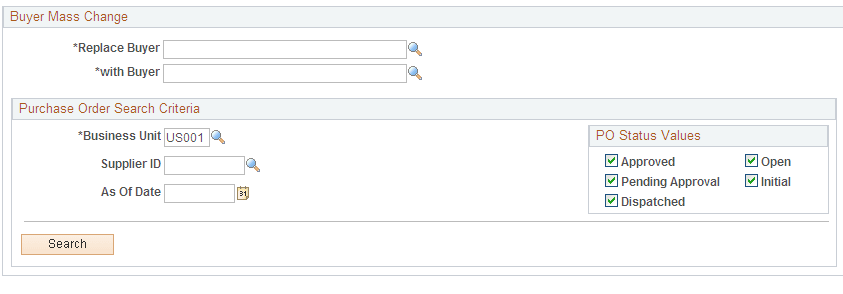
This example illustrates the fields and controls on the Buyer Mass Change page. You can find definitions for the fields and controls later on this page.
| Field or Control | Description |
|---|---|
|
Replace Buyer |
Select the original buyer that you want to replace in the purchase orders that match the search criteria you enter. The search results will include the purchase orders for this buyer and also those that match the remaining search criteria. This field is required. |
|
with Buyer |
Select the buyer that you want to replace the original buyer in the selected purchase orders. This field is required. |
Use the Purchase Order Search Criteria group box to define the business unit, supplier, and effective date criteria for purchase orders. The Business Unit field is required.
You can also select which statuses you want to include in the search results. All of the status value check boxes are selected as default values.
When you click the Search button, the system displays the Affect Purchase Orders grid, which displays the results of the search. From those results, you can select the purchase orders to which you want to apply the buyer change.