Replacing a Buyer on Multiple Purchase Orders
Navigation:
Click the Search button.
This example illustrates the fields and controls on the Buyer Mass Change — Search Criteria page. You can find definitions for the fields and controls later on this page.
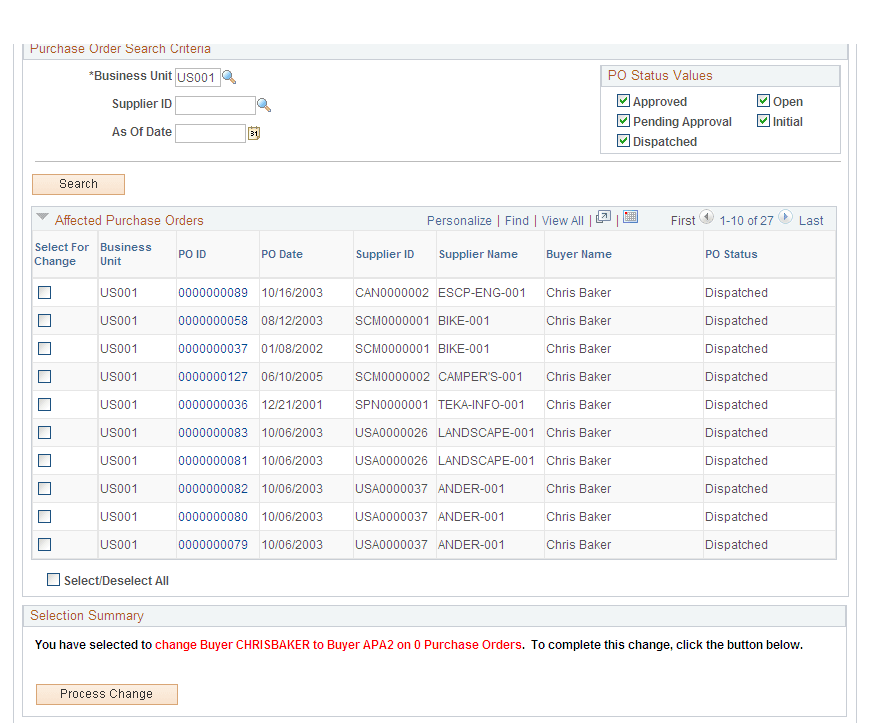
The Affected Purchase Orders grid displays the results of the search. You can select all the purchase orders or individual orders to which the buyer change applies. A link to the purchase order detail appears in the grid in the PO ID column. Click this link to open a new window that shows details about the selected purchase order.
The system also displays the Selection Summary group box, which indicates the original buyer, the replacement buyer, and the number of purchase orders selected for change. As you select purchase orders to change, the system updates the value in the message.
Click the Process Change button to initiate the PO_POCHNG batch application engine process. The system displays a message that a batch process is about to be initiated. You can either wait while the process runs, or you can manually check the process monitor for verification.
If you select to wait, the system indicates that the code is executing until the process is complete, after which the system displays a message indicating that the process is complete along with the process instance number. The system navigates to the Change Order History search page after the process is completed; from there, you can review and verify the purchase order changes.