PO Close Short Workbench - Purchase Orders Page
Use the PO Close Short Workbench - Purchase Orders page (PO_CLOSE_SHORT_WB) to use the PO Close Short Workbench.
Navigation:
This example illustrates the fields and controls on the PO Close Short Workbench - Purchase Orders page. You can find definitions for the fields and controls later on this page.
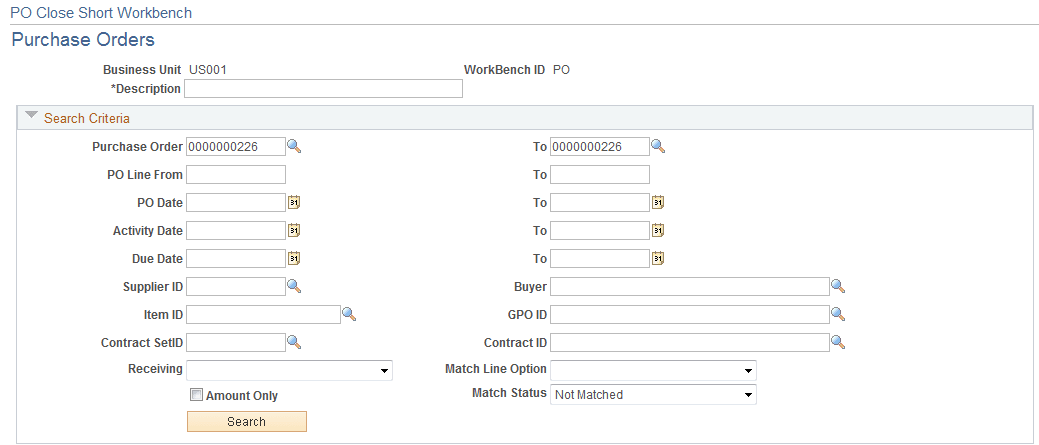
The Close Short Workbench provides a way to review purchase orders and determine whether outstanding purchase order lines should be set to close short. Using PO Close Short Workbench, you can run both the PO_CLSSHORT AE process and the PO_POCHNG AE process so that the purchase order is updated to reflect the Close Short processing.
The workbench page is divided into two sections. The top portion enables you to define search criteria for locating the purchase order schedules. The lower portion is a grid of the returned rows from the search. Each returned row contains a combination of purchase order header, line, and schedule information for your review and analysis.
| Field or Control | Description |
|---|---|
|
Business Unit |
Displays the business unit associated with the purchase orders. |
|
Workbench ID |
Displays the name assigned to this grouping of purchase orders. |
|
Workbench ID |
Displays an extended description of the workbench ID. |
Search Criteria
You can define a single purchase order or a list of purchase orders that are eligible for closing short. Enter the search parameters and click the Search button to retrieve the purchase orders. The system issues an error message if you perform the search without entering search parameters. You can search for eligible purchase orders based on a variety of search criteria, such as activity dates, supplier ID, item ID, and buyers. The Receiving option, Match Line option, Amount Only check box, and Match Status helps you refine purchase order searching. The Amount Only check box appears on all the grid tabs. The value is retrieved from the PO line.
The number of returned rows from the search depends on the value in the Close Short Max Rows field on the Installation Options page. If search results exceed that field value, the system displays an error message. You will have to change or add search criteria to narrow the results. If the Close Short Max Rows field value is zero, the system does not set a limit and displays the rows, 6 or 100 at a time, and enables you to navigate from group to group.
When you click the Search button, the system displays the results in the PO Close Short Worklist grid. Search results are appended to any existing rows in the worklist. The system also saves both the search results and search criteria.
After completing a search, click the Expand button in the Search Criteria section to view the search criteria used for the search.
| Field or Control | Description |
|---|---|
|
Clear all rows from the list |
Click to delete all worklist rows. This triggers an automatic save. |
|
Select Close Short All |
Click to select the Close Short check box for all rows in the worklist. |
|
Clear Close Short All |
Click to deselect the Close Short check box for all rows in the worklist. |
|
Process Monitor |
Click to access the Process Monitor. |
Details
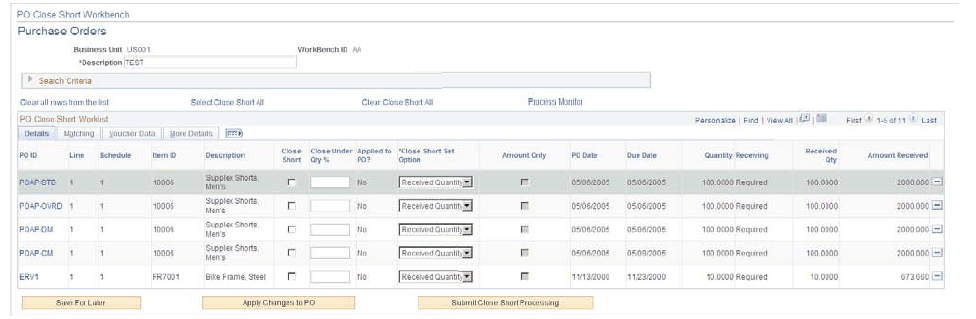
Use the Details tab to view line and schedule information for selected purchase orders.
This example illustrates the fields and controls on the PO Close Short — Details tab. You can find definitions for the fields and controls later on this page.
| Field or Control | Description |
|---|---|
|
PO ID (purchase order ID) |
Click to view and update purchase order information. |
|
Line |
Displays the purchase order line number. |
|
Schedule |
Displays the purchase order schedule number. |
|
Item ID |
Displays the item that is associated with the purchase order line number. |
|
PO Date (purchase order date) |
Displays the purchase order date. This value is retrieved from the purchase order header. |
|
Due Date |
Displays the schedule's due date. |
|
Quantity |
Displays the purchase order quantity from the purchase order schedule. |
|
Receiving |
Displays the line item receiving requirement indicator from the purchase order line. Values include Required, Optional, and Do Not Receive. |
|
Received Qty (receiving quantity) |
Displays the receipt quantity for the purchase order schedule. The system retrieves this value from the net receipt quantity for the receipt transactions. The system refreshes the quantity from the receipt transactions when you open an existing workbench or worklist. |
|
Close Short |
Indicates whether the Close Short check box on the purchase order line is selected. If you select or deselect the check box, the system applies the new value when you click the Apply Changes to PO button. |
|
Close Under Qty % (close under quantity percentage) |
Displays the close under percentage value from the purchase order schedule. You can enter a new value and click the Apply Changes to PO button to apply the change. |
|
Applied to PO? (Applied to purchase order?) |
Indicates whether changes have been made to the Close Short check box or the Close Under Qty % field and applied to the purchase order. |
|
Close Short Set Option |
The Close Short Set Option value will be provided by default on the PO Close Short Work List when the row is populated during search processing for the PO Close Short WorkBench. The PO line and schedule values for Amount Only flag, Receiving option, and Match Line option, along with the PO Close Short Rule ID of the PO business unit, will be used to find the PO Close Short Default Rule and retrieve the Close Short Set Option value. The close short set option would be set to either Received Quantity or Received Amount based on the Amount Only flag and grayed out irrespective of the close short rule; and the close short flag would be selected and grayed out if the PO line is stockless. Note: If the close short set option is disabled for any of the PO schedule, then close short flag on all the rows listed for that particular PO line would be deselected and grayed out. If the close short override is not enabled on the PO Business unit, then the close short set option would be grayed out. |
|
Amount Received |
Displays the amount received for the PO schedule. |
|
Save for Later |
Click to indicate that you want to save the changes that you made to the search criteria, the worklist, or the run control parameters for the Close Short process. The system stores the values for the specific workbench ID and you can retrieve them by opening the workbench. |
|
Apply Changes to PO (apply changes to purchase order) |
Click to apply close short or close under quantity percent changes that you have made to purchase order lines and schedules. |
|
Submit Close Short Processing |
Click to access the Process Request Options page, where you can submit a batch Close Short process. If you do not apply the changes that you made on this page, the system displays an error message when you click the Submit Close Short Processing button. |
Matching
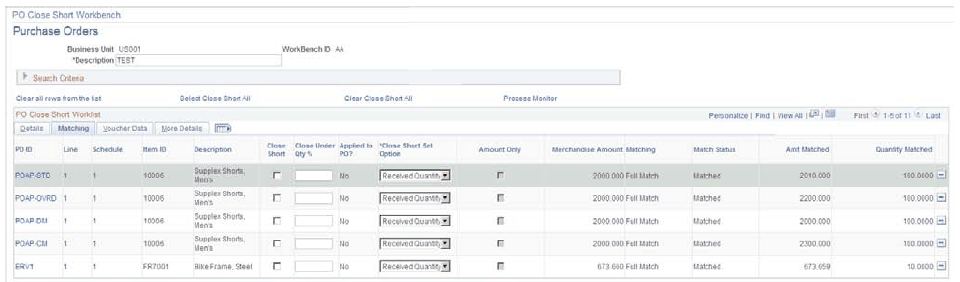
Use the Matching tab to view line and schedule information for selected purchase orders.
This example illustrates the fields and controls on the PO Close Short — Matching Tabs. You can find definitions for the fields and controls later on this page.
Voucher Data
Use the Voucher Data tab to view line and schedule information for selected purchase orders.
This example illustrates the fields and controls on the PO Close Short — Voucher Tabs. You can find definitions for the fields and controls later on this page.
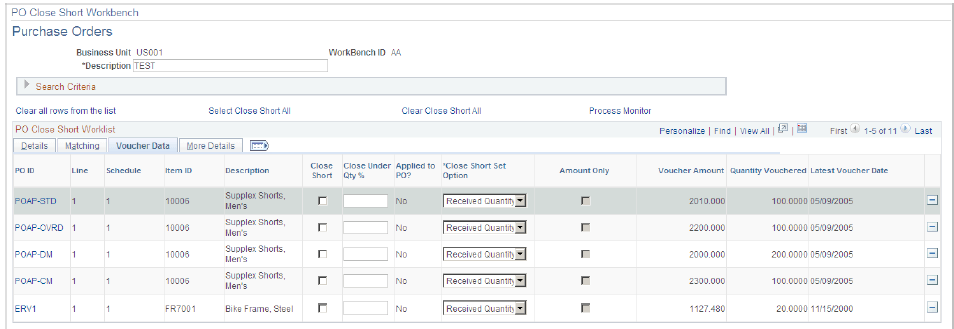
The Amount Vouchered, Quantity Vouchered, and Latest Voucher Date fields will only appear on the Voucher Data tab if the Close Short Set Option is using a Voucher value.
More Details
Use the More Details tab to view additional purchase order details.
| Field or Control | Description |
|---|---|
|
Buyer |
Displays the buyer from the purchase order header. |
|
Supplier ID |
Displays the supplier for the purchase orders. |
|
Contract ID |
Displays the ID of the contract assigned to the purchase order schedule. |
|
GPO ID (group purchase order ID) |
Displays the ID of the group purchase order assigned to the purchase order schedule. |
|
Last Activity |
Displays the date on which the last activity was performed against the purchase order. The system updates this date on the purchase order when you create a change order and save your work, and also when you cancel a purchase order through the Buyer's Workbench. |