Setting Up Substitute Items in Procurement
To allow Item Substitution in Procurement, you must enable Item Substitution at the business unit level in order to activate the item substitution functionality. You can then determine the item substitution options that work best for your organization or company. This section discusses how to:
-
Set up item substitution at the Purchasing business unit level.
-
Define item substitution priorities at the supplier level.
-
Define item substitution priorities at the item level.
-
Designate items for substitution only.
-
Override auto item substitution.
Setting Up Item Substitution at the Purchasing Business Unit Level
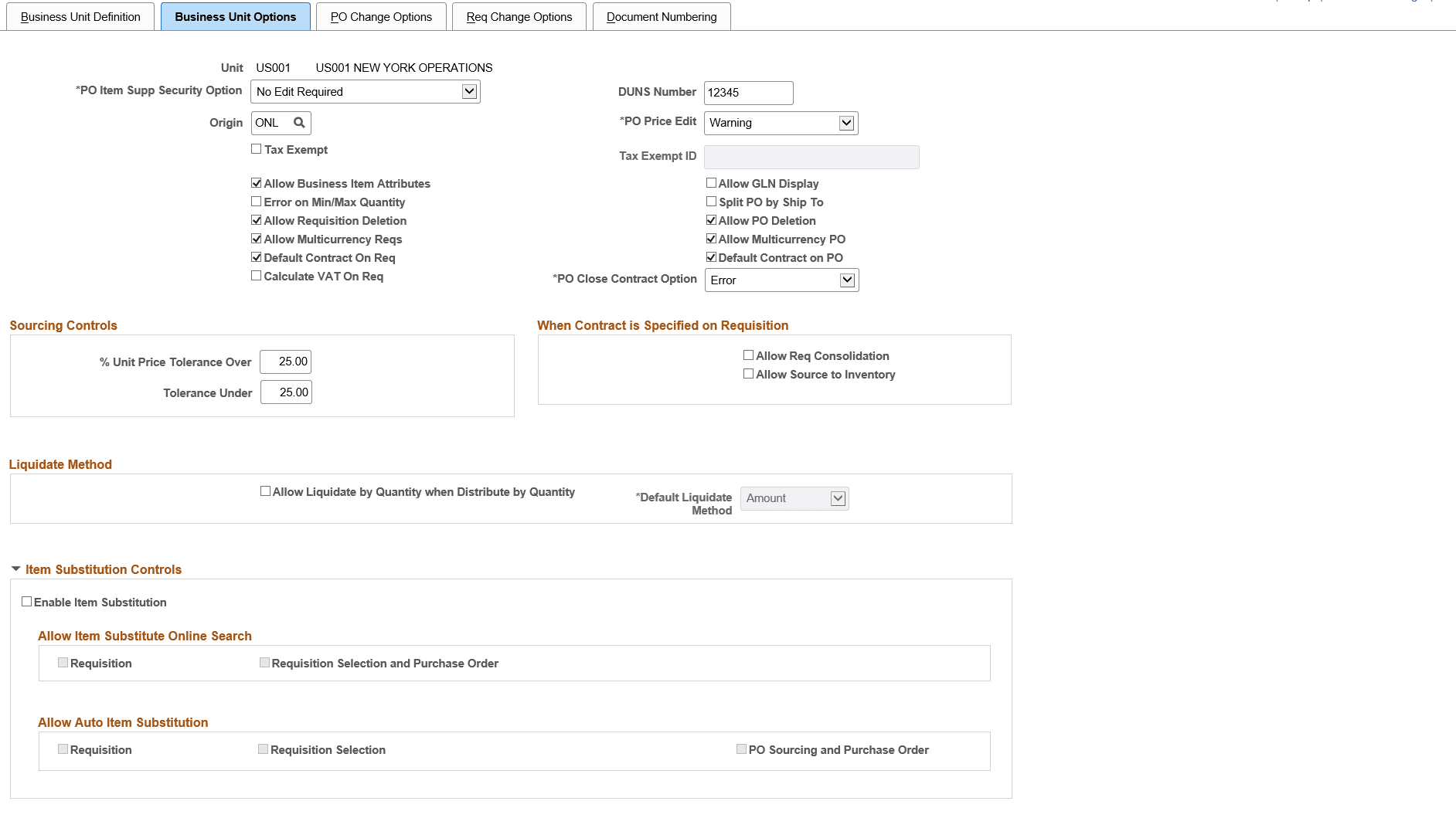
Use the Business Unit Options page to set up Item Substitution for a Purchasing Business Unit.
Navigation:
This example illustrates the fields and controls on the Purchasing — Business Unit Options page. The fields and controls that appear in this page are discussed following the examples.
This example illustrates the fields and controls on the Purchasing — Business Unit Options page (2 of 2). The fields and controls that appear on this page are discussed following the examples.
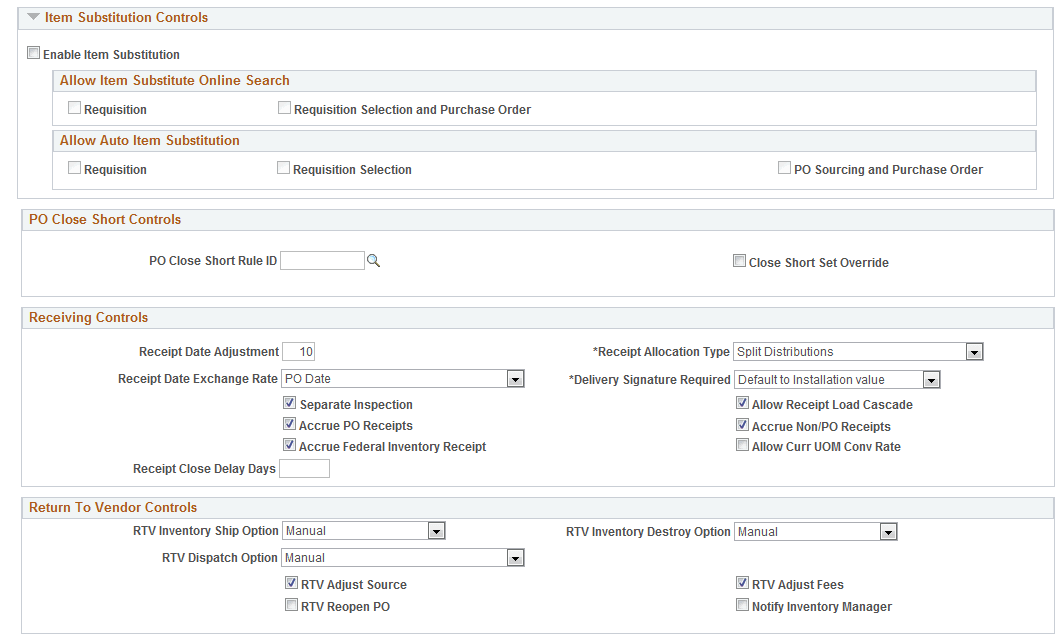
The Business Unit level option controls whether Item Substitution is turned on for the Purchasing business unit. When you select the Enable Item Substitution check box at the Business Unit Options level, the Allow Manual Item Substitution and Allow Auto Item Substitution sections will become available for selection.
If you select check box, all Item Substitute fields will be enabled on the Requisition, the Requisition Selection/Requisition Expediter, the Sourcing Workbench, the purchase order, the receipt, and other applicable components, as needed.
The Requisition check box under the Allow Item Substitution section allows you to enable manual item substitution on the Requisition (core and ePro). The Requisition Selection and check box allows you to enable manual item substitution during Requisition Selection and on the Purchase Order.
The Requisition check box under the Allow Auto Item Substitution section allows you to enable manual automatic item substitution on the Requisition (core and ePro). The Requisition Selection and PO Sourcing and Purchase Order check boxes allow you to enable manual item substitution during Requisition Selection, PO Sourcing, and on the Purchase Order.
Note:
While setting up the item substitution controls, you must ensure that you have selected at least one check box in the Allow Item Substitute Online Search and Allow Auto Item Substitution sections.
Defining Item Substitution Priorities at the Supplier Level
Item substitutes defined at the Item Supplier Location level will apply only to a specific supplier. However, if the Purchase Order Item Supplier Security option for the transaction’s business unit is Edit Required Must Use Item ID or Edit Required When Use Item ID, then the substitute items without an item-supplier relationship will not be available for manual item substitution selection and they will not be provided by default.
SeeDefining Purchasing Item CategoriesSelecting Suppliers Based on Item Ship To and Item Supplier Locations
Defining Item Substitution Priorities at the Item level
Item substitutes defined at the Item level will apply to all suppliers.
Designating Items for Substitution Only
You can filter substitute items during item searches in Procurement transactions if you designate the item for substitutions only. In this case, the substitute item will not be available in any Item ID prompt fields throughout the Procurement system. Instead, the Item ID is considered a substitute item for exclusive use as part of the Manual and Automatic Item Substitution process within the Procurement process.
Overriding Auto Item Substitution
The Override Auto Item Substitute field on the Requester Setup page enables you to deselect the Auto Item Substitution check box on a Requisition Line when you want to retain the current Item ID and do not want it automatically substituted during PO sourcing. Additionally, you will be able to reject a Substitute Item found by Auto Item Substitution in the online Requisition.
If you select the Override Auto Item Substitute check box on the Requestor Setup page, the Auto Item Substitute check box in the requisition line will be ungrayed and it will be selected. You can also deselect this check box if you want to prevent Automatic Item Substitution from occurring for a Requisition line during the Sourcing process.
Selecting this check box also means that if Auto Item Substitution occurs for a Requisition line and a Substitute Item is found, then the Requester can answer No to prevent the Sub Item from overriding the requested item.
If you do not select the check box, then the Auto Item Substitution check box on the Requisition line will be grayed out and selected, and the Requester cannot deselect it. (The Buyer will still have the option to deselect this flag in Requisition Selection.)
SeePeopleSoft Source to Settle Common Information: Defining Requesters.