Understanding the Close Purchase Orders Process
Use the Close Purchase Orders Application Engine process (PO_PORECON) to close qualifying purchase orders that you no longer need to modify. When you run the Close Purchase Orders process, it reconciles various purchase-order-related settings and statuses to change the status of applicable purchase orders to C (completed).
To perform the Close Purchase Orders process you need to have the authorization to do so. To enable users to be able to close purchase orders, you must establish their authorizations using the Procurement - Purchase Order Authorizations page. Using this page you can give the user the ability to close purchase orders as well as override non-qualified purchase orders for close.
The benefit of this status change is that completed purchase orders no longer appear in your list of available purchase orders when you access purchase order pages in update and display mode. These completed purchase orders are also removed from the view in many of the other situations in which the available options have been set to exclude completed or canceled purchase orders. Removing these purchase orders improves system performance and decreases the time required to find purchase orders that you need to modify.
If commitment control is enabled, the Close Purchase Orders process resets the budget header and line statuses, and sets the close flags (KK_CLOSE_FLAG and PROCESS_MANUAL_CLOSE) on the purchase order distributions. This allows the Commitment Control Budget Processor process (FS_BP) to liquidate encumbrance budget amounts for outstanding purchase orders.
Although the Close Purchase Orders process is optional and you can set it to run at any time, running the process at the end of each month helps to improve the efficiency of your purchase order process. You can schedule this process to run automatically by using the PeopleSoft Process Scheduler or initiate it manually by using the Close Purchase Orders page.
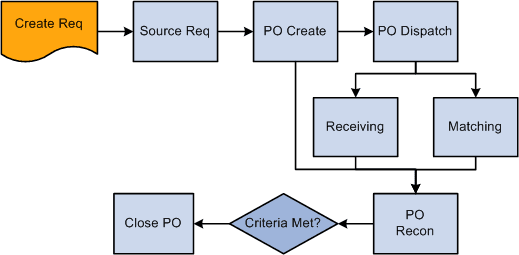
The Close Purchase Orders process occurs at the end of the PeopleSoft Purchasing transaction life cycle. To understand the Close Purchase Orders process, it is important to know where the process fits in the PeopleSoft Purchasing transaction life cycle. This diagram illustrates the transaction flow around the Close Purchase Orders process:
This diagram illustrates the transaction flow around the Close Purchase Orders process:
When you run the Close Purchase Orders process from the Close Purchase Orders page, you have three processing options on the Process Scheduler Request page:
-
Select Close Purchase Order SQR Report (POPO008) to produce the Close Purchase Order report.
-
Select Close Purchase Orders Application Engine process (PO_PORECON) to run the Close Purchase Orders process.
-
Select Close Purchase Orders multiprocess job (PO_POREP) to run the Close Purchase Orders process and produce the Close Purchase Order report.
If necessary, you can run the Purchase Order Reopen process (PO_POREOPEN) to undo the changes made by the Close Purchase Orders process.
See the product documentation for PeopleTools: Process Scheduler